Quotas
Feature Overview
| Item | Content |
|---|---|
| Applicable Role | Model Provider and Model Consumer |
| Navigation Path | AI Infra(On-Prem) > Quotas & Usage > Quotas |
| Page Route | /powerone/quota-usage/quota |
| Managed Object | Configuration, status, and relationships on Quotas |
Beginner Explanation
My quota is like a personal resource balance sheet. It shows how many instances can still be created and how much compute and storage can still be used.
Terms
| Term | Description |
|---|---|
| Quota | Resource upper limit available to a tenant. Common dimensions include GPU, CPU, memory, and specifications. |
| AI card | AI accelerator quota, which may include GPU, NPU, or other cards. |
| Used | Used resource amount. |
Recommended Operation Order
Confirm prerequisites for AI card, CPU, memory, online IDE, and runtime instance quotas, follow Main Operations, run Result Validation, and continue to the next page.
First-Time User Notes
Confirm that the task involves Configuration, status, and relationships on Quotas, and then follow the recommended order. If fields or state differ from expectations, check prerequisites before continuing downstream.
Prerequisites
- The current account has permission to view quotas.
- The operator has allocated resource quotas to the tenant.
- If quota adjustment is needed, target specification and business requirements are clear.
Page Description
Use this page to review accelerator, CPU, memory, online IDE, and runtime-instance quotas.
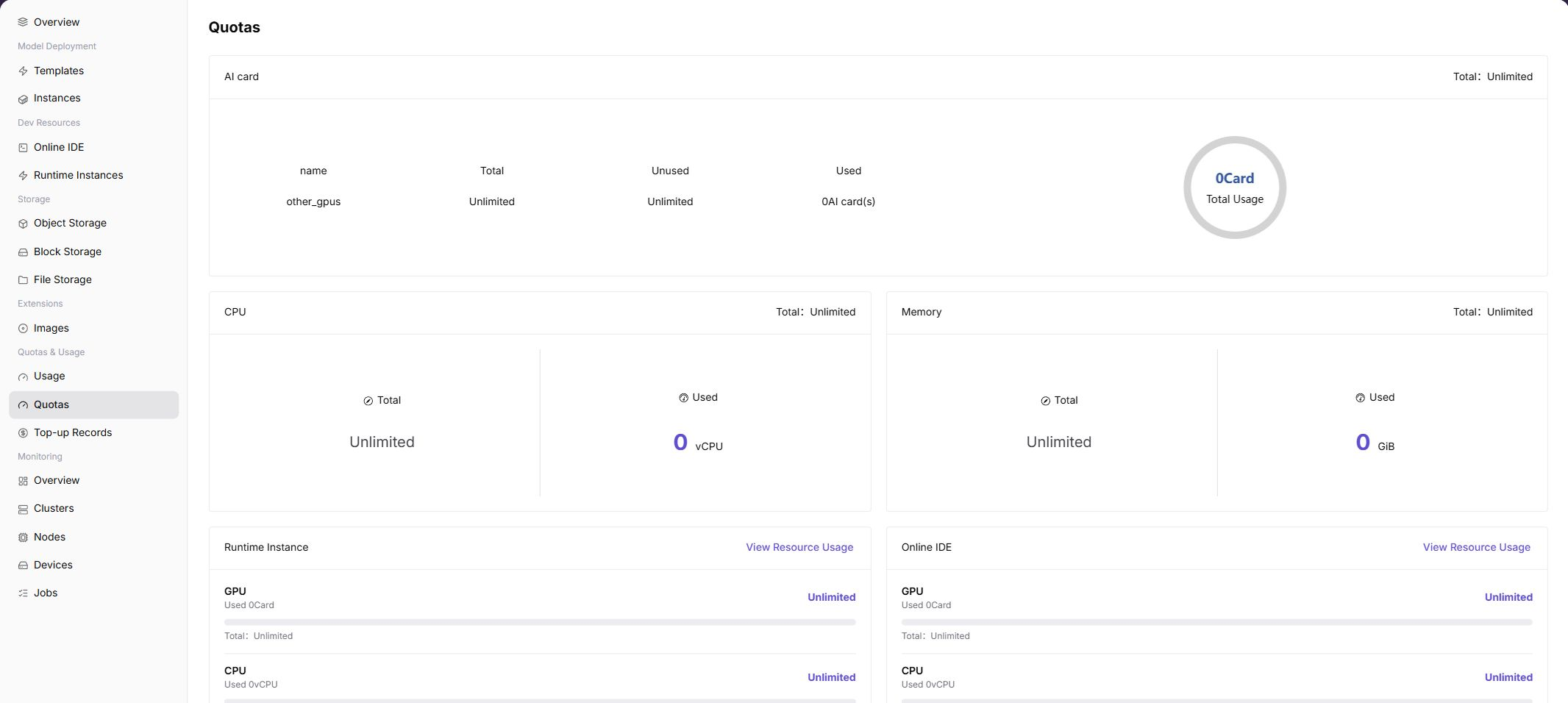
The page displays Total, Unused, and Used by resource type, and separately displays resource occupation for runtime instances and online IDEs. In the screenshot, GPU, CPU, and Memory are Unlimited or 0 Used.
Page Areas
| Field/Area | Description |
|---|---|
| AI card | Displays total, unused, and used amount of AI accelerators. |
| CPU | Displays total CPU quota and used vCPU. |
| Memory | Displays total memory quota and used GiB. |
| Runtime Instance | Displays runtime instance occupation. |
| Online IDE | Displays online IDE occupation. |
| View Resource Usage | Views resource occupation details for the corresponding type. |
Main Operations
View Resource Quotas
- Go to
Quotas and Usage > Resource Quotas. - Filter by project, region, resource type, or status.
- Check total, used, and remaining quota and limits.
- If no record is returned, reset filters and check project and region. Redact quota information before sharing.
Identify Quota Risk and Open a Request
- Sort by utilization to locate resources near or over the limit.
- Open details and check associated instances and recent usage.
- If an increase is required, open the quota-request process and prepare business justification.
- Before submitting a request or adjusting quota, verify the amount and impact and execute the action only after approval.
View Resource Occupation
Applicable Scenario
When creation fails with insufficient quota, or when you need to confirm which instances occupy resources, view resource occupation details.
Pre-Operation Check
- The target resource type, such as GPU, CPU, or Memory, has been confirmed.
- Whether to view runtime instance or online IDE occupation has been confirmed.
Procedure
- Go to
AI Infrastructure > On-Prem > Quota & Usage > Resource Quotas. - Find the
Runtime InstanceorOnline IDEarea. - Click "View Resource Usage".
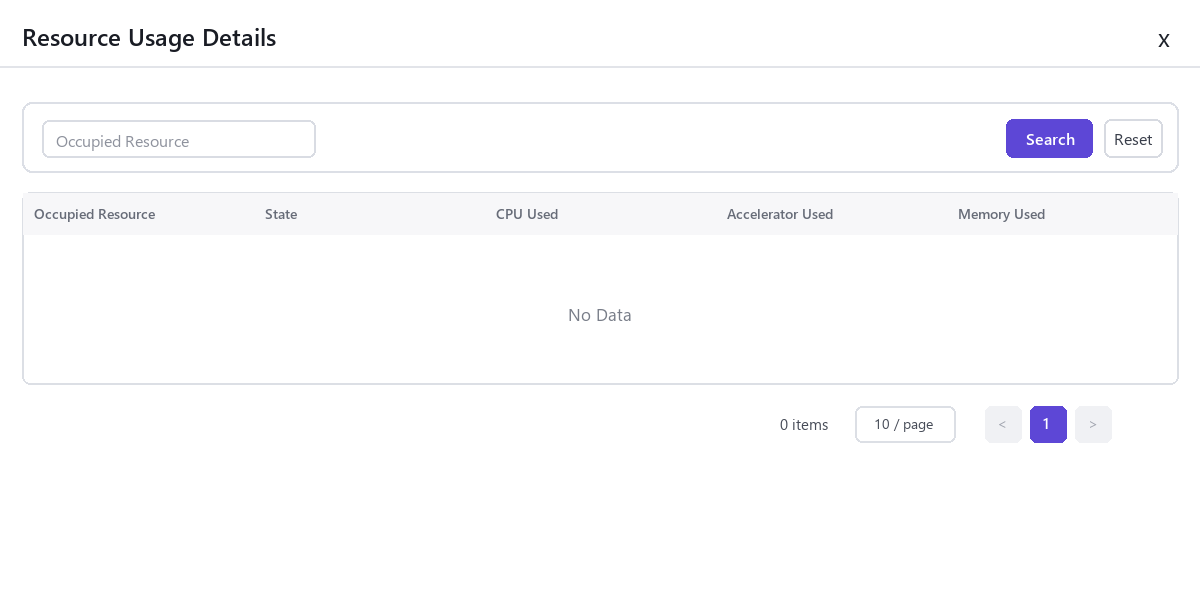
- View resource occupation items in the dialog.
- After locating the occupying instance, go to the corresponding instance list for handling.
The following figure shows the resource occupation details dialog, used to view instance-level resource usage.
Parameter Quick Reference
| Field Name | Required | Field Type | Example | Description |
|---|---|---|---|---|
| Resource Type | Yes | Enum | GPU | View credits for CPU, GPU/NPU, memory, storage, instance count, and other resources. |
| Total Quota | System-generated | Number / capacity | 4 cards | Resource upper limit available to the current account or tenant. |
| Used Quota | System-generated | Number / capacity | 2 cards | Quota already occupied by running resources. |
| Remaining Quota | System-generated | Number / capacity | 2 cards | Quota still available for resource creation. |
| Region | Conditionally required | Drop-down | Central China Zone 1 | Limits the region or resource pool to which the quota belongs. |
| Update Time | System-generated | Date time | 2026-07-06 10:00 | Determines whether quota data has refreshed in time. |
Pitfalls
- When quota is sufficient but creation fails, actual cluster resources may be insufficient.
- If occupation details are empty but Used is not 0, statistical delay may exist.
Configuration Rules and Impact
- Quotas control tenant upper limits and are not equivalent to real-time idle resources in the underlying cluster.
- Online IDE and runtime instance occupation may be counted separately.
- Quota reclamation may have a short delay after instances are released.
Result Validation
| Check Item | Success Signal | If Abnormal |
|---|---|---|
| Page entry | Quotas opens with filters or statistics | Check menu permission, current business identity, and tenant scope |
| Data scope | Lists or statistics match the selected time, region, and object | Reset filters and verify time boundaries, time zone, and aggregation scope |
| Data update | Update time or latest record matches the expected cycle | Check whether the source job, metering, or quota record has been generated |
| Cross-check | Configuration, status, and relationships on Quotas matches its details, billing, or monitoring records | Compare the responsible detail page by object identifier and time range |
FAQ
No Records on Quotas
Symptom:
The page opens, but lists or statistics are empty.
Possible Causes:
- Filters are too narrow.
- source records are not generated.
- the role cannot see them.
Solution:
- Reset filters
- verify the source job or metering cycle
- check business identity and tenant scope.
Quotas Shows the Wrong Scope
Symptom:
Data does not belong to the expected time, region, or object.
Possible Causes:
- Time boundaries differ.
- the region filter did not apply.
- ownership changed.
Solution:
- Select time and region again
- verify object identifiers
- confirm ownership in source details.
Quotas Is Delayed
Symptom:
A source operation completed, but its record is not visible.
Possible Causes:
- Aggregation is not complete.
- the page is cached.
- source state is still processing.
Solution:
- Verify source state
- wait one aggregation cycle and refresh
- inspect the processing task if delay persists.
Details or Download Is Unavailable
Symptom:
The details, expand, or download entry is disabled.
Possible Causes:
- The record does not support it.
- role permission is insufficient.
- the file is not generated.
Solution:
- Select an eligible record
- check role permission
- confirm the statistics or export task is complete.
Summary and Details Do Not Match
Symptom:
The summary differs from the total of individual records.
Possible Causes:
- Periods differ.
- values are rounded.
- some records are still processing.
Solution:
- Align period and time zone
- compare by object
- wait for pending records and check again.
Notes
- Sufficient remaining quota does not guarantee successful creation. Region, specification, image, storage, and cluster capability must also be satisfied.
- Do not expose tenant names, business project names, or internal resource IDs in screenshots.
- Quota refresh may be delayed. After releasing resources, wait until page update time changes.
Next Steps
- When remaining quota is insufficient, release unused instances, jobs, or storage resources.
- After confirming that business expansion is required, contact the operator to request credit adjustment.
- When instance creation fails, verify credits, specification availability, and cluster capacity together.
- Periodically view credit changes to avoid long-running resources occupying all quotas.