Notification Audit
Document Information
Version: v2.1 Updated: 2026-11-16
Feature Overview
| Item | Content |
|---|---|
| Applicable Role | Operator |
| Navigation Path | Settings > System Settings > Notification Audit |
| Page Route | /user/system/notification/center |
| Managed Object | Notification name, business topic, target tenant, source service, delivery channels, dispatch status, and trigger time |
Beginner Explanation
Notification Audit is the platform delivery ledger. Use it to check whether a notification was generated, which tenant received it, which channels were used, and the final status. It does not replace the live state of the business page.
Terms Quick Reference
| Term | Description |
|---|---|
| Message ID | The unique identifier of a notification message. |
| Target tenant | The tenant that received the notification. |
| Source service | The backend service that generated the notification. |
| Delivery channels | In-app, email, and other delivery channels. |
| Dispatch status | The final delivery status. |
Prerequisites
- The current account can open
Settings > System Settings > Notification Audit. - Before troubleshooting, you have the notification name, target tenant, or approximate trigger time.
Page Description
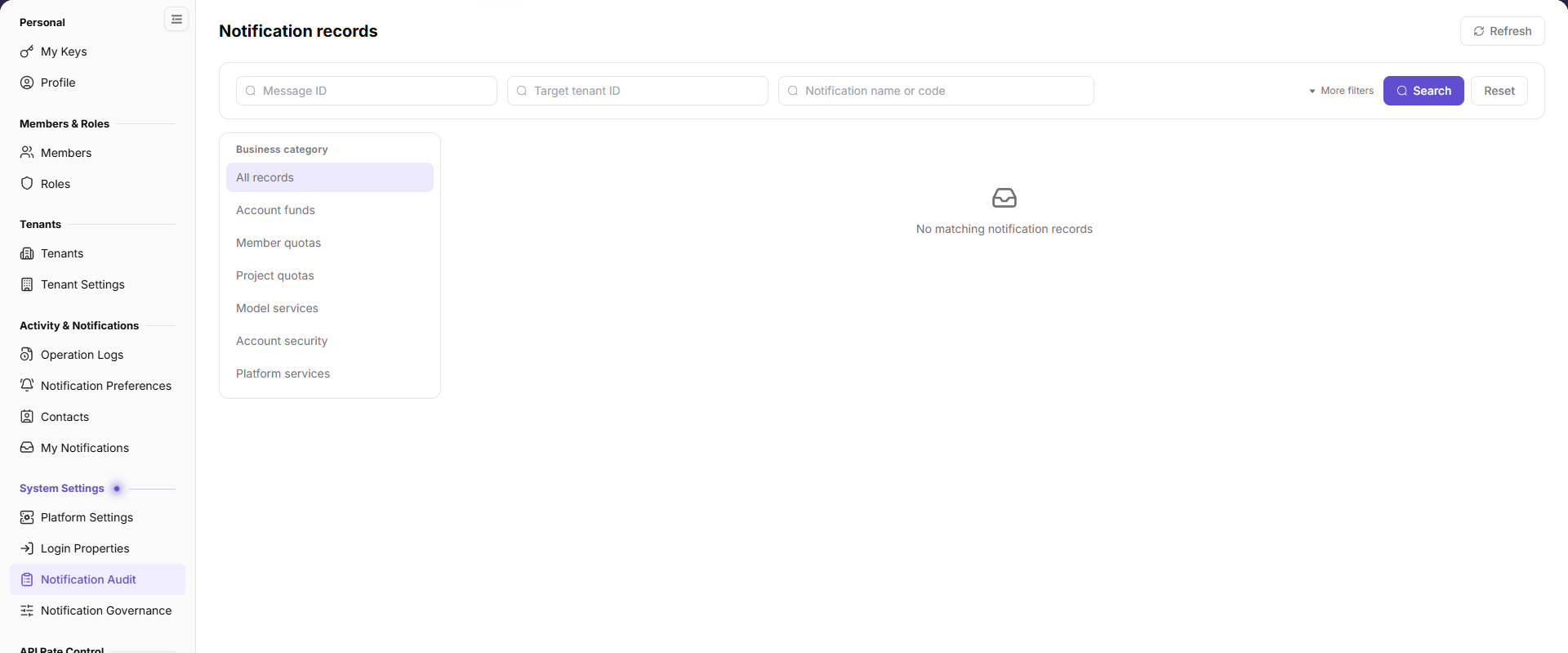
The page provides Message ID, target tenant ID, notification name/code, more filters, and business-topic filters.
| Area | Description |
|---|---|
| Search | Query by Message ID, target tenant ID, or notification name/code. |
| More filters | Expand additional filter conditions. |
| Business topic | All records, Account & Fund Messages, Product Messages, Security Messages, Anomaly Notifications, Activity Messages, Service Messages. |
| List | Shows notification, business topic, target tenant, source service, delivery channels, dispatch status, trigger time, and actions. |
Main Operations
Query Notification Records
- Go to
Settings > System Settings > Notification Audit. - Enter a Message ID, target tenant ID, or notification name/code.
- Expand
More filterswhen needed and select a business topic. - Click
Search; clickResetto clear conditions.
View Notification Record Details
- Locate the target record in the list.
- Click
Details. - Review the notification content, target tenant, source service, channels, dispatch status, and trigger time.
- For further troubleshooting, compare Notification Governance, Contacts, and the business module state.
Parameter Quick Reference
Query and Filters
This group is for queries and filters only. An em dash means the source does not specify required status, type, or example; it is not a backend rule. Grouped controls list their conditions in the Description column.
| Field Name | Required | Field Type | Example | Description |
|---|---|---|---|---|
| Search | — | — | — | Query by Message ID, target tenant ID, or notification name/code. |
| Business topic | — | — | — | All records, Account & Fund Messages, Product Messages, Security Messages, Anomaly Notifications, Activity Messages, Service Messages. |
Existing Configuration and Result Fields
| Field Name | Required | Field Type | Example | Description |
|---|---|---|---|---|
| Notification | System-generated | Text | Platform update completed | Notification name. |
| Business topic | System-generated | Enum | Service Messages | Notification category. |
| Target tenant | System-generated | Text | Example Tenant | Tenant that received the notification. |
| Source service | System-generated | Text | Example Service | Backend service that generated it. |
| Delivery channels | System-generated | Multi-select | In-app, Email | Channels used for delivery. |
| Dispatch status | System-generated | Enum | Completed | Delivery result. |
| Trigger time | System-generated | Date time | 2026-10-28 17:34:38 | When the notification was triggered. |
Pitfalls
- The target tenant ID must match exactly; partial names may not return records.
- Records show delivery results, not whether business data is still consistent.
- The same notification may appear in multiple records for different channels; check the Message ID and channel together.
- Records may contain tenants, accounts, and business data. Redact before screenshots or external sharing.
Result Validation
| Check Item | Success Signal | If Abnormal |
|---|---|---|
| Search | The list refreshes by Message ID, tenant, or notification name. | Check the condition format and combined filters. |
| Business topic | The list matches the selected topic. | Clear other filters and retry. |
| Details | Clicking Details shows delivery information. | Refresh the page; if it still fails, check permission. |
| Pagination | Historical records can be paged. | Narrow the time or condition range. |
FAQ
Why can't I find a notification record?
Symptom:
No expected record appears by notification name or tenant.
Possible cause:
The notification was not triggered, the target tenant ID does not match, the filters are too narrow, or the record exceeded retention.
Resolution:
Clear filters and query by Message ID or exact tenant ID. If it is still missing, check Notification Settings and the source service.
What should I do when the dispatch status is failed?
Symptom:
The record shows a failed or incomplete delivery.
Possible cause:
The channel is not configured, the contact is missing, recipient eligibility is not met, or an external service is abnormal.
Resolution:
Check Notification Governance, Contacts, and channel status. Contact a platform administrator when needed.
Notes
- Notification Records is audit data. Do not modify or forge records.
- Redact tenants, accounts, and business content before sharing.
- Do not use records as a substitute for the live business state.
Next Steps
- To check notification types and channels, go to Notification Governance.
- To check contacts, go to Contacts.