Runtime Instances
Document Information
Version: v2.2 Updated: 2026-11-16
Feature Overview
| Item | Content |
|---|---|
| Applicable Role | Model Provider |
| Navigation Path | On-Prem > Dev Resources > Runtime Instances |
| Page Route | /powerone/inference/online-inference |
| Managed Object | Runtime instances (Single Node / Cluster cards), Image and Image Version, Specification, Storage Paths, Container Open Ports, Environment Variables, Startup Command, and Task Log Files |
Beginner Explanation
A runtime instance is like an on-demand task machine: you prepare the image, code, data, and startup command, and the platform starts the instance according to the selected specification. It is more task-execution oriented than Online IDE and more flexible than model instances.
Terms Quick Reference
| Term | Description |
|---|---|
| Image | Instance runtime environment. |
| Startup Command | Command or script executed after container startup. |
| Batch Processing | One-time or periodic task that processes data, converts files, or generates results, usually exiting after completion. |
Recommended Operation Order
Confirm the image, specification, storage, and startup command prerequisites, then fill the form in order - Deployment Type, Basic Information, Runtime Configuration, Storage Configuration, Service Exposure, Startup Configuration, and Task Log Files - run Result Validation, and continue to the next page.
First-Time User Notes
Confirm that the task needs a new runtime instance, and then follow the recommended order. If fields or state differ from expectations, check prerequisites before continuing downstream.
Prerequisites
- The current account has permission to create runtime instances.
- Available images and specifications exist.
- Training scripts, model files, or input data have been prepared.
- Output directories have been planned to object storage, file storage, or shared directories.
- Startup commands do not contain real keys, passwords, tokens, or AK/SK.
Page Description
Use this page to view runtime instances and to start the creation flow.
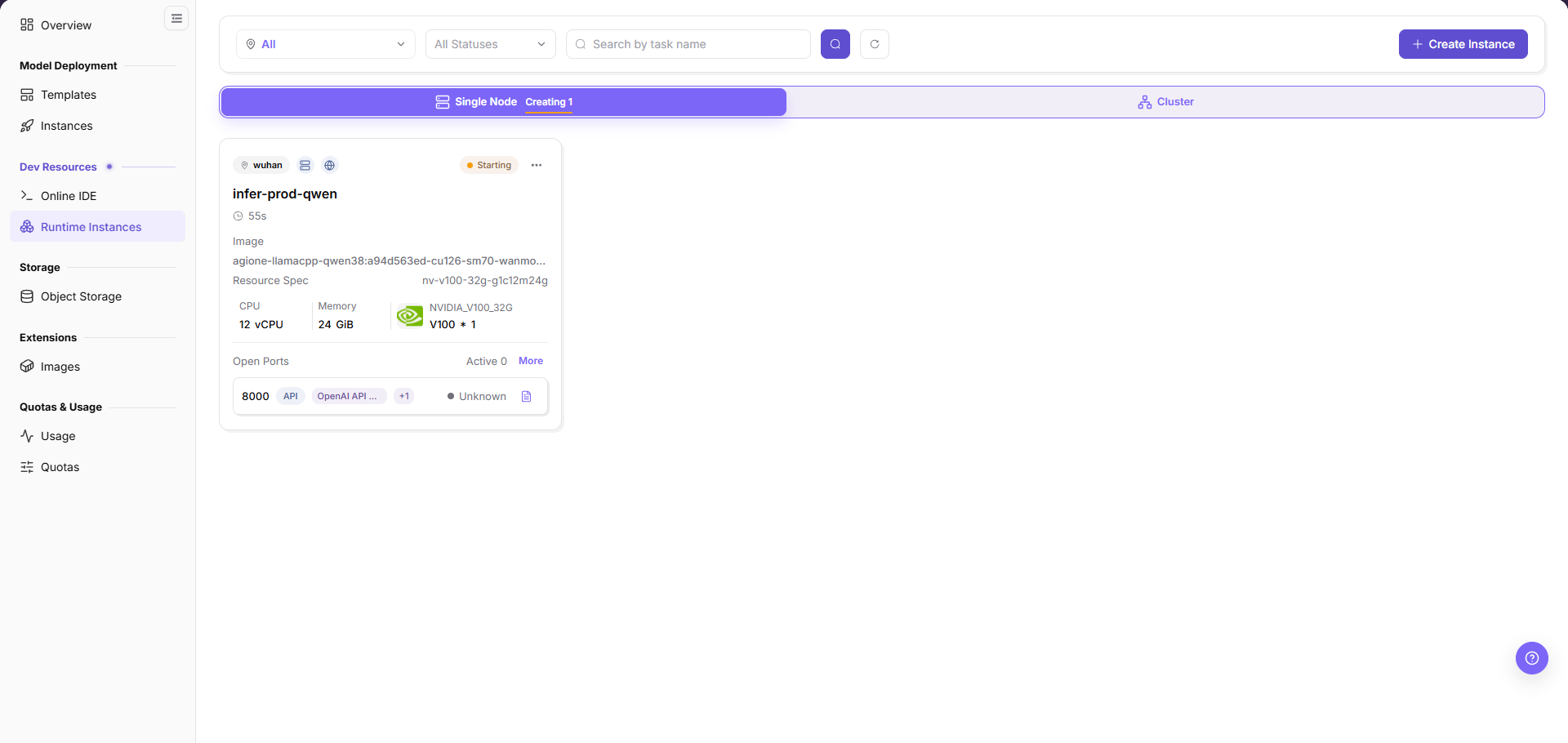
The list page organizes instances under the Single Node and Cluster tabs, and provides filtering by region and status, search by task name, clearing the filters, and the Create Instance entrypoint. Each instance is shown as a card with its status, image, resource specification, and open ports. The create entrypoint first selects a deployment type and then opens the task parameter form.
Python Training Script
Used to start a training entry script. Check the entry script, data source, output location, and parameter passing method. Do not record real paths or test parameters in the document.
Shell Script
Used to execute batch processing, data preparation, or multi-step tasks. Before creation, confirm that the script exists in the image or mounted directory, and that output is written to a persistent path.
Custom Service
Used to start a long-running service process. Before creation, confirm the service entrypoint, listening method, health status, and resource release method.
Parameter Passing Methods
| Area | Description |
|---|---|
| Command-line parameters: The script supports command-line parameters. | Pass parameters on the command line inside Startup Command. Do not record real parameters in the document. |
| Environment variables: The framework reads environment variables to control behavior. | Describe field usage only. Do not record real tokens, passwords, or endpoints. |
| Configuration file: Many parameters or reusable configuration is needed. | Confirm that the configuration file comes from a mounted directory or an image built-in path. |
| Mount path: Input data, model files, or output results. | Confirm that input and output directories use persistent storage. |
Main Operations
Create Runtime Instance
Applicable Scenarios
Use this to start an independently running task instance in Single Node form. Cluster creates a cluster task with a master node and Worker nodes; its parameter form adds a cluster-level configuration block and splits the startup command into a master-node command and a worker-node command; this page does not quote the English labels of those fields.
Steps
- Go to
On-Prem > Dev Resources > Runtime Instances. - Click
Create Instanceto open theCreate Runtime Instancepage, which prompts you to select a deployment type before filling in the task parameters. - In the
Deployment Typearea, selectSingle Node, described as creating an independently running task instance. - Click
Fill Parameterson the card to open the task parameter form. - In the
Basic Informationgroup, setRegion(the drop-down also shows the health status of the region),Project(which can be left as the value for not specifying a project), andTask name. - In the
Runtime Configurationgroup, clickSelect Image, choose the target image from the image list, and then select the specific version inImage Version. - Select the target row in the
Specificationlist, which is made up of theSpec,CPU,Memory,Accelerator, andPricecolumns. - In the
Storage Pathslist underStorage Configuration, check theContainer Path,Access Policy,External Storage,Storage Type,Capacity, andActionscolumns, and clickAdd Storage Mountwhen a new mount is required. - In the
Service Exposuregroup, clickAdd Portand declare the container listening port and its access method in theContainer Port,Access Policy, andPort Tagfields of that row. - In the
Startup Configurationgroup, check theVariable Name,Variable Value,Source, andActionscolumns ofEnvironment Variables, clickAdd Environment Variableas needed, and enter the command to run after container startup inStartup Command. - In the
Startup Configurationgroup, clickAdd Log Fileto register the log files to collect inside the instance; when nothing is registered the area showsNo task log files. - Review every group and click
Createto submit, or clickCancelto discard.
After you click Create Instance, the Deployment Type page appears first, and the Single Node and Cluster cards each provide a Fill Parameters entry.
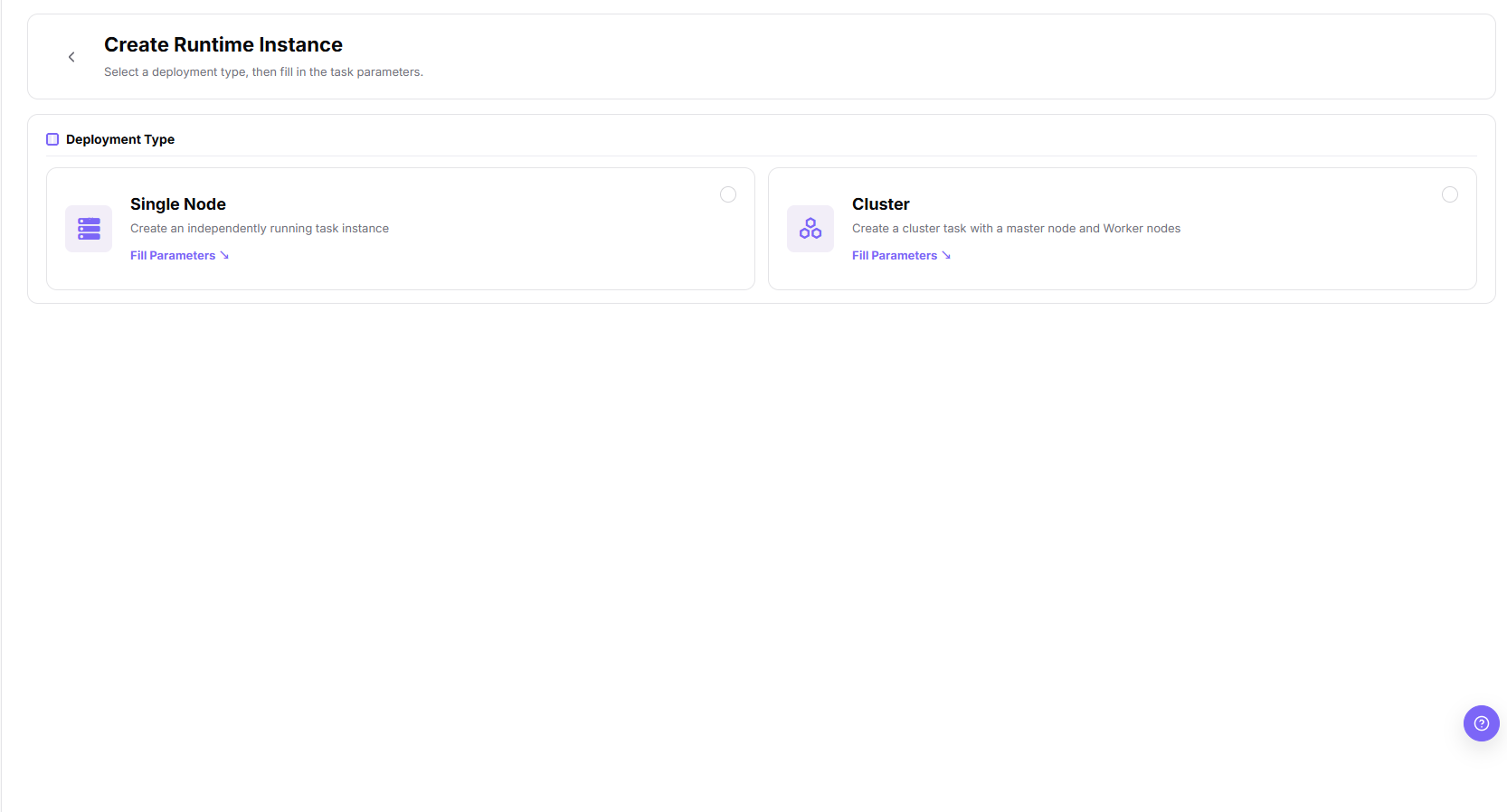
The figure shows the Single Node deployment-type entry.
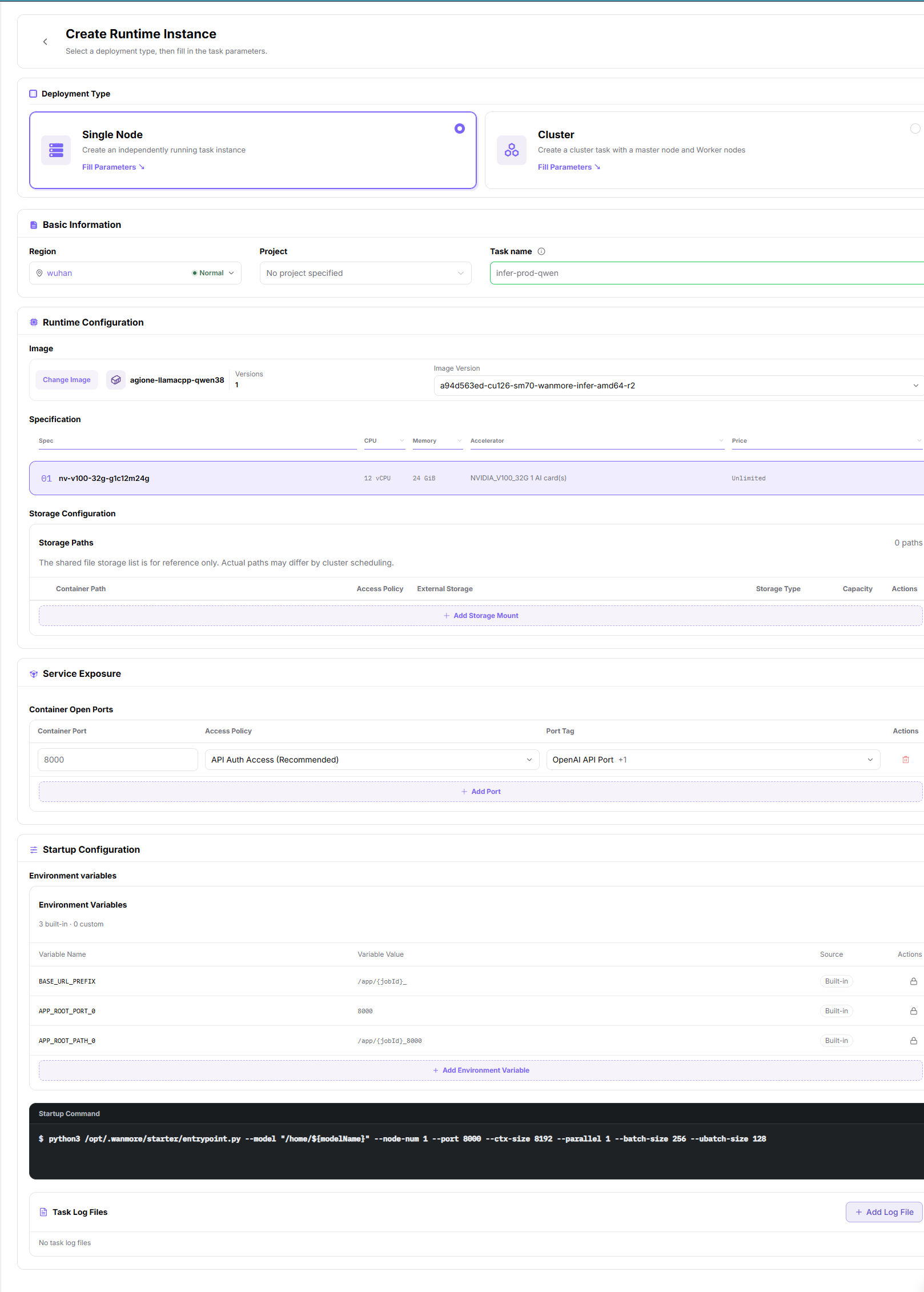
The figure shows the task parameter form with Single Node selected in Deployment Type. It has seven groups from top to bottom: Deployment Type, Basic Information, Runtime Configuration, Storage Configuration, Service Exposure, Startup Configuration, and Task Log Files.
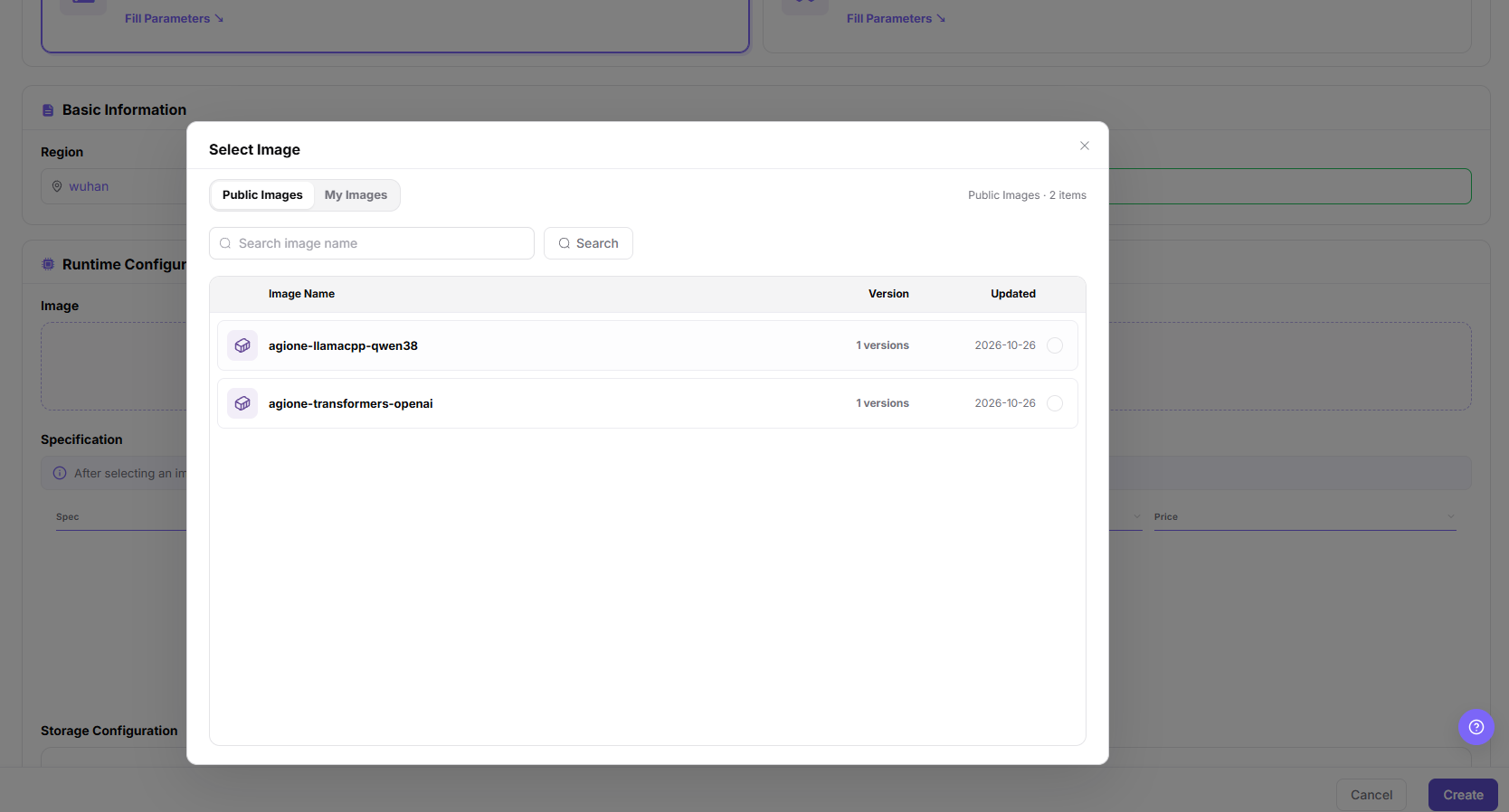
The figure shows the image picker opened by Select Image in step 6: its title is Select Image, it contains the Public Images and My Images tabs, its list is made up of the Image Name, Version, and Updated columns, and it shows a top-right close icon. The Cancel and Create buttons belong to the background task parameter form.
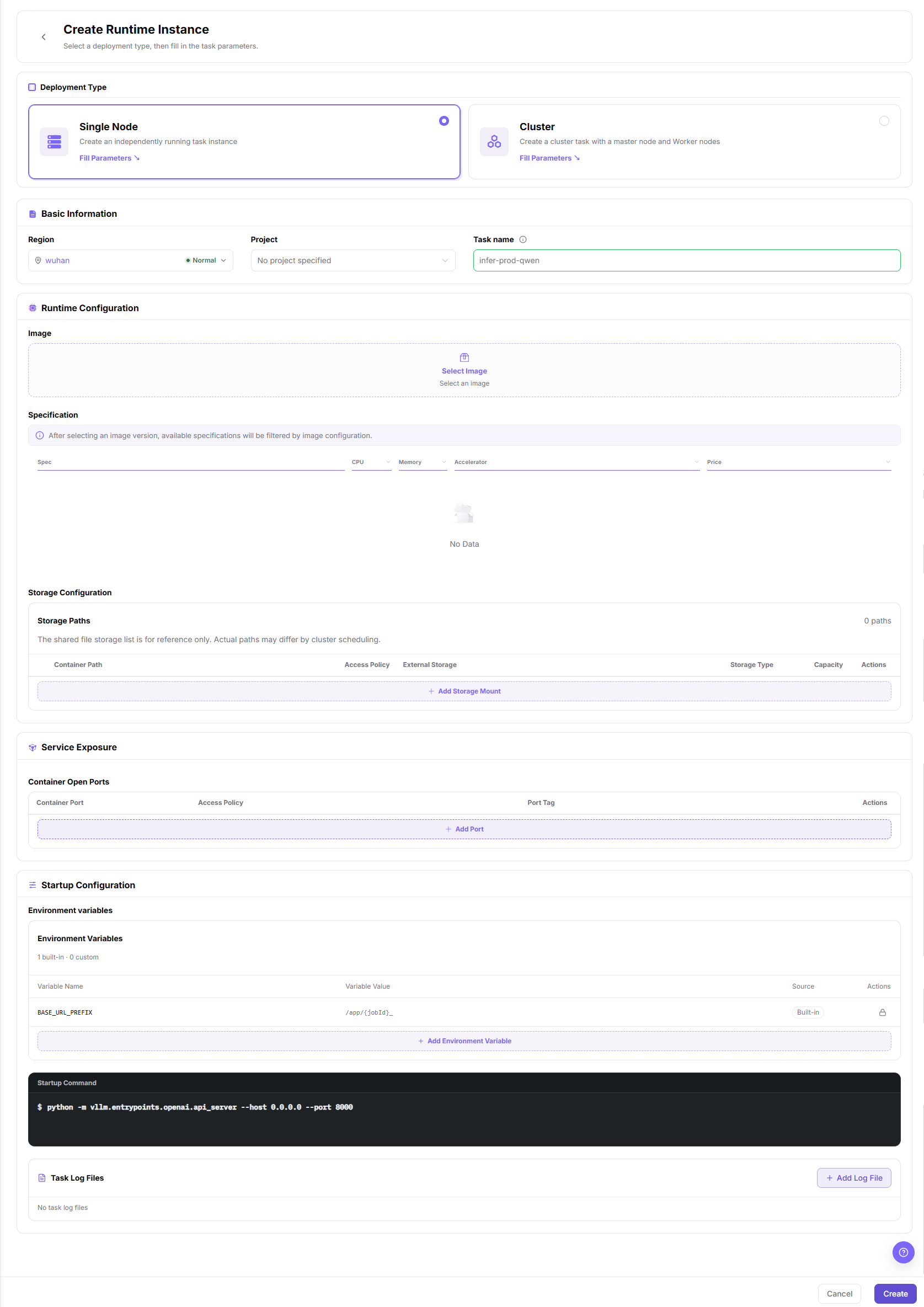
The figure shows the form before image selection: the Image area under Runtime Configuration shows the Select Image and Select an image placeholders, the Specification list shows No Data, and the bottom-right corner of the page pins the Cancel and Create buttons.
Result Validation
- The instance appears under the corresponding tab, and the task name on the card matches the value entered in
Task name. - The image, resource specification,
CPU,Memory, and accelerator count on the card match what was selected at creation. - The
Open Portsblock shows the port rows configured at creation.
Notes
- Entries whose
SourceisBuilt-ininEnvironment Variablesare generated by the platform, and theirActionscolumn only provides a lock indicator. - Before an image is selected,
SpecificationandStorage Pathsmay return no data. Complete the image selection before checking downstream configuration.
Parameter Quick Reference
Query and Filters
These fields come from query or filter controls described on this page. An em dash means the source gives no required mark, type, or example; it does not define backend rules.
| Field Name | Required | Field Type | Example | Description |
|---|---|---|---|---|
| Region (list filter) | — | — | — | Filters runtime instances by region. |
| Status (list filter) | — | — | — | Filters runtime instances by status. |
| Task name (list search) | — | — | — | Searches runtime instances by task name. Clearing filters is a separate list action. |
An em dash in Example means that this page provides no example; it is not a default or a value to enter.
| Field Name | Required | Field Type | Example | Description |
|---|---|---|---|---|
| Task name | Yes | Text | — | Display name of the runtime instance on the list card. |
| Deployment Type | Yes | Radio card | — | Select the single-node or cluster form. |
| Region | Yes | Drop-down | — | Select the target region. The drop-down also shows the health status of the region. |
| Project | Not marked | Drop-down | — | Set the ownership scope of the instance, which can be left unspecified. |
| Image | Yes | Dialog picker | — | Select through Select Image or Change Image from Public Images and My Images. |
| Image Version | Yes | Drop-down | — | Specify the Image Version among the versions of the selected image. |
| Specification | Yes | List selection | — | Select the target specification in the list made up of Spec, CPU, Memory, Accelerator, and Price. |
| Resource Spec (list card) | N/A | Card field | — | The label shown on the list card for the selected compute specification. The create form uses the Specification list. |
| Storage Paths | Not marked | Table configuration | — | Configure Container Path, Access Policy, External Storage, Storage Type, and Capacity through Add Storage Mount. |
| Container Open Ports | Not marked | Table configuration | — | Configure Container Port, Access Policy, and Port Tag through Add Port. |
| Environment Variables | No | Key-value configuration | — | Check entries whose Source is Built-in, and add custom entries through Add Environment Variable. |
| Startup Command | Yes | Text | — | Configure the command or script executed after container startup. |
| Task Log Files | Not marked | List configuration | — | Register the log files to keep inside the instance through Add Log File. |
The page shows no required-field marker on the field labels. For rows marked Not marked in the Required column, the submission validation result of the page prevails.
Script purposes and parameter passing methods are described in Page Description.
Pitfalls
- Runtime instance status changes may affect downstream flows. Confirm impact before submission.
- Sanitize credentials, addresses, customer information, or business identifiers before attaching screenshots or tickets to a support request.
- If the list is empty, check filters, region, and permissions first.
- The label of the final action button follows what the page actually shows; the screenshots in this page show
CreateandCancel. - Creating a runtime instance occupies quota, scheduling resources, and storage resources.
- Incorrect startup command, environment variable, or mount path configuration may cause instance startup failure or output loss.
- Reading a
0counter inOpen Portsas "no port was exposed" is a misjudgment: the port row may already be present as configured, with only its status still unknown.
Result Validation
| Check Item | Success Signal | If Abnormal |
|---|---|---|
| Page entry | Runtime Instances opens with the target operation entry | Check that the current account has permission for runtime instances and that the menu is available |
| Object record | The instance appears under the corresponding tab, and its card shows Image, Resource Spec, CPU, Memory, and Open Ports | Reset filters and verify name, ownership, and creation result |
| State result | State after creation or change matches the page message | Check operation feedback, dependency state, and latest update time |
| Downstream use | A downstream page can select or associate the target | Return to prerequisites and check enabled state, ownership, and visibility |
FAQ
Target Is Missing from Runtime Instances
Symptom:
The page opens, but the expected runtime instance is missing.
Possible Causes:
- Filters remain active.
- The object belongs to another scope.
- A prerequisite is incomplete.
Solution:
- Reset filters
- Verify region or tenant ownership
- Confirm prerequisite state.
The Operation Entry on Runtime Instances Is Unavailable
Symptom:
The Create Instance entry is hidden or disabled.
Possible Causes:
- Role permission is insufficient.
- The page is read-only.
- Dependencies are not ready.
Solution:
- Check the current account permission
- Read the page message
- Complete dependency configuration first.
A Required Field on Runtime Instances Has No Options
Symptom:
The form opens, but a selection list is empty.
Possible Causes:
- Candidates are disabled.
- Ownership differs.
- The current account cannot see them.
Solution:
- Check candidate state
- Verify ownership
- Confirm visibility and refresh the form.
Runtime Instances Has an Abnormal State After the Operation
Symptom:
A record exists after submission, but its state is unexpected.
Possible Causes:
- Connectivity or validation failed.
- A dependency is abnormal.
- Processing is incomplete.
Solution:
- Check feedback and update time
- Inspect related objects
- Troubleshoot the processing stage.
A Downstream Page Cannot Use Runtime Instances
Symptom:
The current page is normal, but a downstream page cannot select or associate the runtime instance.
Possible Causes:
- Visibility differs.
- The object is disabled.
- Downstream cache is stale.
Solution:
- Check enabled state and ownership
- Verify role visibility
- Refresh and select again.
Notes
- Do not write keys directly in startup commands, environment variables, or screenshots.
- Output data should be written to persistent storage to avoid loss after instance release.
- Do not write real tenant, region, image address, resource specification ID, data path, output path, token, password, endpoint, startup parameter, log, or test data in the document text. The screenshots in this page are captured from the interface, and the task names, image and specification values, and region names shown there are interface content and are not covered by this rule.
Next Steps
- Enter instance details to view logs and output.
- Evaluate resource consumption from the usage page.
- After the task completes, act on the instance through the items that the instance card actually provides.
- Accumulate stable commands into team scripts or inference template parameters.