Profile
Feature Overview
| Item | Content |
|---|---|
| Applicable Role | Operator Account |
| Navigation path | Settings > Personal > Profile |
| Page route | /user/user-space/profile |
| Managed objects | User information, password status, security information, phone number, and email address |
Beginner Explanation
Profile is the identity card for a platform administrator. Use it to confirm the administrator's identity source, sign-in method, security status, and auditable information. It is not a user-side tenant profile.
Terms Quick Reference
| Term | Description |
|---|---|
| Operator account | An administrator identity that can access the operator console.; Confirm its management scope before a change. |
| Identity source | Indicates whether an account was created locally or synchronized from an identity provider.; Check the source first when a field cannot be edited. |
| Sign-in method | Password, single sign-on, or another authentication method.; Compare it with Login Properties during troubleshooting. |
| Security information | MFA, password status, recent sign-in, and other security indicators.; Do not expose complete account information during troubleshooting. |
Prerequisites
- The current account is signed in.
- You have opened
Personal > Profile. - Before sharing page information, you have checked whether it contains contact details or account identifiers.
Page Description
The page displays the current account's identity, contact, security, and permission information. Use it to confirm the active account before administrative actions.
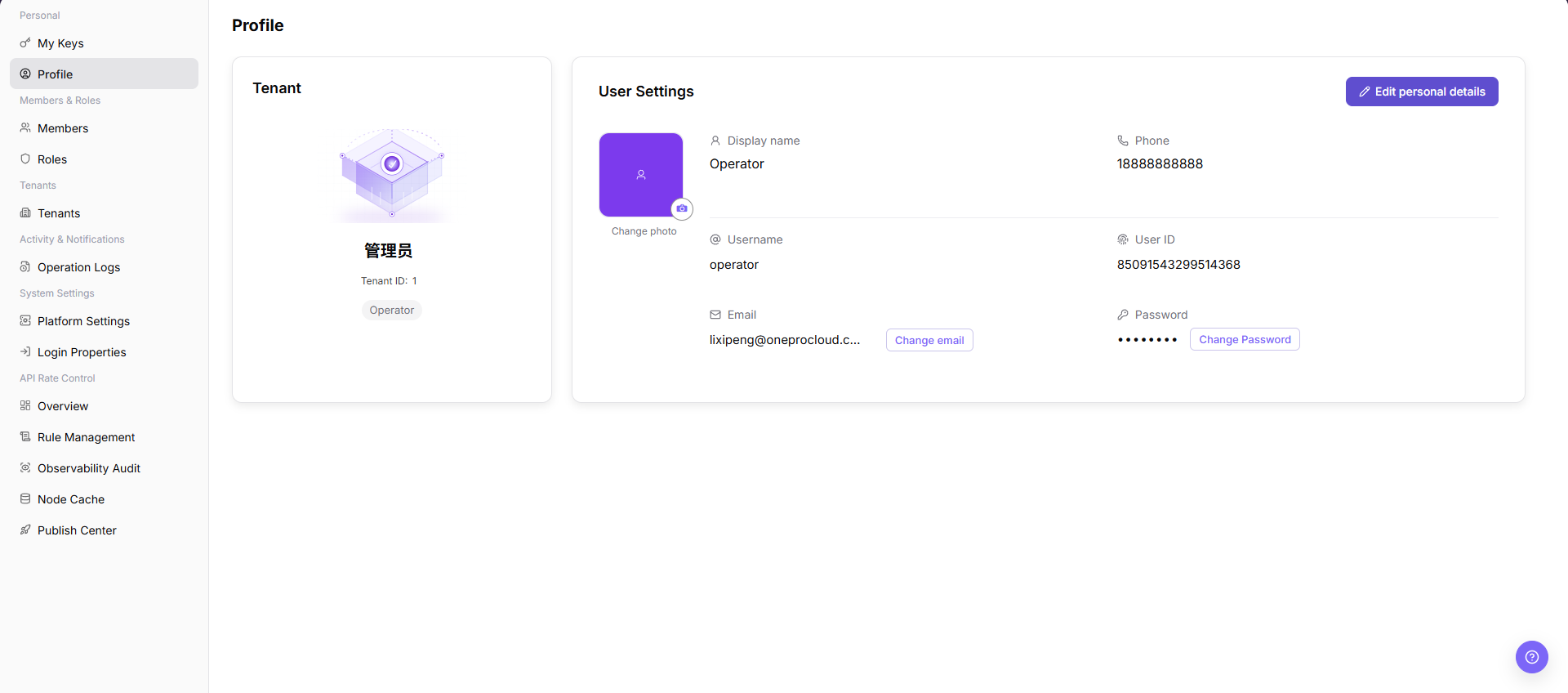
| Area | Description |
|---|---|
| User Information | Shows the account name, account identifier, and other basic information. |
| Account Password | Shows password status and related information. |
| Security | Shows the phone number, email address, and other security contact information. |
Main Operations
View Account Information
- Go to
Settings > Personal > Profile. - Check the username, display name, email, tenant, and roles.
- Confirm that sensitive fields are redacted and the account status is normal. If information is missing, refresh and check permissions.
- Hide email, contact details, and internal identifiers before screenshots or sharing.
Edit Account Profile
- After an approved edit, reopen the profile.
- Check that the display name, avatar, or other editable fields changed and that protected fields such as username and tenant did not.
- If the change is not applied, check required fields, format, the save message, and cache refresh.
- Do not put passwords, Tokens, keys, or internal sensitive information in profile fields.
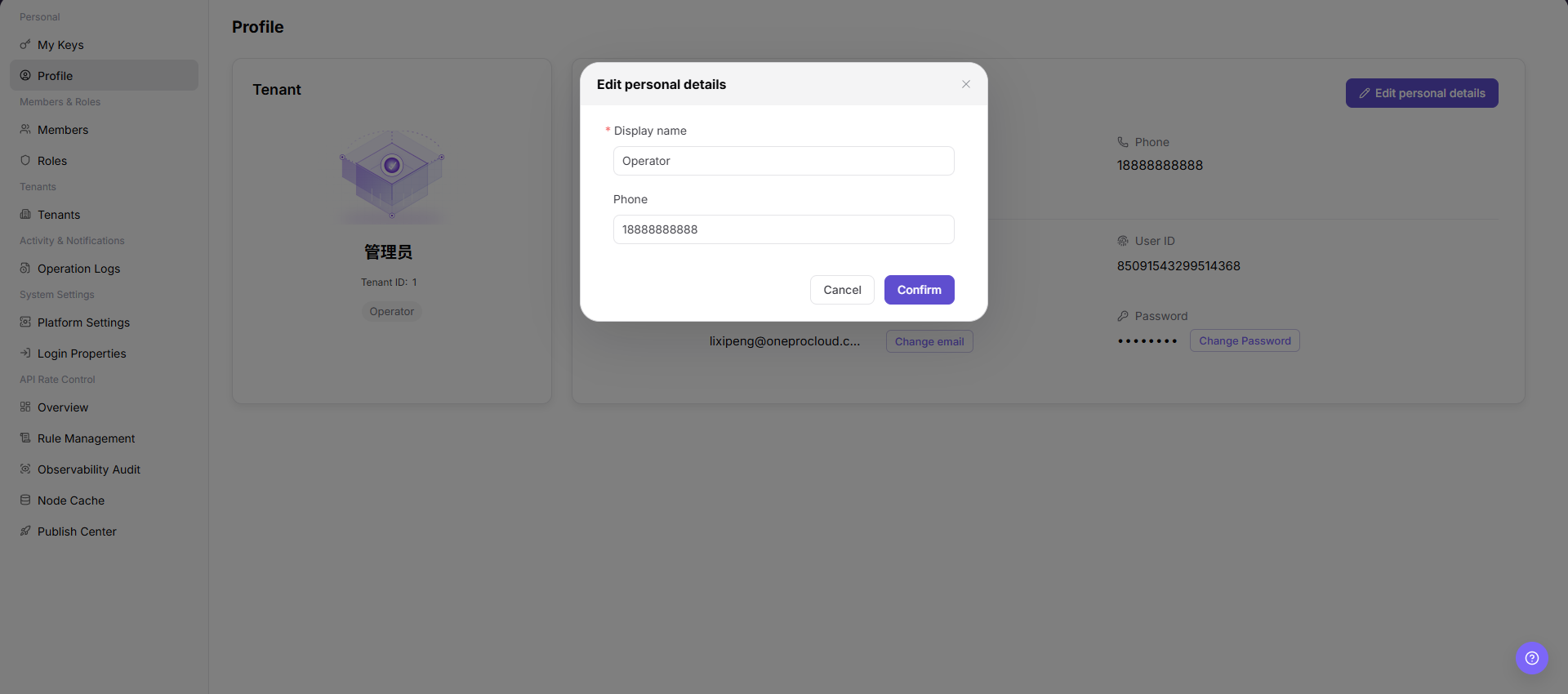
The dialog shows the editable personal-detail fields. Verify the values before saving, or click Cancel when only reviewing the page.
Parameter Quick Reference
| Field Name | Required | Field Type | Example | Description |
|---|---|---|---|---|
| Display name | Yes | Text | Example Admin | The account display name shown on the page. |
| Phone | No | Text | 188****8888 | Used for contact, notifications, or security verification. |
| System displayed | Text | user@example.com | The email address bound to the current account. | |
| User ID | System displayed | Text | Example user ID | The system identifier of the current account. |
| Password | System displayed | Password | ****** | Shows password status or password change entry. |
| Actions | System generated | Button | Edit personal details | Opens the editable personal details dialog. |
Pitfalls
Confirmis the final submit action. For learning or screenshots, only view fields and useCancelto exit.- Editing personal details can affect account display name, contact information, notification delivery, and later audit identification.
- Do not write real phone numbers, emails, user IDs, account names, customer names, or internal test data in documentation.
Result Validation
| Check Item | Success Signal | If Abnormal |
|---|---|---|
| Page access | The Personal > Profile page opens and data loads normally. | Check role permissions and refresh the page. |
| Profile details | Display name, phone, email, user ID, and password area are visible. | Refresh the page or confirm account permissions. |
| Edit dialog | Clicking Edit personal details opens the same-name dialog. | Check whether profile editing is allowed for the current account. |
| Cancel exit | Clicking Cancel closes the dialog without submitting changes. | Refresh the page and verify the displayed values again. |
FAQ
Security contact information is incorrect
Symptom:
The phone number or email address differs from the expected value.
Possible cause:
The account profile was not updated, or the signed-in account is not the intended account.
Resolution:
Confirm the signed-in account, then update security contact information through the approved account-management process.
Why is some operator account information missing?
Symptom:
Security information, the sign-in method, or contact details are absent.
Possible cause:
The account is synchronized from an identity provider, sensitive fields are hidden by permission, or account initialization is incomplete.
Resolution:
Confirm the account source and synchronization status. Complete editable fields through the platform account process. Ask a platform administrator to investigate missing sensitive fields.
Why cannot the operator profile be edited?
Symptom:
The profile is visible, but contact information, security information, or the sign-in method cannot be changed.
Possible cause:
The account is managed by an identity provider, sensitive changes require administrator approval, or the sign-in method does not support self-service changes.
Resolution:
Request the change through the platform account process. Maintain identity-provider fields in the identity platform, then sign in again to confirm synchronization.
How should the Profile page be exported or captured safely?
Symptom:
Page information is needed for troubleshooting, audit, or delivery.
Possible causes:
The page may contain accounts, email addresses, IP addresses, internal paths, tenant identifiers, Keys, or amounts.
Resolution:
Keep only the necessary fields and action context. Use opaque light-gray pixel mosaics for sensitive text and never share complete credentials or internal addresses.
What should I do when the Profile page shows unexpected data?
Symptom:
A field, status, metric, or related object differs from the expectation.
Possible causes:
The page scope, time condition, role permission, or upstream setting does not match.
Resolution:
Record the redacted object, time, and result. Verify the entry and filters first, then check related pages and Operation Logs.
Notes
- Profile may contain phone numbers, email addresses, and account identifiers.
- Do not send screenshots containing complete account information through external communication channels.
Confirmis the final submit action. For learning or screenshots, only open the dialog to view fields and useCancelto exit.- Do not write real phone numbers, emails, user IDs, account names, customer names, or internal test data in documentation, screenshots, tickets, or examples.