Customers
Document Information
Version: v1.0 Updated: 2026-08-27
Feature Overview
| Item | Content |
|---|---|
| Applicable Role | Model provider |
| Navigation path | Billing > Earnings > Customers |
| Page route | /billing/provider/customers |
| Managed objects | Customer revenue, billing cycle, customer tags, current-cycle revenue, revenue proportion, join time, latest revenue, and details entry |
Customers is used to view Provider revenue by customer. The page focuses on billing cycle, keyword and tag filters, customer statistic cards, current-cycle revenue, revenue proportion, customer join time, latest revenue in the billing cycle, and the details entry. Providers can use it to locate key customers and verify customer-level revenue details.
Beginner Explanation
Customers works like a Provider customer revenue dashboard. Start with the billing cycle, then use keyword or tag filters to narrow the customer list. Review customer total, new customers, top customers, and revenue proportion before opening Details for customer-level revenue records.
Terms Quick Reference
| Term | Meaning | Handling tip |
|---|---|---|
| Customer Revenue | Revenue contributed by a customer in the selected billing cycle. | Reconcile it with Revenue Overview, Settlements, and Revenue Account Activity. |
| Tags | Labels used to classify customers, such as VIP, high-potential, trial, or follow-up. | Confirm tag meaning before filtering and impact scope before editing. |
| Top 1 Customer | The customer with the highest revenue contribution in the current billing cycle. | Do not judge long-term customer value by ranking alone. |
| Top 5 Proportion | The revenue proportion contributed by the top five customers in the current scope. | Keyword or tag filters may change the statistic scope. |
| Current-cycle Revenue | Revenue generated by the customer in the selected billing cycle. | Keep the billing cycle consistent before comparison. |
| Latest Revenue in Billing Cycle | The customer's latest revenue record or recent revenue performance in the selected cycle. | Check it together with customer details. |
Prerequisites
- The current account has permission to view
Earnings > Customers. - The Provider revenue billing cycle to review has been confirmed.
- Before opening customer details, confirm that the current account can view the target customer scope.
High-Risk Operation Boundary
Customer overview contains tenant, administrator, tags, revenue amount, and proportion. Before modifying tags or exporting data, verify the target customer, account permission, and data scope.
Page Description
The following screenshot shows the Customers page. Customer names, tenants, administrator information, revenue amounts, and customer details in screenshots, exports, tickets, and comments must be desensitized.
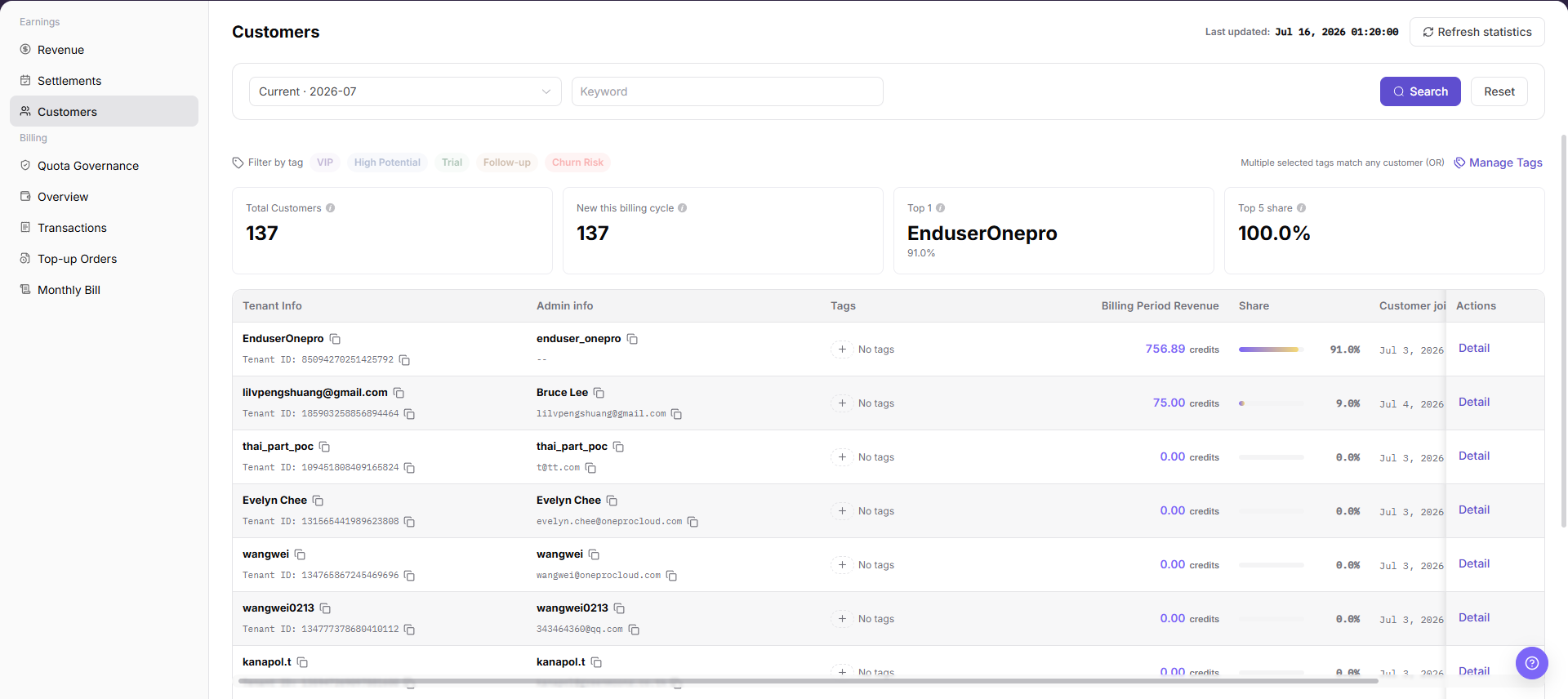
| Area | Description |
|---|---|
| Billing Cycle | View customer revenue statistics by billing cycle. |
| Keyword | Filter by customer-related keywords. |
| Search | Query the customer list with the current filters. |
| Reset | Clear filters and restore the default list. |
| Tag Filter | Filter the customer list by tags. |
| Refresh Statistics | Refresh customer revenue statistics. |
| Statistic Cards | Display customer total, new customers in the billing cycle, Top 1 customer, and Top 5 proportion. |
| Customer List | Displays tenant information, administrator information, tags, current-cycle revenue, proportion, customer join time, latest revenue in the billing cycle, and actions. |
| Details | Opens customer-level revenue details. |
| Manage Tags | Manages customer tag categories or tag configuration; this entry is not described as a main operation. |
Main Operations
View Earnings Customers
- Go to
Billing > Provider Earnings > Customer Overview. - Select a billing period and filter by customer, model, contribution range, or activity status.
- Check customer count, call volume, earnings contribution, and refresh time.
- If no data is shown, expand the period and reset filters. Redact customer and earnings data before sharing.
Compare Customer Contribution and Anomalies
- Compare customer calls, Tokens, earnings, and trends within the same billing period.
- Open an abnormal customer's details and check associated models and records.
- If totals and details differ, check aggregation scope, settlement status, and refresh time.
- Do not change commercial policy or customer permissions based on one short-period metric.
View Customer Details
- Go to
Billing > Earnings > Customers. - Review customer statistic cards, including customer total, new customers in the billing cycle, Top 1 customer, and Top 5 proportion.
- Select "Billing Cycle", or use keyword and tag filters as needed to locate the target customer.
- In the customer list, verify tenant information, administrator information, tags, current-cycle revenue, proportion, customer join time, and latest revenue in the billing cycle.
- Click "Details" in the target customer row.
- In the details page or details area, review customer-level revenue details and cross-check with Revenue Overview, Settlements, or Revenue Account Activity.
Parameter Quick Reference
| Field Name | Required | Field Type | Example | Description |
|---|---|---|---|---|
| Billing Cycle | No | Filter | 2026-07 | Selects the billing cycle for customer revenue statistics. |
| Keyword | No | Filter | Desensitized keyword | Searches by customer name, tenant, or other customer-related keyword. |
| Search | No | Button | Search | Refreshes the customer list with the current filters. |
| Reset | No | Button | Reset | Clears filters and restores the default list. |
| Tag Filter | No | Filter | VIP | Filters the list by customer tags. |
| Refresh Statistics | No | Button | Refresh Statistics | Refreshes customer revenue statistics. |
| Customer Total | System generated | Statistic card | Desensitized count | Shows the total number of customers in the current statistic scope. |
| New Customers in Billing Cycle | System generated | Statistic card | Desensitized count | Shows the number of customers added in the current billing cycle. |
| Top 1 Customer | System generated | Statistic card | Desensitized customer | Shows the customer with the highest revenue contribution in the current billing cycle. |
| Top 5 Proportion | System generated | Statistic card | Desensitized proportion | Shows the revenue proportion contributed by the top five customers. |
| Tenant Information | System generated | Table column | Desensitized tenant | Shows customer tenant information. |
| Administrator Information | System generated | Table column | Desensitized administrator | Shows customer administrator information. |
| Tags | System generated | Table column | High potential | Shows the current customer tags. |
| Current-cycle Revenue | System generated | Table column | Desensitized amount | Shows revenue contributed by the customer in the selected billing cycle. |
| Proportion | System generated | Table column | Desensitized proportion | Shows the customer's revenue proportion in the current scope. |
| Customer Join Time | System generated | Table column | 2026-07-08 | Shows when the customer joined. |
| Latest Revenue in Billing Cycle | System generated | Table column | Desensitized amount | Shows the customer's latest revenue in the billing cycle. |
| Details | No | Button | Details | Opens customer revenue details. |
| Manage Tags | No | High-risk entry | Manage Tags | May affect customer classification and operations follow-up, so it is not described as a main operation. |
Pitfalls
- Customer overview contains tenant, administrator, tags, revenue amount, and proportion. Desensitize screenshots, exports, tickets, and comments.
- Tag filters change the list scope and revenue proportion; confirm whether tags are enabled before reconciliation.
- Managing tags may affect customer classification and operations follow-up, so it is not described as a main operation.
- Customer revenue proportion is calculated within the current billing cycle and filter scope, not the full-platform scope.
- Do not record real customer names, tenant names, administrator emails, accounts, amounts, settlement statement numbers, transaction numbers, Token, or Key.
Result Validation
| Check Item | Success Signal | If Abnormal |
|---|---|---|
| Page loading | Customer statistic cards, filters, and customer list are displayed normally. | Refresh the page or check Provider revenue permissions. |
| Filters available | Billing cycle, keyword, and tag filters can locate customers. | Click "Reset" and filter again. |
| Customer fields visible | Tenant information, administrator information, tags, current-cycle revenue, proportion, join time, and latest revenue are displayed normally. | Adjust billing cycle or filters and try again. |
| Details available | Clicking Details opens customer revenue details. | Check whether the customer has visible details or whether the account has permission. |
| High-risk actions controlled | Tags are modified and customer data is exported only by authorized users for the intended customer scope. | If an unintended action occurs, record the time and scope immediately and notify the owner for review. |
FAQ
Customer list is empty
Symptom:
No customer records are visible after opening Customers.
Possible cause:
Billing cycle, keyword, or tag filters may be too narrow, or the current account may not have access to the corresponding customer scope.
How to handle:
Click "Reset" and select the billing cycle again. If the list is still empty, return to Revenue Overview to confirm whether the billing cycle has customer revenue.
Customer revenue proportion looks abnormal
Symptom:
A customer's current-cycle revenue or proportion differs from the expected result.
Possible cause:
The billing cycle may differ, tag filters may have changed the statistic scope, or latest revenue may not have fully refreshed in the list.
How to handle:
Confirm the billing cycle and filters, open Details to review customer revenue details, and reconcile with Revenue Overview, Settlements, or Revenue Account Activity.
What should I check before managing tags?
Symptom:
The page provides a Manage Tags entry.
Possible cause:
Tags affect customer filtering, operations classification, and follow-up.
How to handle:
Confirm tag meaning and customer scope before editing. If no change is required, close the dialog without saving.
Customers Does Not Update After Refresh
Symptom:
The amount, count, or status in Customers remains unchanged after the related process finishes.
Possible causes:
- The billing cycle, tenant, customer, or business scope does not match the processed object.
- An upstream statistics, posting, or settlement task is still running.
- The current account can view only part of the data scope.
How to handle:
- Recheck the billing cycle and object scope in Customers.
- Refresh the page, reopen the target record, and verify the update time.
- Cross-check the upstream status in Revenue and Settlements.
- If the value still does not update, provide authorized personnel with the desensitized billing cycle, object identifier, status, and update time.
What Must Be Checked Before Sharing Customers Information?
Symptom:
Customers results must be shared in a screenshot, ticket, or report.
Possible causes:
- Customer names, administrators, tags, revenue amounts, and proportions may be sensitive billing information.
- The sharing scope may exceed the recipient's business permission.
- A full screenshot may include account, environment, or unrelated information.
How to handle:
- Keep only fields, statuses, and time ranges required for troubleshooting.
- Use the specified light-gray opaque small-pixel mosaic only on sensitive text and values.
- Confirm that the screenshot does not contain top-menu account data, environment information, real credentials, or internal addresses.
- Share with the minimum required audience and record the desensitized scope.
Notes
- Customer overview contains tenant, administrator, and revenue data. Desensitize screenshots before sharing.
- Before modifying tags or exporting customer revenue data, verify the target customer, account permission, and recipient scope.
- Managing tags may affect customer classification. Confirm tag meaning, customer scope, and operation permissions before editing.
- When reconciling customer revenue, check billing cycle, filters, Revenue Overview, Settlements, and Revenue Account Activity together.
Next Steps
- To return to the summary view, go to Revenue.
- To reconcile billing-cycle settlement records, go to Settlements.
- To reconcile received records, review Revenue Account Activity.