Rule Management
Feature Overview
| Item | Content |
|---|---|
| Applicable Role | Operator |
| Navigation path | Settings > API Rate Control > Rule Management |
| Page route | /user/system/rate-control/rules |
| Managed objects | API rate-control rules, API Patterns, enabled status, and publication status |
Beginner Explanation
Rule Management is the API rate-control rule library. It defines which APIs are counted or blocked and under what conditions. Before publishing a rule, confirm its match scope, threshold, and rollout impact.
Terms Quick Reference
| Term | Description |
|---|---|
| Rate-control rule | A rule that counts or limits API requests.; Confirm the match scope before publication. |
| Threshold | The request limit that triggers counting or blocking.; A low threshold can block valid traffic. |
| Statistical mode | A mode that records over-limit requests without blocking them.; Use it to observe behavior before enforcement. |
| Publish | The action that synchronizes rules to nodes.; Check Node Cache after publication. |
Prerequisites
- The current account has permission to manage API rate-control rules.
- You have opened
API Rate Control > Rule Management. - Before publishing a rule, you have assessed its scope and impact.
Page Description
The page provides rule filters, a rule list, and lifecycle actions for creating, reviewing, editing, enabling, disabling, and deleting rate-control rules.
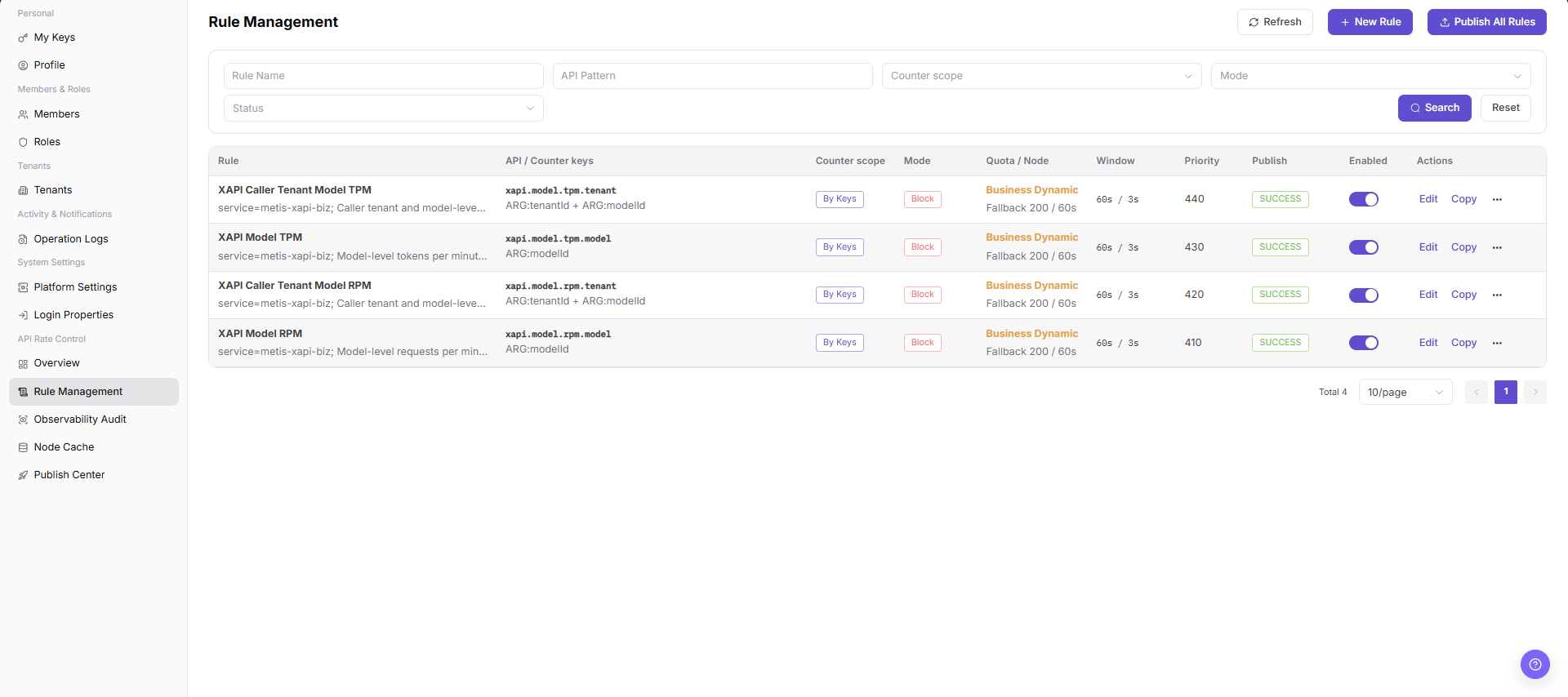
| Area | Description |
|---|---|
| Refresh | Refreshes the rule list. |
| Create Rule | Opens the rule creation flow. |
| Publish All Rule Versions | Publishes the current rule versions to nodes. |
| Rule Name | Filters by rule name. |
| API Pattern | Filters by API match pattern. |
| Rule table | Shows rules, counting scope, mode, quota, window, priority, publication state, enabled state, and actions. |
Main Operations
View Rate Control Rules
- Go to
Settings > API Rate Control > Rule Management. - Filter by name, status, scope, action, or update time.
- Open details and check match conditions, thresholds, actions, priority, target nodes, and version.
- If no record is returned, reset filters. For unexpected matches, compare Observability Audit and the currently published version.
Create Rate Control Rule
- Go to
Settings > API Rate Control > Rule Management. - Click "Create Rule",
Create Rate Control Rule, or the actual create entry on the page. - In the rule creation page or dialog, review the rule configuration fields.
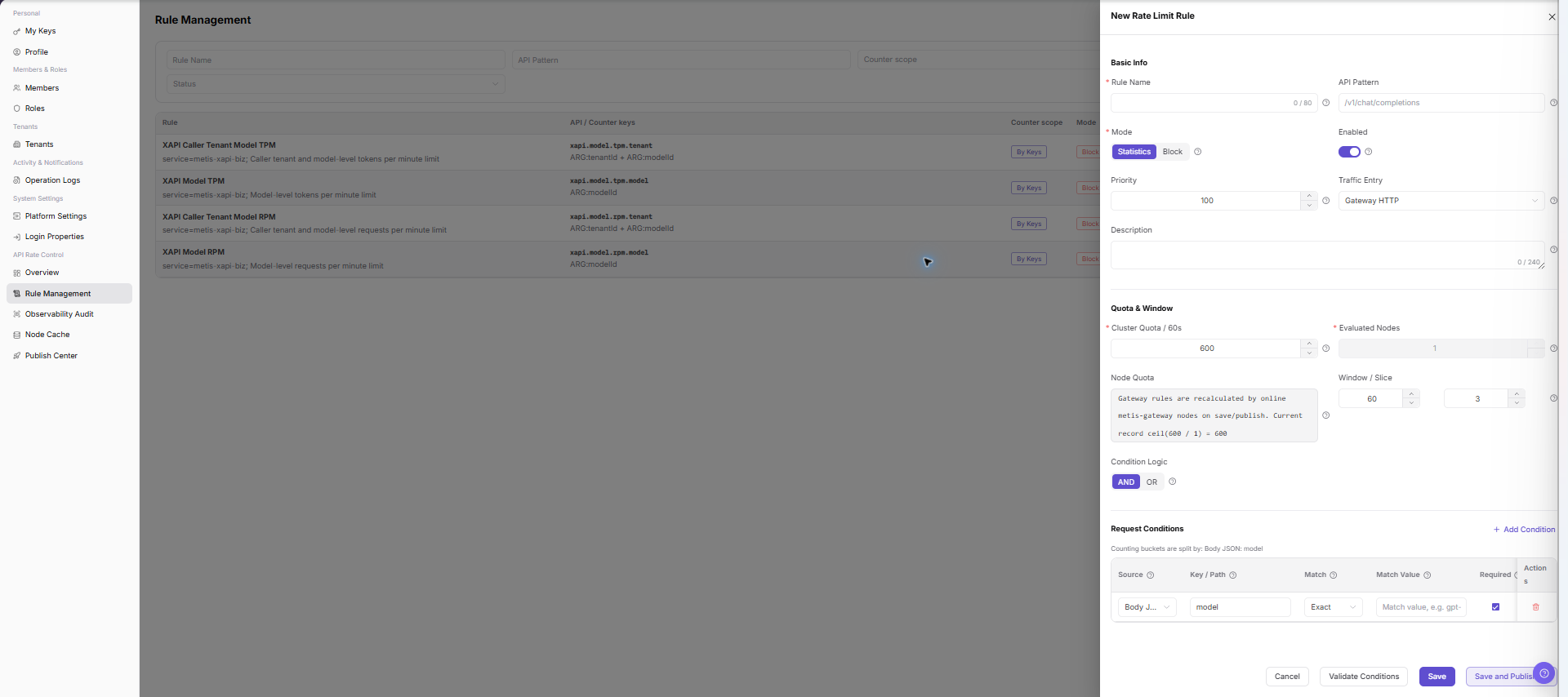
- Fill in rule name, API path, request method, match conditions, rate limit threshold, and time window.
- Select effective scope, result handling policy, enabled status, or priority according to page fields.
- Before clicking the final
Save,Submit, orPublish, verify that the rule will not block normal business requests by mistake. - For learning or screenshots only, view fields and click "Cancel" or return without submitting real rule configuration.
Edit Rate Control Rule
- Open
Settings > API Rate Control > Rule Management. - Locate the target Rule Management and click "Edit".
- Review or complete the required fields shown on the page, and confirm the target object, scope, and current status.
- For an action that changes data, permissions, status, or an external setting, confirm the impact and rollback path before clicking the final confirmation button.
- After the action, return to the list or details page and verify the status, update time, or result message.
Copy Rate Control Rule
- Open
Settings > API Rate Control > Rule Management. - Locate the target Rule Management and click "Copy".
- Review or complete the required fields shown on the page, and confirm the target object, scope, and current status.
- For an action that changes data, permissions, status, or an external setting, confirm the impact and rollback path before clicking the final confirmation button.
- After the action, return to the list or details page and verify the status, update time, or result message.
Publish Rate Control Rules
- Open
Settings > API Rate Control > Rule Management. - Locate the target Rule Management and click "Publish All Rules".
- Review or complete the required fields shown on the page, and confirm the target object, scope, and current status.
- For an action that changes data, permissions, status, or an external setting, confirm the impact and rollback path before clicking the final confirmation button.
- After the action, return to the list or details page and verify the status, update time, or result message.
Parameter Quick Reference
| Field Name | Required | Field Type | Example | Description |
|---|---|---|---|---|
| Rule Name | Yes | Text | Example Rule A | Identifies the rate control rule. |
| API Path | Yes | Text | <ENDPOINT_PATH> | The API path matched by the rule. Desensitize it in documentation. |
| Request Method | No | Enum | GET | The HTTP request method matched by the rule. |
| Match Condition | Yes | Condition expression | tenant = example | The condition set used to match the rule. |
| Rate Limit Threshold | Yes | Number | 100 requests/minute | The request limit that triggers statistics or blocking. |
| Time Window | Yes | Time | 1 minute | The time window used to count requests. |
| Effective Scope | Yes | Enum / Multi-select | Global | The API, tenant, user, or service scope where the rule applies. |
| Handling Policy | Yes | Enum | Block | The processing policy after the rule is hit. |
| Enabled Status | Yes | Enum | Enabled | Indicates whether the rule participates in rate control. |
| Priority | No | Number | 10 | The processing order when multiple rules match. |
| Actions | System generated | Button / link | Edit / Copy / Publish / Delete | Provides rule maintenance entry points. |
Pitfalls
- Do not change roles, members, login policies, Keys, or API rate-control rules without confirming the affected users and systems.
- UI entries can differ by role and tenant scope; verify the current account context before troubleshooting.
- Never copy complete Keys, AK/SK, tokens, or secrets into documentation, tickets, or screenshots.
- Creating or publishing a rate control rule affects real API access, user request success rate, and business availability.
- Incorrect API paths, match conditions, thresholds, or time windows may block normal business requests by mistake.
Save,Submit,Publish,Publish All,Disable, andDeleteare high-risk actions.- Do not write real API paths, tokens, accounts, tenant IDs, customer names, internal error details, or load-test parameters in documentation.
Result Validation
| Check Item | Success Signal | If Abnormal |
|---|---|---|
| Rule filter | The list refreshes by rule name or API Pattern. | Check the filter values. |
| Status | Publication and enabled states are displayed. | Refresh the rule list. |
| Publication record | A publication record appears in Publish Center after publication. | Open Publish Center and verify the record. |
| Create entry | Clicking Create Rule opens the rule creation page or dialog. | Check whether the current account has rule creation permission. |
FAQ
A new rule does not take effect after publication
Symptom:
The rule is configured, but target requests are not counted or blocked.
Possible cause:
The rule was not published to nodes, it is disabled, or its API Pattern does not match the request.
Resolution:
Verify the enabled and publication states, then check Node Cache and Observability & Audit.
What should be checked before publishing all rule versions?
Symptom:
The page provides a Publish All Rule Versions action.
Possible cause:
Publication changes the rule version that is effective on the nodes.
Resolution:
Review the rule differences, affected APIs, and rollback plan. Only an authorized operator should publish the versions.
Why are rate-control rules missing?
Symptom:
The expected tenant, model, or API rule is not shown in Rule Management.
Possible cause:
The rule belongs to another scope, is disabled, or the current account cannot view API rate-control rules.
Resolution:
Clear the rule type, status, and tenant filters. Confirm the rule scope. If it is still missing, ask the rate-control administrator to check the configuration and publication state.
How should the Rule Management page be exported or captured safely?
Symptom:
Page information is needed for troubleshooting, audit, or delivery.
Possible causes:
The page may contain accounts, email addresses, IP addresses, internal paths, tenant identifiers, Keys, or amounts.
Resolution:
Keep only the necessary fields and action context. Use opaque light-gray pixel mosaics for sensitive text and never share complete credentials or internal addresses.
What should I do when the Rule Management page shows unexpected data?
Symptom:
A field, status, metric, or related object differs from the expectation.
Possible causes:
The page scope, time condition, role permission, or upstream setting does not match.
Resolution:
Record the redacted object, time, and result. Verify the entry and filters first, then check related pages and Operation Logs.
Notes
- An overly broad API Pattern can block valid requests.
- Confirm the impact scope and rollback method before publishing or enabling a rule.
Save,Submit,Publish,Publish All,Disable, andDeleteare high-risk actions.- Do not write real API paths, tokens, accounts, tenant IDs, customer names, internal error details, or load-test parameters in documentation.
Next Steps
- To review rate-control trends, go to Overview.
- To verify node synchronization, go to Node Cache.
- To review publication results, go to Publish Center.