My Credentials
Document Information
Version: v2.2 Updated: 2026-11-16
Feature Overview
| Item | Content |
|---|---|
| Applicable Role | Model Provider |
| Navigation Path | Model Services > Studio > My Credentials |
| Page Route | /modelone/credentials |
| Managed Object | Model source credentials, Endpoint bindings, linked models, and revisions |
Beginner Explanation
My Credentials manages the credentials a publisher uses to connect upstream model sources. Each credential binds to a model source and active Endpoint and shows how many models reference it; rename or rotate credentials here.
Terms Quick Reference
| Term | Description |
|---|---|
| Model Source Credential | Authentication credentials (such as API keys) used to access upstream vendor services like AGIOne or OpenAI. |
| Active Endpoint Binding | The number of Endpoints authorized and connected for network traffic, determining the deployable regional scope. |
| Credential Rotation | Updating the underlying API key without changing the credential ID or model bindings, incrementing the revision (e.g., Rev.1 -> Rev.2). |
| Linked Models | The set of published models currently referencing this credential to forward upstream requests. |
Prerequisites
- Your account has access to Studio > My Credentials.
- The target model source and Endpoint are confirmed.
- The upstream API key is ready before creating a credential.
Page Description
The page title is My Credentials, with the description Manage model source credentials, active Endpoint bindings and current model references. and Refresh / Access Credential on the right.
Filters include the search box Search credential name or description, a model source selector (All model sources), a status selector (Enabled), Search, and Reset.
Columns are Name / Description, Model source, Status, Active bindings, Current models, Callable models, Revision / Last rotation, Creator, Updated, and Actions. Row actions provide View, Edit, and more.
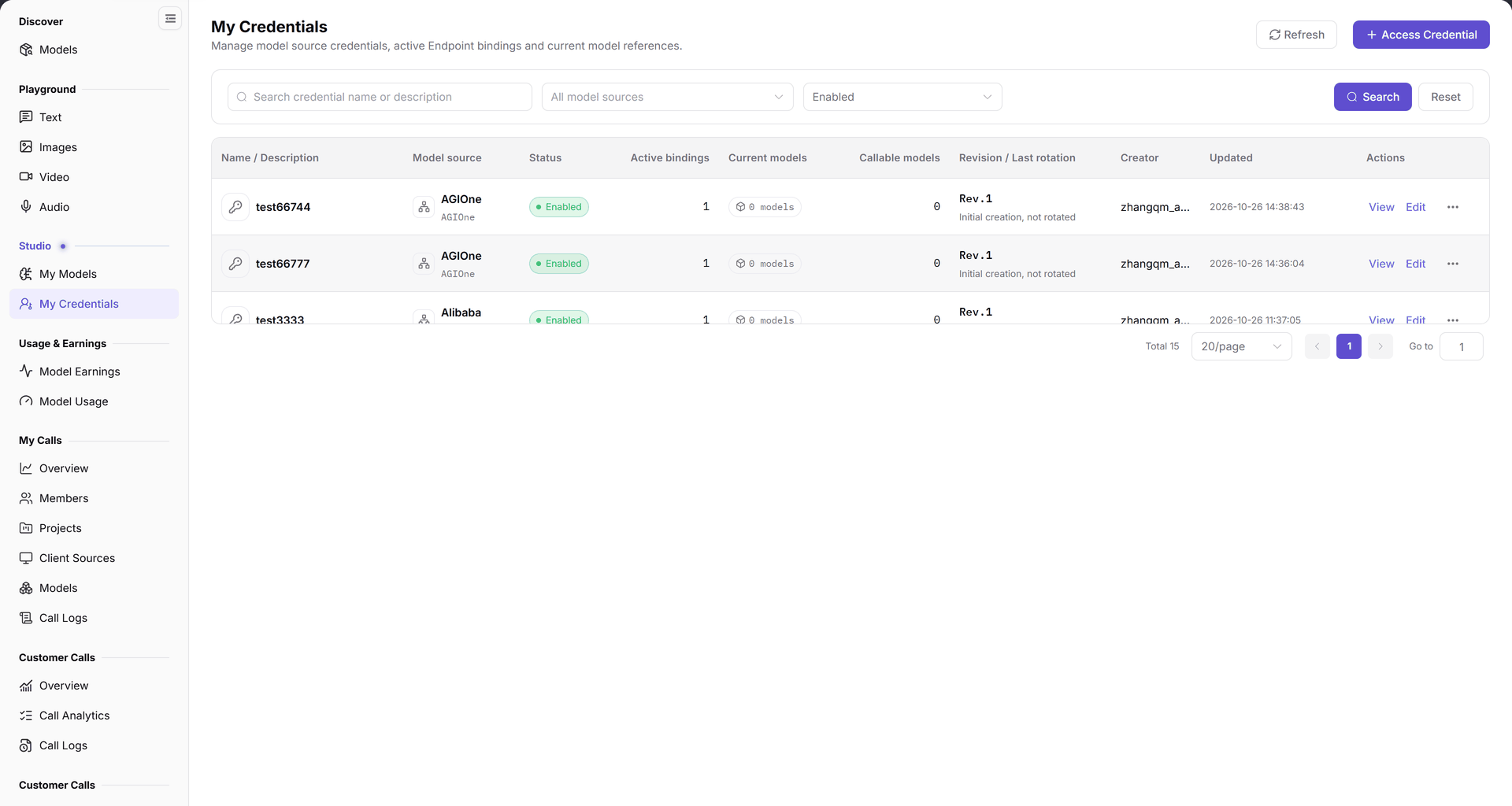
The figure shows columns are Name / Description, Model source, Status, Active bindings, Current models, Callable models, Revision / Last rotation, Creator, Updated, and Actions. Example rows show Enabled, 1 active binding, and 0 models.
| Area | Description |
|---|---|
| Top Action Bar | Contains page description, list refresh, and the Access Credential wizard button. |
| Search and Filters | Supports fuzzy search by credential name/description and filters by model source and status. |
| Credential Table | Displays credential name, model source, status, active bindings, current models, and update time. |
| Row & More Actions | Provides View details, Edit metadata, and entries for Endpoints, models, rotation, and disabling. |
Main Operations
Access a credential
- Click "Access Credential" to open the three-step wizard.
- In
1 Select Model Source, choose the model source. - Click "Next", then choose the active Endpoint in
2 Select Endpoints & Workspace. - In
2 Select Endpoints & Workspace, select the target Endpoint. The page showsSelected N of M endpoints, region, fixed URL, protocols, and service address. FillWorkspacewhen the Endpoint requires a workspace parameter. - Click "Next", then in
3 Credential information & API KeyfillName,API Key, and the optionalDescription. - Click "Save and connect"; verify the model source, Endpoint, name, and API key before submitting.
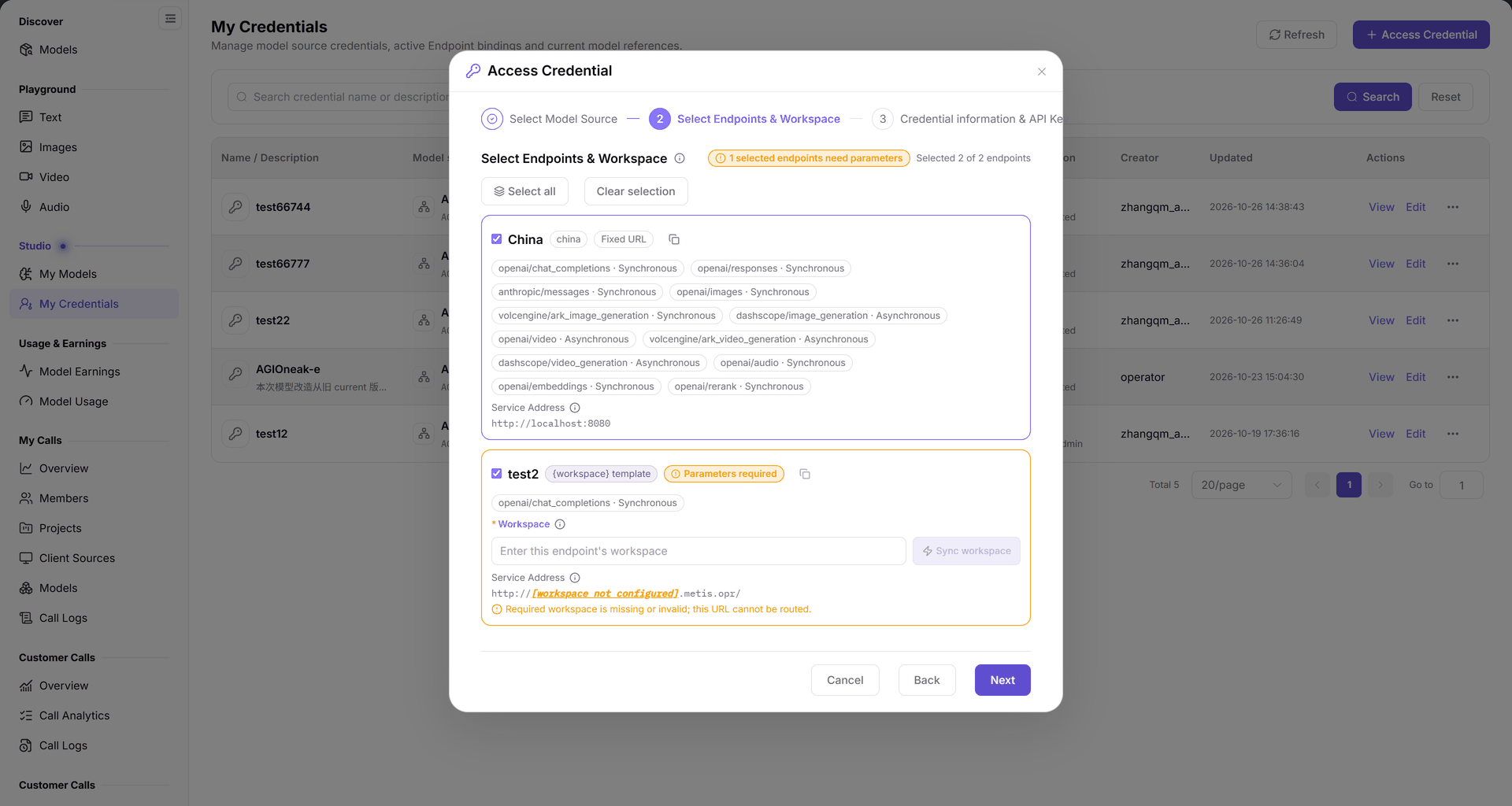
The figure shows 2 Select Endpoints & Workspace with Selected 2 of 2 endpoints; the China Endpoint is labeled China, china, Fixed URL, and lists protocols such as openai/chat_completions plus the service address. Endpoints with {workspace} require a Workspace.
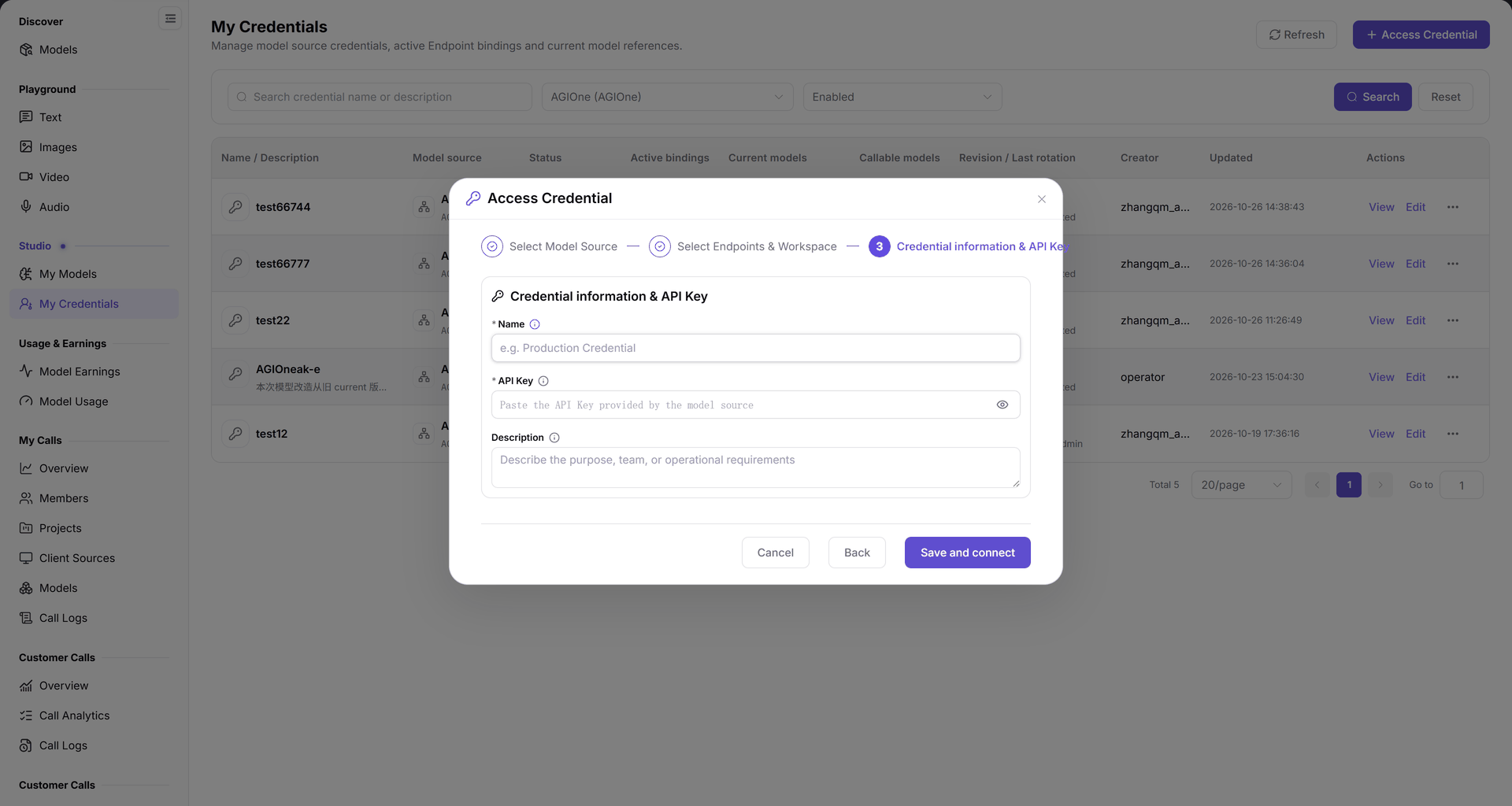
The figure shows 3 Credential information & API Key provides required Name and API Key fields plus an optional Description; the footer buttons are "Back" and "Save and connect".
View credential details
- Click "View" on the target row.
- In
Credential details, checkCredential display name,Model source,Rev., andDescription. - Under
Bound Endpoints & network configuration, check1 active / 1 total Endpoints boundand the Endpoint address. - Click "Close" when finished.
Edit credential metadata
- Click "Edit" on the target row.
- In
Edit Credential metadata, changeCredential display nameorDescription. - Click "Save metadata"; use "Close" to leave without saving.
Rotate or disable a credential
- Open the row's more-actions menu; it contains
Endpoint,Models,Audit,Rotate, andDisable. - Choose
Rotate, then verify the model source,Rev., active Endpoint bindings, and current linked models inRotate API Key. - Enter the
New API Keyand click "Confirm Rotation"; use "Close" to leave without rotating. - To disable, choose
Disableand confirm the impact scope first.
Filter credentials
- Enter a credential name or description in the search box.
- Select a model source and status.
- Click "Search" or "Reset".
Parameter Quick Reference
Query and Filters
Additional query conditions documented on this page. An em dash means the column is unspecified, not a backend rule. Existing fields remain in the following table.
| Field Name | Required | Field Type | Example | Description |
|---|---|---|---|---|
| Search credential name or description | — | — | — | Search by credential name or description. |
| Model source (query) | — | — | — | Filter the list by model source. |
| Status (query) | — | — | — | Filter the list by credential status. |
Existing Fields
| Field Name | Required | Field Type | Example | Description |
|---|---|---|---|---|
| Credential display name | Yes | Text, 1–128 chars | test66744 | Must be unique within the tenant and model source after trimming |
| Description | No | Text | Text chat test credential | Identifies the credential purpose |
| Model source | Yes | Selector | AGIOne | Upstream model source |
| Endpoint | Yes | Selector | China | Active Endpoint bound to the credential |
| API Key | Yes | Secret | — | Upstream key, not displayed after saving |
| Status | System | Tag | Enabled | Current availability |
| Active bindings | System | Number | 1 | Number of active Endpoint bindings |
| Current models | System | Number | 0 models | Models that reference the credential |
| Callable models | System | Number | 0 | Models currently callable |
| Revision / Last rotation | System | Version | Rev.1 / Initial creation, not rotated | Credential revision history |
| Creator | System | Text | provider_admin | Account that created the credential |
| Updated | System | Time | 2026-10-26 14:38:43 | Last update time |
Pitfalls
- The credential display name must be unique within the same tenant and model source; duplicates are rejected.
1 active / 1 total Endpoints boundmeans only one Endpoint is bound; confirm model calls before changing the binding.Current models: 0 modelsdoes not mean the credential is unusable; it means no model references it yet.- The API key is entered only during creation or rotation and is not displayed in full afterwards.
Result Validation
| Check Item | Success Signal | If Abnormal |
|---|---|---|
| Credential created | A new credential row appears in the table with status Enabled. | If missing, verify that filters are not excluding the status, or check the creation error message. |
| Endpoint binding | Active bindings displays the correct number of bound Endpoints. | If 0, open row more actions, select Endpoint, and review network call configurations. |
| Linked models | Current models accurately counts and displays models referencing this credential. | If not updated after publishing, refresh the page or confirm the model publish form selected this credential. |
| Metadata updated | The credential display name or description updates immediately in the list. | Check whether the content exceeds 128 characters or duplicates an existing name under the same source. |
| Rotation version | Revision / Last rotation shows the new Rev. version number and timestamp. | If unchanged, verify the API key format is valid and confirm the rotation dialog submission completed. |
FAQ
The credential name cannot be saved
Symptom:
Clicking "Save metadata" prompts an error or the name remains unchanged.
Possible Causes:
The credential name exceeds the 1–128 character limit, contains only spaces after trimming, or duplicates an existing credential under the same model source in the tenant.
Resolution:
- Ensure the entered name is between 1 and 128 characters and unique after trimming leading/trailing spaces.
- Confirm there is no duplicate credential name under the current model source.
The target credential is missing
Symptom:
The table is empty or searching by credential name returns no matching results.
Possible Causes:
Search keyword is inaccurate, model source filter is restricted to another source, status filter excludes active credentials, or the credential belongs to another tenant.
Resolution:
- Click "Reset" to clear the search keyword and all filter dropdowns.
- Verify the current tenant login context and confirm whether the credential was created by the current tenant.
Notes
- API keys are sensitive; do not screenshot them, copy them into documents, or send them to external tools.
- Changing bindings or rotating keys affects models that use the credential; confirm the impact first.
- Before changing a binding or rotating a credential, confirm the models and calls that depend on it.
Next Steps
- Bind the credential in the model publish wizard in My Models.
- Verify that models using this credential are functioning in Models.
- Monitor call connectivity and token usage logs in My Calls.
Related pages: