Images
Document Information
Version: v2.0 Updated: 2026-11-04
Feature Overview
| Item | Content |
|---|---|
| Applicable Role | Model Provider & User |
| Navigation Path | Model Services > Playground > Images |
| Page Route | /modelone/exploration/image |
| Managed Object | Image model, size, image count, and generation tasks |
New to this page: Images turns a text prompt into pictures. Choose an image model, set size and count, enter a description, and review results in Task query.
Terms Quick Reference
| Term | Description |
|---|---|
| Text-to-Image | AI generation technique synthesizing static visual scenes from natural language prompt descriptions using diffusion or autoregressive architectures. |
| Task Query | An asynchronous task monitor for image rendering progress, task status, and generated asset URLs. |
| Resolution / Size | Width and height specifications (e.g., 1024x1024, 768x1024) supported by model weights and GPU VRAM constraints. |
| Batch Size (Images) | Total number of image samples generated concurrently or sequentially per request, scaling cost proportionally. |
Prerequisites
- Your account can open Playground > Images.
- The account has available credits or a free quota for the model.
- The billing unit and image-count limit are confirmed.
Page Description
The page contains a model area, a parameter area, and an input area:
| Area | Description |
|---|---|
| Top model & action bar | Displays selected image model name and provider, with Task query and Model Compare buttons |
| Parameter settings panel | Provides resolution size dropdown and batch generation image count input |
| Bottom prompt input console | Multi-line text box for scene subjects, styles, and details, supporting Shift+Enter line breaks and submission |
| Result & canvas gallery | Asynchronously renders generated image preview cards in a grid layout with zoom and download actions |
- Model area: current model
qwen-image-3.0and providerAlibaba; Task query and Model Compare are on the right. - Parameters:
Size(currentlyNo documented default) andImages(currently4). - Input: multi-line box with
Describe the image you want to generate, Shift+Enter for new line. - Reset: Reset all restores model and parameter defaults.
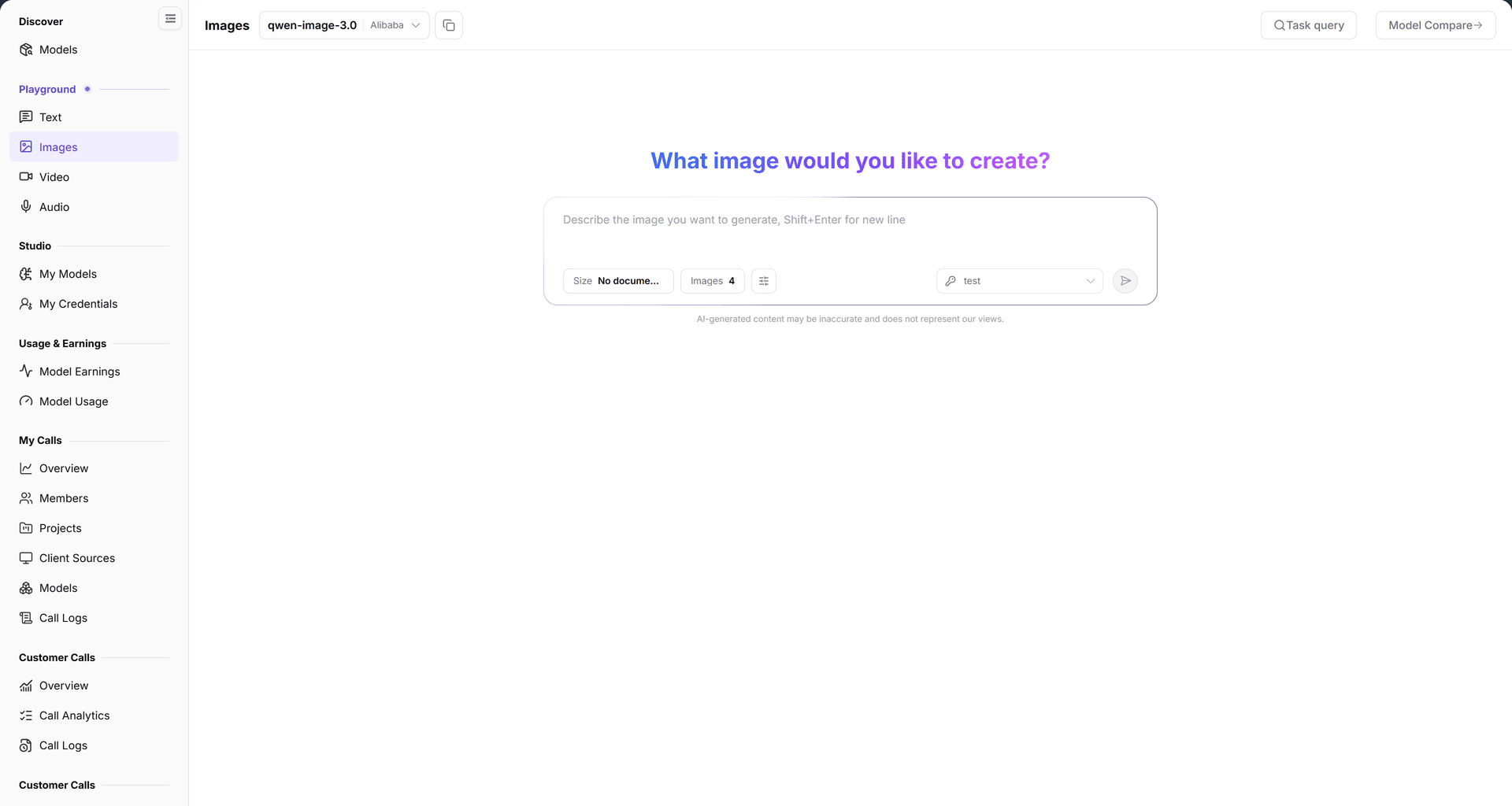
The figure shows the current model is qwen-image-3.0 from Alibaba; parameters show Size and Images 4, with Task query and Model Compare at the top.
Main Operations
Select an image model
- Click the model area and select an image model.
- Verify the provider and model status.
Set generation parameters
- Open
Sizeand choose a supported size; keepNo documented defaultto let the model decide. - Set the number of images in
Images.
Generate images
- Enter a description in the input box.
- Use
Shift+Enterfor new lines, then submit. - Review the generated images in the result area.
Query past tasks
- Click "Task query".
- Locate previous generation tasks in the list.
Compare models
- Click "Model Compare".
- Select image models and generate from the same description.
Parameter Quick Reference
| Field Name | Required | Field Type | Example | Description |
|---|---|---|---|---|
| Model | Yes | Selector | qwen-image-3.0 | Current image model |
| Provider | System | Text | Alibaba | Provider of the current model |
| Size | No | Dropdown | No documented default | Output size; default is decided by the API |
| Images | Yes | Number | 4 | Number of images per request |
| Prompt | Yes | Multi-line text | An orange cat on a windowsill | Description used to generate the image |
Pitfalls
- When
SizeshowsNo documented default, the actual size is decided by the model API and can differ between models. - More images multiply generation time and cost; verify the count before submitting.
- Image models are billed per image or request, not by text tokens.
Result Validation
| Check Item | Success Signal | If Abnormal |
|---|---|---|
| Model selected | The top bar accurately displays the model ID (e.g., qwen-image-3.0) and full provider name | If the dropdown is empty, open Models to check model authorization and availability |
| Parameter adjustments | Selecting a new size or image count immediately updates the values displayed in the settings panel | If a size exceeds supported dimensions, the interface automatically falls back to the recommended default |
| Task submission & output | Clicking submit queues the task and outputs high-resolution image cards in the result area | If a timeout or deduction failure occurs, check credit balance and locate the error code in Task query |
| Task query & history | Clicking "Task query" opens a drawer or modal containing past image tasks and rendering latencies | If the list is empty, verify the selected time range and filter status at the top |
| Model Compare grid | Opening "Model Compare" renders parallel image outputs from multiple models for the same prompt | Verify that all selected models have active quota and compute instances |
FAQ
Results differ from the description
Symptom: Generated images deviate significantly from the subject, art style, or details specified in the prompt.
Possible Causes: The prompt is too abstract or ambiguous; the model's base training biases toward specific styles; or negative prompts are omitted.
Resolution:
- Enrich the prompt structure by explicitly detailing subject, art medium (e.g., photorealistic, illustration, cyberpunk), lighting, and camera angle.
- Keep the prompt unchanged and switch to another leading image model for comparative evaluation.
- Adjust aspect ratio and resolution to match the subject composition (e.g., portrait vs. landscape).
Past tasks are missing
Symptom: Clicking "Task query" fails to display recently submitted image generation tasks.
Possible Causes: The task is still queued in backend GPU scheduling and has not persisted to the database; or active filters restrict the time range or model ID.
Resolution:
- Wait several seconds and click the refresh button in the task list.
- Clear model filters and reset the time span to "Today" or "Last 1 hour".
- Check whether the prompt was silently blocked by automated content moderation or sensitive keyword filters.
Notes
- Do not generate infringing, illegal, or privacy-invasive content.
- Generation is billed by the model; confirm quota before batch generation.
- Output is for reference; verify copyright and compliance before commercial use.
Next Steps
- Verify call counts, unit prices, and deduction logs in usage reports and call logs.
- Transfer validated prompts and parameters into production configurations or copy Quick Start SDK snippets.
- Explore the text chat or video generation playgrounds to connect multimodal workflows.
Related pages: