Top-up Orders
Document Information
Version: v2.1 Updated: 2026-11-05
Feature Overview
| Item | Content |
|---|---|
| Applicable Role | Operations administrator |
| Navigation Path | Billing > Customer Billing > Top-up Orders |
| Page Route | /billing/customers/top-ups/orders |
| Managed Object | Customer top-up orders, order scope, top-up source, payment amount, credits added, and status |
Use this page to locate top-up orders by order number, customer identity, status, source, and time range, then review amounts, credits added, and timestamps. Access approvals separately through Top-up Approvals.
Beginner Explanation
Top-up Orders works like a top-up ledger: locate the order first, then review the original-currency amount, credits added, and order status separately.
Terms Quick Reference
| Term | Description |
|---|---|
| Order no. | Identifier used to locate a top-up order. |
| Order scope | The order's scope displayed in the table. |
| Top-up source | Source information in the table, also available as a filter. |
| Payment amount | Payment amount displayed in the order's original currency. |
| Credits added | The credited quantity in credits, reviewed separately from the original-currency amount. |
Prerequisites
- Sign in to the platform and ensure you can access
Billing > Customer Billing > Top-up Orders. - Prepare the target order number or customer identity and confirm the customer scope you are authorized to view.
- A matching order record is needed to open its row-level details; do not create a top-up or adjust a balance for a query.
Page Description
| Area | Description |
|---|---|
| Order-number input | Placeholder: Enter order no. |
| Customer-identity input | Placeholder: Search tenant, admin, email, phone, or tenant ID |
| Status filter | Top-up order status dropdown. |
| Source filter | Top-up source dropdown. |
| Time range | A date-range control limits the query range. |
| Results and pagination | Displays matching records, total count, and pagination controls. |
| Area | Description |
|---|---|
| Order no. | Top-up order identifier. |
| Customer | Corresponding customer identity. |
| Order scope | Scope to which the order belongs. |
| Top-up source | Source of the top-up order. |
| Payment amount | Original-currency amount; do not interpret all orders as CNY. |
| Credits added | Credited quantity in credits, not the same value as Payment amount. |
| Status | Current order status. |
| Completed at | Order completion time. |
| Created at | Order creation time. |
| Actions | When records are available, open Details for the corresponding row. |
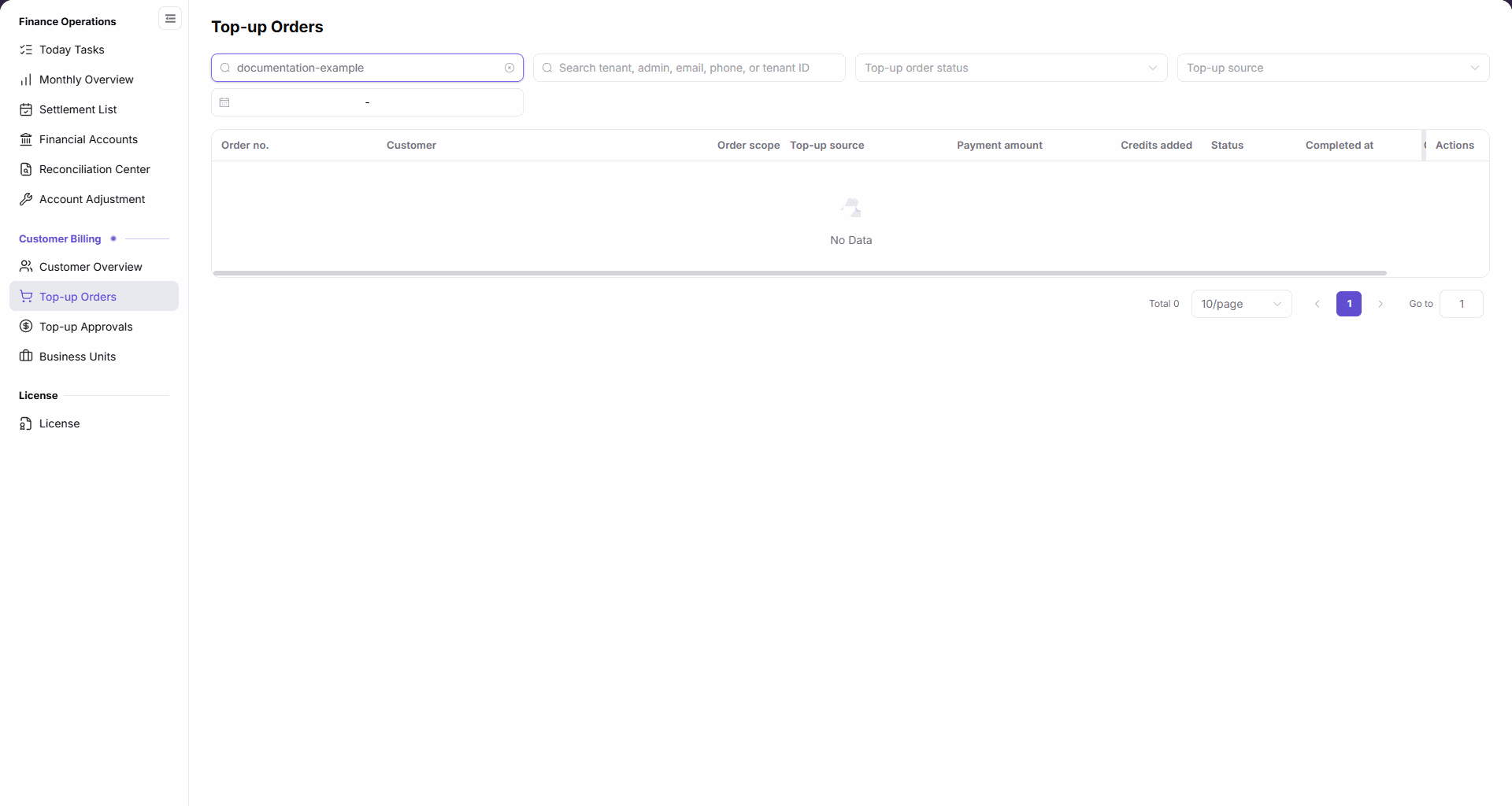
The figure shows the empty results for documentation-example in the order-number input, with No Data and Total 0, and visible order scope, top-up source, payment amount, credits added, and completion time. Created at is outside the readable area in this view; scroll the table horizontally to inspect it rather than treating its absence from the figure as an absent field.
Main Operations
Find Top-up Orders
- Go to
Billing > Customer Billing > Top-up Orders. - Enter the target order number in
Enter order no., or enter customer identity information inSearch tenant, admin, email, phone, or tenant ID. - Select
Top-up order status,Top-up source, and a time range as needed, then review the list results. - If
No DataandTotal 0appear, review and adjust the current inputs, status, source, and time range.
View Top-up Order Details
- When matching records are available, verify the target row's
Order no.,Customer,Order scope, andTop-up sourcefirst. - Read the original-currency
Payment amountandCredits addedseparately, then checkStatus,Completed at, andCreated at; scroll the table horizontally if the timestamp columns are outside the visible area. - Click the target row's
Detailsentry to review the order information, status, amount, and time. - To review the customer balance, open Customer Overview and locate the same customer; do not infer the current balance solely from the order amount.
Open Top-up Approvals
- For approval work, open the separate
Top-up Approvalspage from theCustomer Billingmenu. - Follow Top-up Approvals to review the approval object and operation boundaries; do not treat order queries and approvals as the same workflow.
Parameter Quick Reference
Query and Filters
The query group lists the real controls of the page filter area. "As needed" describes how the control is used, not a backend required rule; "—" means this page does not specify an example.
| Field Name | Required | Field Type | Example | Description |
|---|---|---|---|---|
| Enter order no. | No | Text | <order-number> | Order-number query input. |
| Search tenant, admin, email, phone, or tenant ID | No | Text | documentation-example | Combined customer-identity query input. |
| Top-up order status | No | Dropdown | <order-status> | Filters by order status. |
| Top-up source | No | Dropdown / list text | <top-up-source> | Filters and displays the order source. |
| Time range | No | Date range | <start-date> - <end-date> | Limits the query time range. |
Existing Fields
| Field Name | Required | Field Type | Example | Description |
|---|---|---|---|---|
| Order no. | Read-only | Text | <order-number> | Order identifier in the list. |
| Customer | Read-only | Customer information | <customer> | Corresponding customer identity. |
| Order scope | Read-only | Scope information | <order-scope> | Scope to which the order belongs. |
| Payment amount | Read-only | Original-currency amount | <currency> <amount> | Review in the order's original currency. |
| Credits added | Read-only | Credits | 0 | Review separately from the original-currency amount. |
| Status | Read-only | Status value | <status> | Current order status. |
| Completed at | Read-only | Time | <completion-time> | Order completion time. |
| Created at | Read-only | Time | <creation-time> | Order creation time. |
| Details | Not applicable | Row-level entry | Details | When records are available, open the target order to review its information. |
Pitfalls
Payment amountandCredits addedare different columns: the former uses the order's original currency, while the latter uses credits. Do not give them a common currency or assume equal values.Order scopeandTop-up sourceare different dimensions; review both when locating an order.Completed atandCreated atare separate fields and are not interchangeable.- Access approvals through the separate
Top-up Approvalsmenu; do not treat an order'sStatusas an approval action.
Result Validation
| Check Item | Success Signal | If Abnormal |
|---|---|---|
| Query object | Order-number and customer-identity inputs match the target object | Review or adjust the corresponding inputs. |
| Empty results | No matching records display No Data and Total 0 | Review order number, customer identity, status, source, and time range individually. |
| Amount basis | Original-currency payment amount and credits added are read separately | Recheck both columns in the target row; do not treat them as the same value. |
| Time basis | Completion and creation times are reviewed separately | Scroll the table horizontally if timestamp columns are outside the visible area. |
FAQ
Why Does the List Display No Data?
Symptom: The table displays No Data and a count of Total 0.
Possible Causes: No records match the current query conditions.
Resolution: Review order number, customer identity, status, source, and time range, then adjust the conditions as needed.
Why Do Payment Amount and Credits Added Use Different Units?
Symptom: Payment amount uses the order currency, while Credits added uses credits.
Possible Causes: The columns represent original-currency payment and credited quantity respectively, not a single measurement field.
Resolution: Record each column with its unit and review it alongside order status and timestamps; do not directly compare the numbers for equality.
Notes
- Use this page to query and review orders; open Top-up Approvals for approvals.
- If an amount or status is in doubt, review the order and customer scope first; do not use repeated top-ups or manual adjustments to test the result.
- Use customer identities and order information only within authorized business scope. Share only information needed for investigation, without credentials or unrelated customer data.
Next Steps
- Open Customer Overview to review the target customer's balance and information.
- Open Top-up Approvals for the separate approval workflow.