My Keys
Feature Overview
| Item | Content |
|---|---|
| Applicable Role | Model Consumer |
| Navigation path | Settings > Personal > My Keys |
| Page route | Enter through the visible menu; do not paste a hidden route. |
| Managed objects | Model API Keys, System API AK/SK Pairs, status, expiration, and applicable quota settings |
Beginner Explanation
Use a separate credential for each application or workload. Give it a clear name, an expiration plan, and—when the Model API page offers it—a limit that matches the member or project policy. Treat the complete Key or AK/SK pair as a secret.
Terms Quick Reference
| Term | Description |
|---|---|
| Model API Key | A credential used to call model APIs.; Use separate Keys for separate workloads. |
| System API AK/SK Pair | A credential pair used to call system APIs.; Never place the complete pair in documentation or frontend code. |
| Member quota | The current-cycle allowance shared by the account's Model API Keys.; Check it before diagnosing a quota failure. |
| Key limit | A per-Key cycle limit, when the page enables it.; Keep it consistent with the project or member policy. |
Prerequisites
- The current Provider or End User account can see
Settings > Personal > My Keys. - Before opening a creation or quota dialog, you have defined the caller, purpose, expiration, and limit policy.
- Before rotating or disabling a Key, you have confirmed which callers depend on it.
Page Description
On the visible personal page, the Model API tab provides the member-quota summary, Available / All scope buttons, a Status filter, and the credential table. The table shows Key name / description, prefix, status, expiration, used / limit, created time, and row actions. The System API AK/SK Pairs tab uses the same filters but omits the member-quota summary and the Used / limit column.
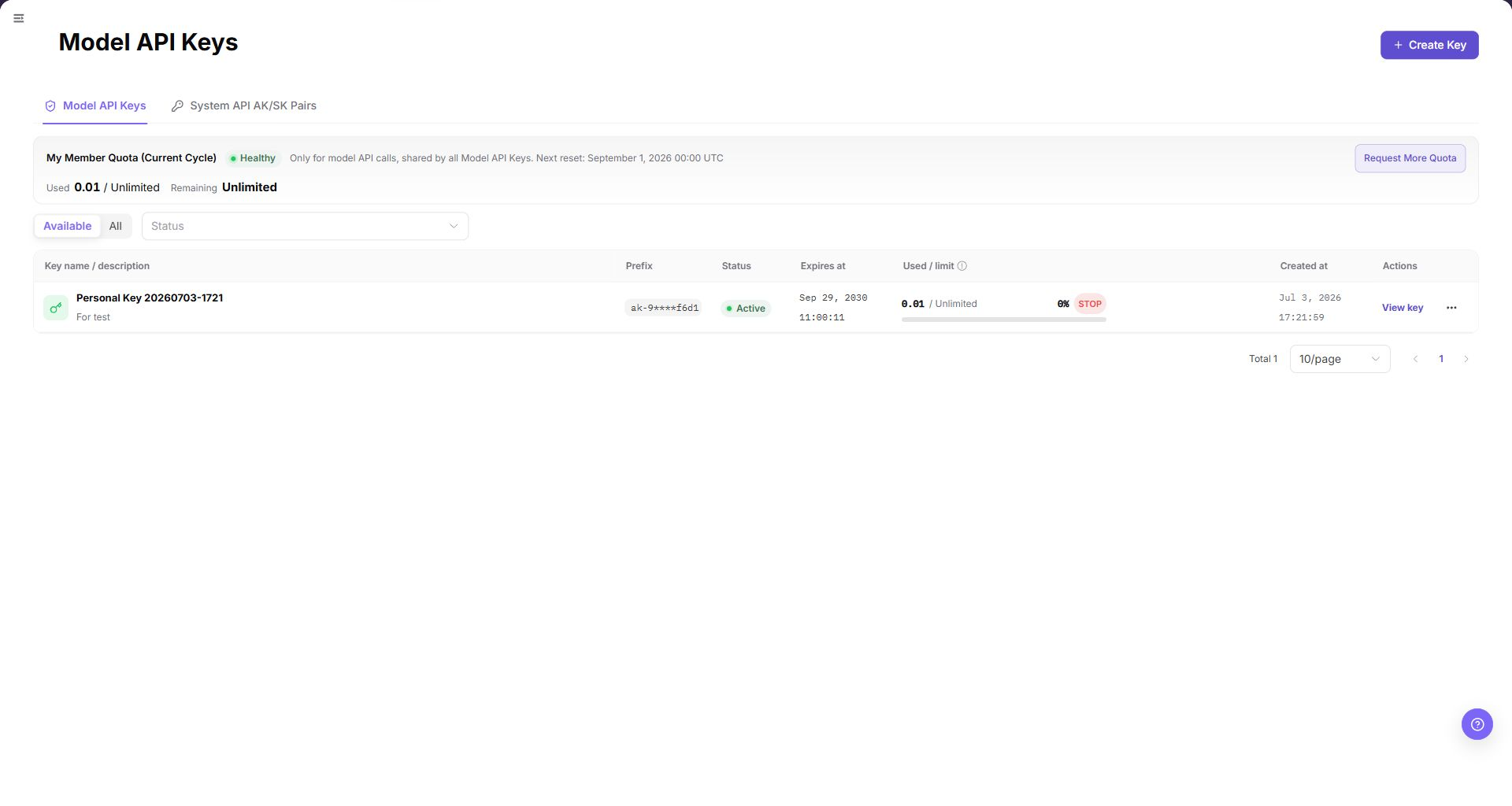
| Area | Description |
|---|---|
| Top button | Create Key opens the credential creation dialog. |
| Tabs | Model API Keys and System API AK/SK Pairs, when exposed for the current role. |
| Member quota | The Model API tab shows current-cycle health, used, remaining, total allowance, and the next reset time. Request More Quota opens the Quota Requests page. |
| Filters | Available / All and Status. |
| Table columns | Key name / description, prefix, status, expiration, used / limit, created time, and actions. |
| Row actions | View key is displayed directly. The overflow menu currently contains View details, Edit details, Extend validity, Limit, Rotate, and Disable. |
Main Operations
View Model API Keys
- Open
Settings > Personal > My Keysfrom the visible menu. - Select
Model API KeysorSystem API AK/SK Pairswhen the tab is available. - Review the Key name / description, prefix, status, expiration, used / limit, created time, and available row actions.
- For a Model API Key, open the overflow menu to review
View details,Edit details,Extend validity,Limit,Rotate, andDisable. Do not execute a write action during a read-only review.
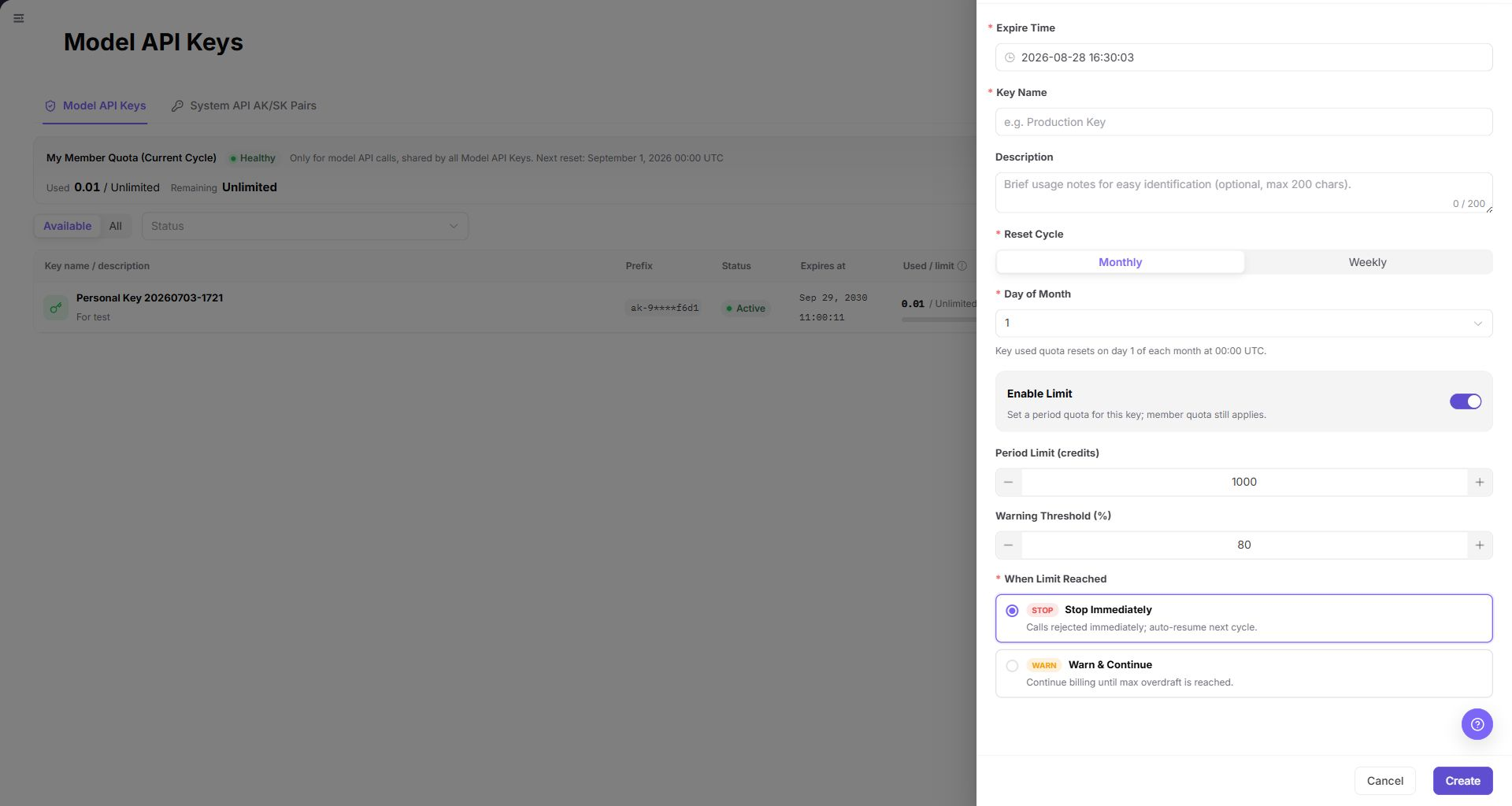
Open the Model API Key Creation Dialog
- Click "Create Key".
- Review the required
Expire TimeandKey Namefields and the optionalDescriptionfield (maximum 200 characters). - Select the required
Reset Cycle. IfMonthlyis selected, reviewDay of Month. - If the page exposes
Enable Limit, decide whether to set aPeriod Limit (credits)andWarning Threshold (%). - Review the limit-reached policy shown by the dialog, then confirm the caller, purpose, expiration, and quota policy.
- For documentation review or screenshot capture, click "Cancel". Do not click the final
Createbutton.
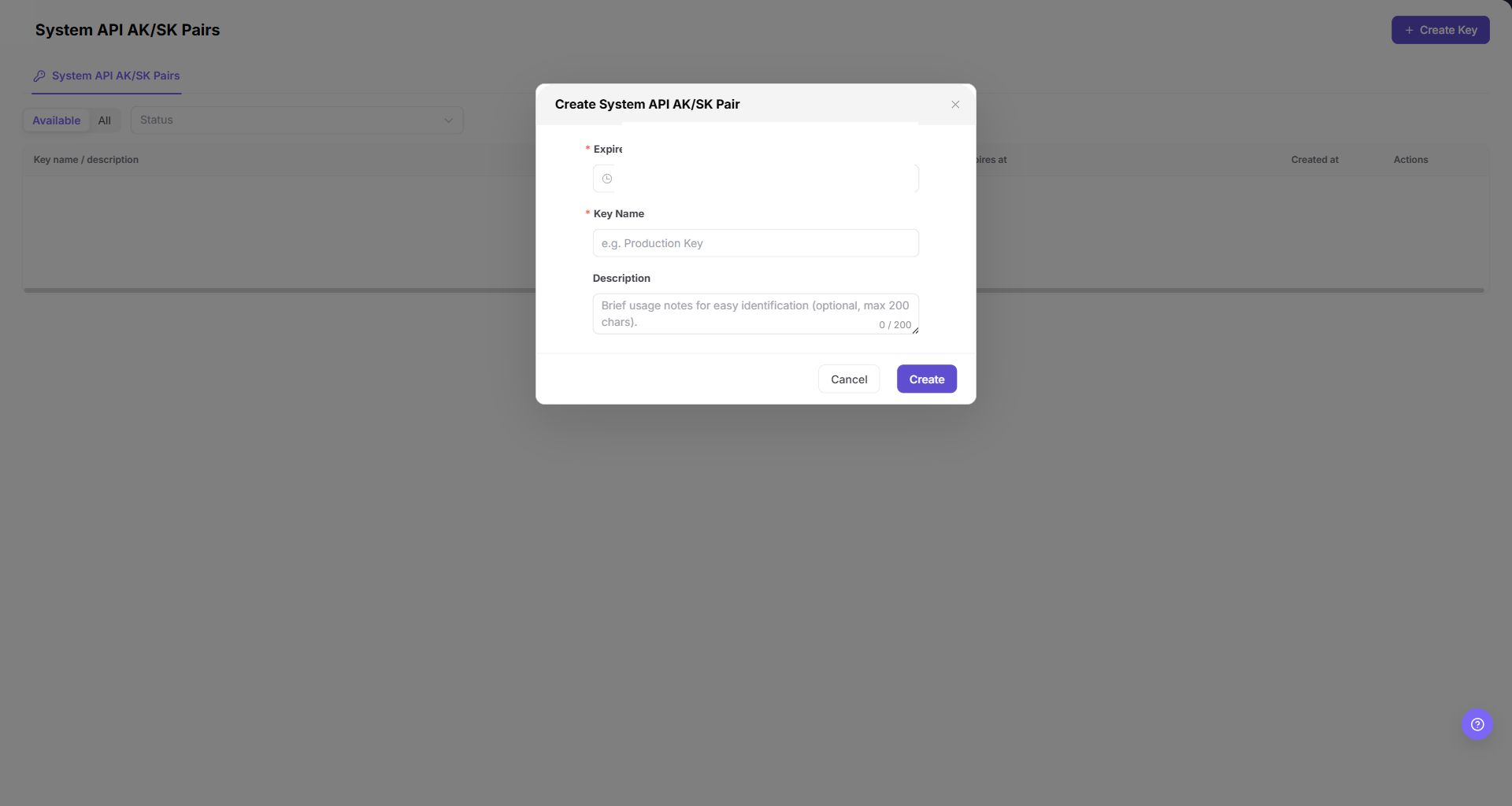
Open the System API Key Creation Dialog
- Select
System API AK/SK Pairs. - Click "Create Key".
- Review the required
Expire TimeandKey Namefields and the optionalDescriptionfield (maximum 200 characters). - Confirm that this dialog does not contain Model API quota, reset-cycle, warning-threshold, or limit-reached fields.
- Click "Cancel". Do not click the final
Createbutton during documentation review.
Submit a Quota Request
- On the
Model API Keystab, click "Request More Quota". - Confirm that the page opens
Settings > Members & Roles > Quota Requests. - Review existing request and adjustment records. Stop before the final quota-request submission unless a change is explicitly approved.
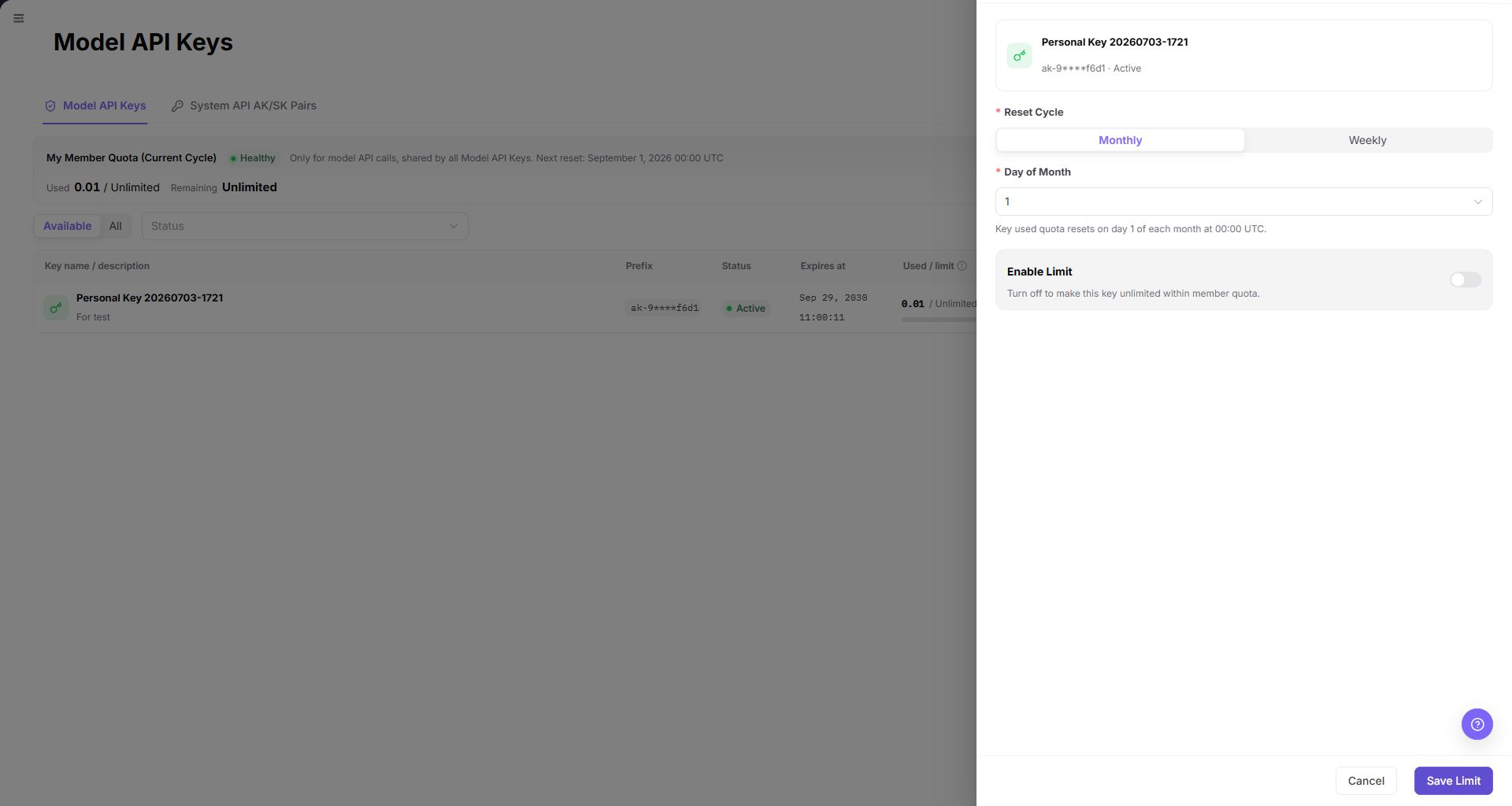
Adjust a Model API Key Limit
- Open the target Model API Key's overflow menu and select
Limit. - Review
Reset Cycle,Day of Month, and whetherEnable Limitis on. - When
Enable Limitis on, check the displayed period limit and warning threshold against the project or member policy. - Stop before
Save Limitunless an authorized change has been explicitly approved.
Parameter Quick Reference
| Field Name | Required | Field Type | Example | Description |
|---|---|---|---|---|
| Expire Time | Yes | Date time | 2026-12-31 23:59 | Sets the expiration time for either credential type. |
| Key Name | Yes | Text | Production inference | Identifies the workload or caller for either credential type. |
| Description | No | Text area | Backend inference job | Optional usage notes for either credential type; the page shows a maximum of 200 characters. |
| Reset Cycle | Yes | Enum | Monthly | Model API Key only. Controls the Key's usage reset cycle. |
| Day of Month | Conditional | Enum / number | 1 | Appears when Monthly is selected. |
| Enable Limit | No | Switch | On | Enables a per-Key cycle limit while the member quota still applies. |
| Period Limit (credits) | Conditional | Number | 1000 | The per-Key cycle allowance when the limit is enabled. |
| Warning Threshold (%) | Conditional | Number | 80 | The warning threshold shown by the creation form. |
| Limit-reached policy | Conditional | Enum | Stop | Defines the action shown when a configured limit is reached. |
| Prefix | System generated | Text | Masked prefix | A non-secret identifier shown in the list. |
| Status | System generated | Enum | Active | Shows whether the credential is currently available. |
| Used / limit | System generated | Usage | Masked / limit | Shows current Key usage against the applicable limit. |
| Created | System generated | Date | Masked date | Records when the Key was created. |
| Actions | System generated | Buttons / menu | View details | Provides View key and the current overflow actions for the selected credential and state. |
Pitfalls
- Tabs and row actions are role- and tenant-dependent. Use only the controls visible after entering from the current account's menu.
- Opening a dialog is not the same as creating or saving a credential. Stop at
Cancelduring documentation review. - Do not add permission-scope, quota, reset-cycle, or warning fields to a credential type that does not display them in the current Demo page.
- Never copy complete Keys, AK/SK, tokens, names, identifiers, usage values, or dates into documentation, tickets, or screenshots.
Result Validation
| Check Item | Success Signal | If Abnormal |
|---|---|---|
| Page entry | Settings > Personal > My Keys opens from the visible menu. | Check the current role, tenant, and menu permission. |
| Tab visibility | The expected credential tab is visible for the current account. | Do not infer a hidden route; record the tab as unavailable. |
| List state | The list shows the documented columns and available row actions. | Check filters and credential state. |
| Creation dialog | The visible required and optional fields match the current tab. | Stop and re-audit the Demo page before editing this manual. |
| Quota request | Request More Quota opens Settings > Members & Roles > Quota Requests. | Re-enter from the visible menu and record the navigation mismatch. |
| Quota dialog | The overflow-menu Limit action opens the documented reset and limit controls. | Record the action as credential- or state-dependent. |
FAQ
A Key call fails
Symptom: The API returns an authentication or quota error.
Resolution: Check the Key status, expiration, member quota, project policy, and any per-Key limit. Notify dependent callers before rotation or disable actions.
Why is a target Key missing?
Symptom: A Key is not visible in the list.
Resolution: Confirm the selected credential tab, switch between Available and All, clear the status filter, and check the current account and project scope.
Why is Create, Limit, Rotate, or Disable unavailable?
Symptom: The page is visible, but an action is missing or disabled.
Resolution: The action may depend on role, tenant policy, Key state, or the selected credential type. Use the visible menu and current row state as the source of truth.
How should the My Keys page be exported or captured safely?
Symptom:
Page information is needed for troubleshooting, audit, or delivery.
Possible causes:
The page may contain accounts, email addresses, IP addresses, internal paths, tenant identifiers, Keys, or amounts.
Resolution:
Keep only the necessary fields and action context. Use opaque light-gray pixel mosaics for sensitive text and never share complete credentials or internal addresses.
What should I do when the My Keys page shows unexpected data?
Symptom:
A field, status, metric, or related object differs from the expectation.
Possible causes:
The page scope, time condition, role permission, or upstream setting does not match.
Resolution:
Record the redacted object, time, and result. Verify the entry and filters first, then check related pages and Operation Logs.
Notes
- Never expose a complete Key, AK/SK pair, token, or private key in documentation, screenshots, or chat.
Create,Save Limit,Rotate, andDisablecan affect existing callers. Confirm the business impact before any approved change.
Next Steps
- Return to Settings > Personal > My Keys and verify the status and update time.
- If a related object must be processed, open the next business entry shown on the page.