Contacts
Document Information
Version: v2.1 Updated: 2026-11-16
Feature Overview
| Item | Content |
|---|---|
| Applicable Role | Model Provider & User |
| Navigation Path | Settings > Activity & Notifications > Contacts |
| Page Route | /user/user-space/notification/contacts |
| Managed Object | Contact name, position, phone number, email, linked platform user, tenant general contact, status, and update time |
Beginner Explanation
Contacts is the tenant's notification recipient list. A tenant general contact becomes the default recipient, while business owners can be contacts for specific business areas.
Terms Quick Reference
| Term | Description |
|---|---|
| Contact | The name and contact details of a notification recipient. |
| Tenant general contact | The default recipient for tenant notifications. |
| Linked platform user | The platform account linked to the contact. |
| Business owner | A contact responsible for a specific business area. |
Prerequisites
- The current account can open
Settings > Activity & Notifications > Contacts. - You have authorization to use the contact information before adding or changing a contact.
- You have confirmed which notifications the contact should receive.
Page Description
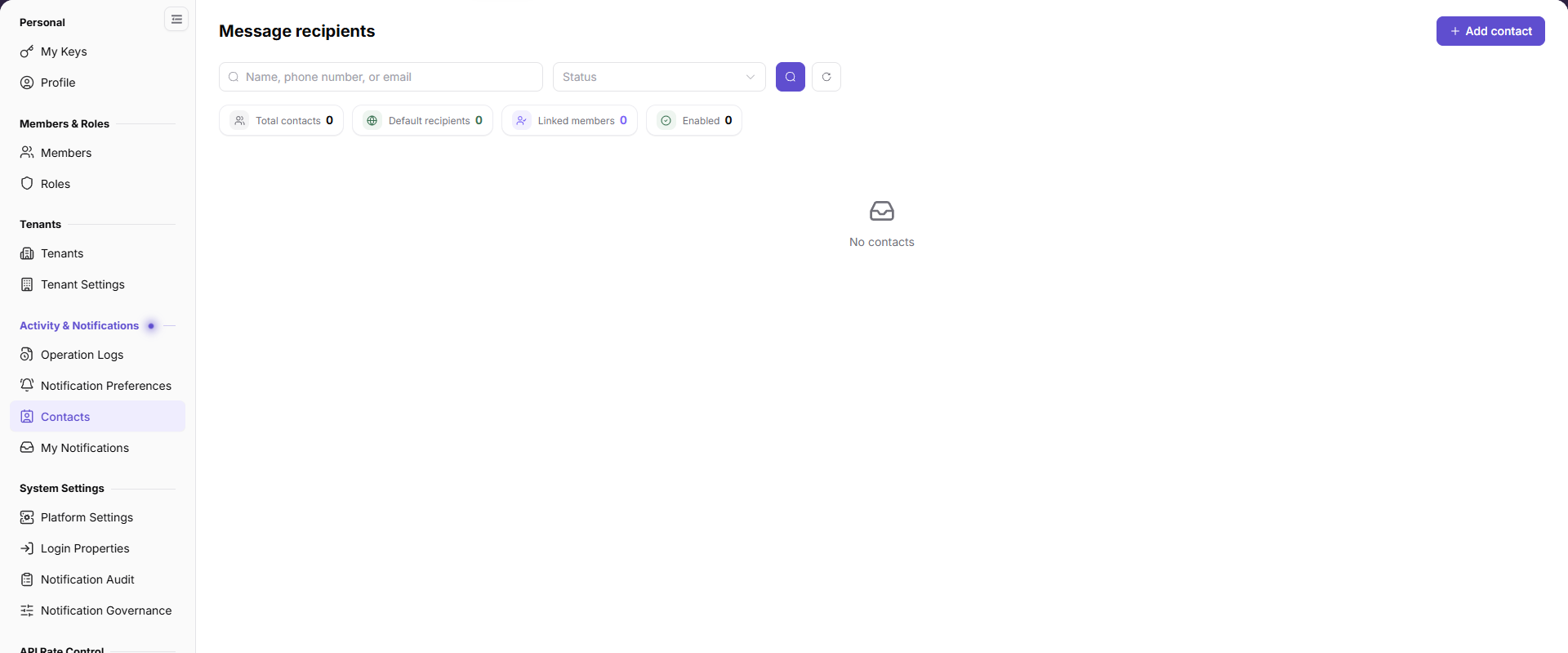
The figure shows the contacts list, with contact search, status filtering, and contact creation.
| Area | Description |
|---|---|
| Search | Search by name, phone number, or email. |
| Status | Filter enabled or disabled contacts. |
| Add contact | Opens the contact creation form. |
| List | Shows contact, phone number, email, linked platform user, status, update time, and actions. |
Main Operations
View Contacts
- Go to
Settings > Activity & Notifications > Contacts. - Search by name, phone number, or email, or filter by status.
- Review the phone number, email, linked platform user, and status.
- Click
Resetto clear the filters.
Add a Contact
- Click
Add contact. - Enter
Name,Position,Phone number, andEmail, then select aLinked platform user. - Enable
Tenant general contactwhen the contact should be the default recipient for tenant notifications. - Review the contact details before clicking
Save. For read-only inspection, clickCancelwithout submitting.
Edit a Contact
- Locate the target contact in the list.
- Click
Edit. - Change the contact details, linked platform user, or tenant general contact setting.
- After saving, return to the list and verify the update time and status.
Parameter Quick Reference
Query and Filters
This group describes list queries. An em dash means the source description does not specify a required mark, control type, or example; it is not a backend optional-field rule or a default value.
| Field Name | Required | Field Type | Example | Description |
|---|---|---|---|---|
| Search | — | — | — | Search by name, phone number, or email. |
| Status | — | — | — | Filter enabled or disabled contacts. |
Contact Configuration Fields
| Field Name | Required | Field Type | Example | Description |
|---|---|---|---|---|
| Name | Yes | Text | Example Contact | The display name of the contact. |
| Position | No | Enum | Business Owner | The contact's role in the business. |
| Phone number | No | Text | 188****8888 | Used for notification or contact. |
| No | Text | user@example.com | Used for email notifications. | |
| Linked platform user | No | Select | Example User | The linked platform account. |
| Tenant general contact | No | Switch | Enabled | Makes the contact the default recipient for tenant notifications. |
Pitfalls
- A tenant general contact affects the default recipient scope. Confirm the impact before enabling it.
- Invalid phone numbers or email addresses prevent notification delivery.
- Duplicate contacts can cause duplicate notifications or unclear ownership.
- Do not write real names, phone numbers, email addresses, tenant IDs, or platform accounts into documentation or screenshots.
Result Validation
| Check Item | Success Signal | If Abnormal |
|---|---|---|
| Contact search | The list refreshes by name, phone number, or email. | Check the keyword and filters. |
| Add contact | The new contact appears in the list after saving. | Check required fields, format, and the save message. |
| Edit contact | The list shows the updated details and status. | Refresh the page and confirm the save result. |
| Tenant general contact | The target contact is marked as the general contact. | Check the switch state and save result. |
FAQ
The contact does not receive notifications
Symptom:
A contact is configured but receives no email or in-app notification.
Possible Causes:
The contact is disabled, the email format is invalid, the tenant general contact is not enabled, or the notification type and channel are disabled.
Resolution:
Check the contact status and email address, then review Notification Preferences and Notification Audit.
Why can't I add a contact?
Symptom:
The Add contact entry is unavailable or saving fails.
Possible Causes:
The current account lacks contact-management permission, or required fields or contact formats are invalid.
Resolution:
Confirm the account permission and required fields. If it still fails, contact the tenant administrator.
Notes
- Contact information is sensitive. Use it only within the authorized scope.
- Changing the tenant general contact affects the default notification recipient scope.
- Do not write real names, phone numbers, email addresses, tenant IDs, or platform accounts.
Next Steps
- To configure notification delivery, go to Notification Preferences.
- To review personal activity logs, go to Operation Logs.