Text
Document Information
Version: v2.0 Updated: 2026-11-04
Feature Overview
| Item | Content |
|---|---|
| Applicable Role | Model Provider & User |
| Navigation Path | Model Services > Playground > Text |
| Page Route | /modelone/exploration/chat |
| Managed Object | Selected model or aggregate model, conversation input, and comparison results |
New to this page: Text is the online trial entry for catalog models. Choose a model, ask a question, and read the response; turn on Model Compare when you need side-by-side results.
Terms Quick Reference
| Term | Description |
|---|---|
| Text Chat | The built-in interactive conversation console that simulates client requests to large language models with real-time streaming output. |
| Aggregate Model | A virtual model dynamically routed by the platform layer across multiple infrastructure backends or providers to optimize throughput and uptime. |
| Model Compare | Parallel evaluation feature sending identical prompts simultaneously to two or more models to benchmark quality, latency, and preferences. |
| Context Limit | The maximum combined token threshold that a model can process across input (prompt) and output (completion) in a single turn. |
Prerequisites
- Your account can open Playground > Text.
- The account has available credits or a free quota for the model.
- The target model, context limit, and billing method are confirmed.
Page Description
The page contains a model area, a welcome area, and an input area:
| Area | Description |
|---|---|
| Top model & config bar | Displays selected model name, provider, capability tags, model dropdown selector, and Model Compare button |
| Central chat stream | Presents welcome greeting, multi-turn Q&A bubble history, with streaming Markdown and text rendering |
| Bottom input console | Multi-line text input box, Shift+Enter line-break hint, send button, and Reset all action |
| Footer disclaimer | AI-generated content accuracy disclaimer advising manual verification of critical answers |
- Model area: current model name, tags, and provider, such as
GLM-5.2,Aggregate, and星云智算人工智能科技有限公司; Model Compare is on the right. - Welcome area: shows
What would you like to explore?on first entry. - Input area: a multi-line box with
Please enter your question, Shift+Enter for a new line; the footer readsAI-generated content may be inaccurate and does not represent our views.. - Reset: Reset all clears the current configuration.
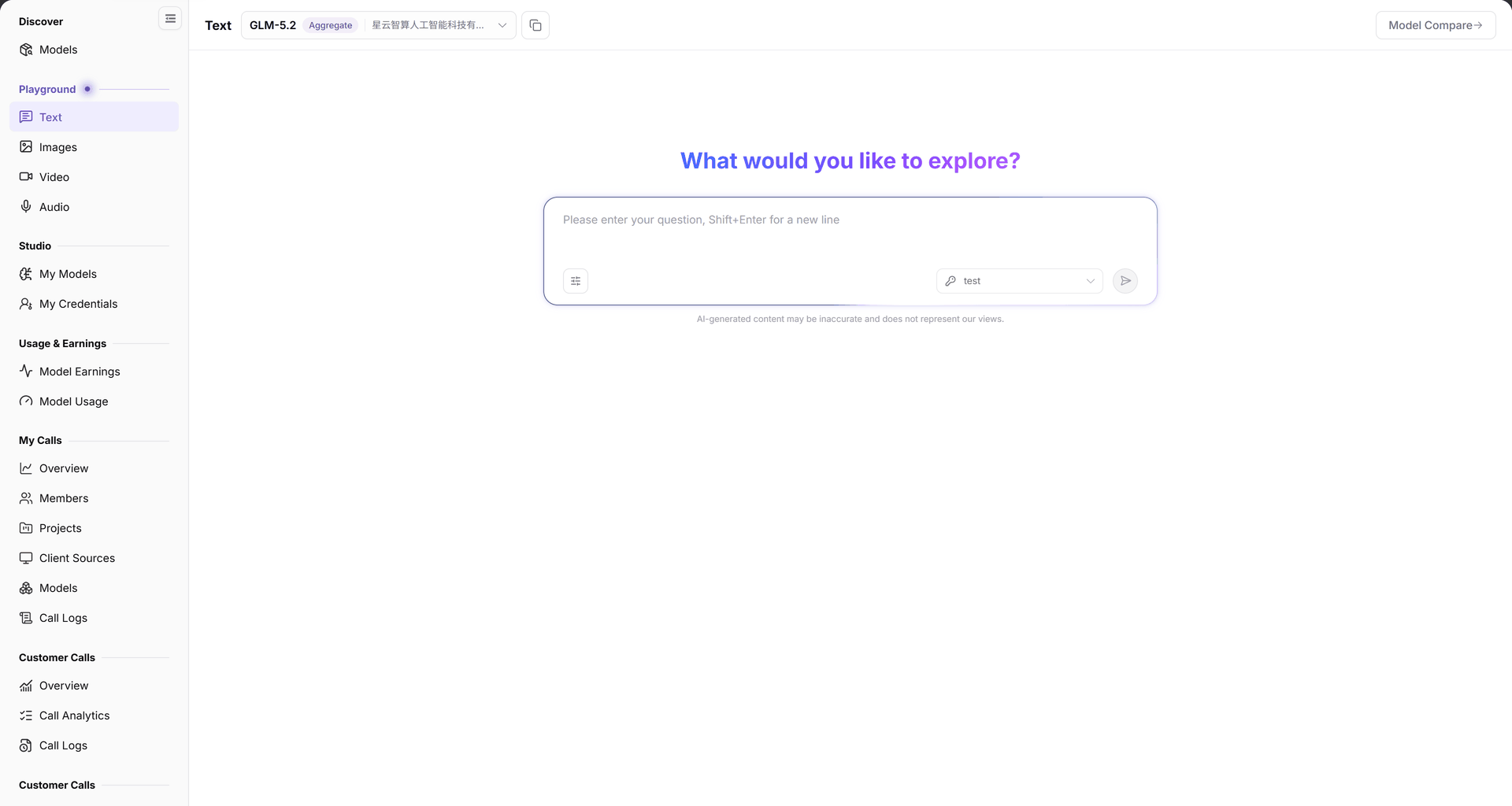
The figure shows the current model is GLM-5.2 with the Aggregate tag; the input prompt is Please enter your question, Shift+Enter for a new line, and Model Compare is available on the right.
Main Operations
Select a model
- Click the model area to open the model list.
- Select a model or aggregate model and verify its tag and provider.
Start a conversation
- Enter a question in the input box.
- Use
Shift+Enterfor a new line, or submit. - Read the response in the output area.
Compare models
- Click "Model Compare".
- Select the models to compare.
- Submit the same input and compare the responses.
Reset the session
- Click "Reset all".
- Confirm the model selection and input are cleared.
Parameter Quick Reference
| Field Name | Required | Field Type | Example | Description |
|---|---|---|---|---|
| Model | Yes | Selector | GLM-5.2 | Model or aggregate model used for the conversation |
| Model tag | System | Tag | Aggregate | Model type or composition |
| Provider | System | Text | 星云智算人工智能科技有限公司 | Provider of the current model |
| Input | Yes | Multi-line text | Hello | Prompt submitted to the model |
| Model Compare | No | Button | — | Opens multi-model comparison |
Pitfalls
- Verify the model tag before submitting; an
Aggregatemodel routes across multiple backends, so responses may come from different nodes. Shift+Enterinserts a new line; it does not submit.- Playground calls create usage records and consume tokens; long conversations cost more.
Result Validation
| Check Item | Success Signal | If Abnormal |
|---|---|---|
| Model selected | The top bar accurately displays the target model name, aggregate tag, and full provider name | If the dropdown is missing the model, check Models to confirm publication and tenant visibility |
| Message submitted | Pressing Enter or clicking send clears the input box and creates a user question bubble | If sending fails, check network connectivity or verify account quota and balance |
| Streaming response | The dialogue area renders generated tokens progressively with a moving cursor until completion | If latency exceeds dozens of seconds or cuts off, check context length limits or provider status |
| Model Compare active | When enabled, side-by-side columns display simultaneous model responses for comparative benchmarking | If a column fails to load, verify that each selected model instance is operational |
| Reset all executed | Clicking "Reset all" immediately clears dialogue history and restores the initial welcome screen | Refresh the browser tab to re-establish a clean session context |
FAQ
No response after submitting
Symptom: The dialogue area remains blank or indicates generation failure after submitting a prompt.
Possible Causes: Account quota is exhausted; the backend provider instance is overloaded or temporarily offline; or prompt length exceeds the context limit.
Resolution:
- Check account balance and credit status to ensure the tenant is not locked.
- Shorten the prompt or clear long conversation history before retrying.
- Switch to another available model or retry later.
The target model is missing
Symptom: The model selection dropdown does not contain the desired model.
Possible Causes: The model has not been approved and released; it is restricted to private tenant scopes; or the model belongs to a non-chat modality (e.g., image or video).
Resolution:
- Open Models and filter by modality to verify whether the model supports text generation.
- Confirm current tenant account permissions and role assignments.
- Contact the platform administrator or model provider to verify visibility grants.
Notes
- Do not enter keys, customer privacy, or unmasked business data.
- Playground calls are billed at the model price; long or frequent calls consume quota quickly.
- Model output is for reference only; review important conclusions manually.
Next Steps
- Check token consumption breakdowns and latency percentiles in call logs and reports.
- Copy Quick Start integration code into your client applications once benchmark results meet expectations.
- Navigate to other modality playgrounds to explore image, audio, or video capabilities.
Related pages: