Instances
Feature Overview
| Item | Content |
|---|---|
| Applicable Role | Model Provider |
| Navigation Path | AI Infra(On-Prem) > Model Deployment > Instances |
| Page Route | /powerone/quickstart/model-service |
| Managed Object | Configuration, status, and relationships on Instances |
Beginner Explanation
Model instances can be understood as model services that have already been ordered and started. Deployment templates are responsible for creation, while the Model Instances page is responsible for checking whether creation succeeded, whether the instance is still running, and whether further troubleshooting is needed.
Terms
| Term | Description |
|---|---|
| Instance | A runtime object created by the platform and scheduled to a cluster, such as a model service, online IDE, or runtime instance. |
| Specification | Resource package that a job can request, such as CPU, memory, GPU model, and card count. |
| Single Instance | One model service instance runs independently, suitable for testing or low-traffic scenarios. |
Recommended Operation Order
Confirm prerequisites for Model service instances created through deployment templates, follow Main Operations, run Result Validation, and continue to the next page.
First-Time User Notes
Confirm that the task involves Configuration, status, and relationships on Instances, and then follow the recommended order. If fields or state differ from expectations, check prerequisites before continuing downstream.
Prerequisites
- At least one model instance has been created, or you are preparing to view the current empty-list state.
- The current account has permission to view model instances.
- For troubleshooting, you can enter instance details, logs, or monitoring pages.
Page Description
Use this page to manage model-service instances created from deployment templates.
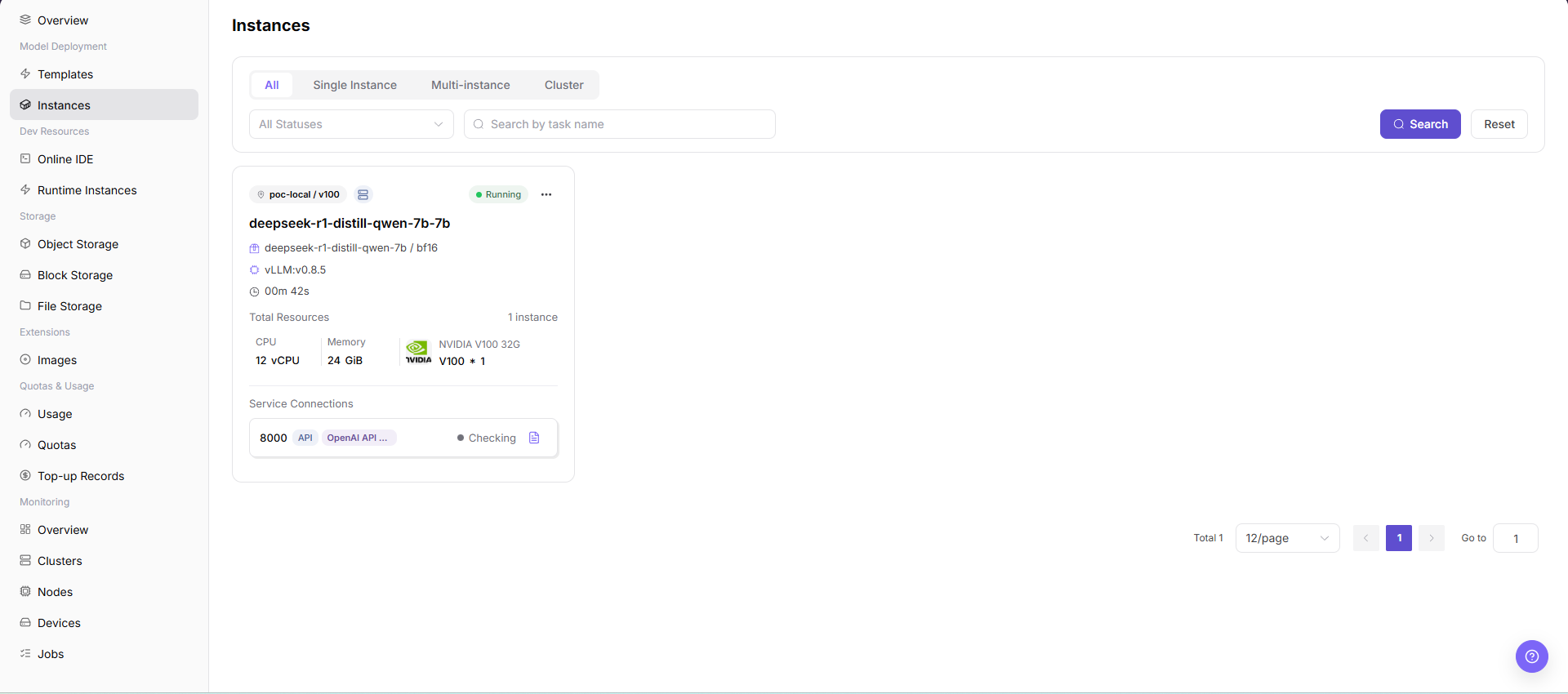
The page provides instance type, status, search, and reset entrypoints. In the current environment screenshot, the list is empty, indicating that the tenant has no model service instances under the current conditions.
Page Areas
| Field/Area | Description |
|---|---|
| Instance Type Filter | Narrows the scope by All, Single Instance, Multi-instance, Cluster, and other types. |
| Status Filter | Views instances by all statuses or a specific runtime status. |
| Search Area | Enter conditions and Click "Search" to locate the target instance. |
| List Area | Displays model instances and their status. When no data exists, it displays No model services. |
| Pagination Area | View by page when there are many instances. |
Main Operations
Filter and View Model Instances
- Go to
AI Infrastructure > On-Prem > Model Deployment > Instances. - Filter target instances using
Instance Type,Status, or search keywords, then click "Search". - In the list, review instance name, type, running status, model, specification, region, and creation time.
- Click "Details" on the target instance to check model version, resource flavor, instance status, Endpoint, and associated events.
Troubleshoot and Handle Abnormal Status
- In instance details, review resource utilization, invocation status, events, and recent error logs.
- Keep the same time range and compare cluster, node, and device monitoring to locate the affected layer (e.g., resource shortage or OOM).
- If starting, stopping, restarting, scaling, or deleting instances is required, verify impact on online workloads and obtain authorization before proceeding.
Parameter Quick Reference
| Field Name | Description |
|---|---|
| Instance Name | Name of the model service instance. |
| Instance Type | Instance form, such as single instance, multi-instance, or cluster instance. |
| Status | Current runtime or lifecycle status of the instance. |
| Model | Model associated with the instance. |
| Specification | Resource specification used by the instance. |
| Region | Region or resource pool where the instance runs. |
| Created At | Time when the instance was created. |
| Search Condition | Filter or keyword used to narrow the instance list. |
| Actions | Available row actions, such as viewing details or lifecycle operations. |
Pitfalls
The instance list may have refresh delay. A newly created instance may not appear immediately.
An empty list does not necessarily mean there are no instances. Check filters, tenant, region, and permissions first.
Stop,Restart, andDeleteare high-risk actions.Do not write real instance IDs, instance names, tenant information, regions, nodes, endpoints, logs, error details, or test data in the document.
Result Validation
| Check Item | Success Signal | If Abnormal |
|---|---|---|
| Page entry | Instances opens with the target operation entry | Check Operator permission and whether the menu is available |
| Object record | Configuration, status, and relationships on Instances is visible in the list or details | Reset filters and verify name, ownership, and creation result |
| State result | State after creation or change matches the page message | Check operation feedback, dependency state, and latest update time |
| Downstream use | A downstream page can select or associate the target | Return to prerequisites and check enabled state, ownership, and visibility |
FAQ
Target Is Missing from Instances
Symptom:
The page opens, but the expected Configuration, status, and relationships on Instances is missing.
Possible Causes:
- Filters remain active.
- the object belongs to another scope.
- a prerequisite is incomplete.
Solution:
- Reset filters
- verify region or tenant ownership
- confirm prerequisite state.
The Operation Entry on Instances Is Unavailable
Symptom:
The create, register, or maintain entry is hidden or disabled.
Possible Causes:
- Role permission is insufficient.
- the page is read-only.
- dependencies are not ready.
Solution:
- Check Operator permission
- read the page message
- complete dependency configuration first.
A Required Field on Instances Has No Options
Symptom:
The form opens, but a selection list is empty.
Possible Causes:
- Candidates are disabled.
- ownership differs.
- the current account cannot see them.
Solution:
- Check candidate state
- verify ownership
- confirm visibility and refresh the form.
Instances Has an Abnormal State After the Operation
Symptom:
A record exists after submission, but its state is unexpected.
Possible Causes:
- Connectivity or validation failed.
- a dependency is abnormal.
- processing is incomplete.
Solution:
- Check feedback and update time
- inspect related objects
- troubleshoot the processing stage.
A Downstream Page Cannot Use Instances
Symptom:
The current page is normal, but a downstream page cannot select or associate Configuration, status, and relationships on Instances.
Possible Causes:
- Visibility differs.
- the object is disabled.
- downstream cache is stale.
Solution:
- Check enabled state and ownership
- verify role visibility
- refresh and select again.
Notes
- During troubleshooting, do not expose internal access credentials or API keys in screenshots.
- Before providing external service, confirm access control, instance specification, and runtime cycle.
Stop,Restart, andDeletemay interrupt service, release resources, or remove instance records. Confirm business impact before operating.- Use the list and detail pages as the primary basis for instance status. Overview pages only provide entrypoints and summaries.
Next Steps
- View instance details and logs.
- Confirm service access address and invocation method.
- Track runtime cost in
Resource Usage.