Policies
Feature Overview
| Item | Content |
|---|---|
| Applicable Roles | Operators |
| Navigation Path | AI Infra(On-Cloud) > Scheduling Governance > Policies |
| Page Route | /infrahub/op/schedule/policy |
| Managed Objects | Application scenarios, associated models, primary/backup routes, and health probes |
Beginner Explanation
Policies defines traffic rules for model deployment. It connects a model to primary and backup targets and uses health probes to determine routing.
Terminology
| Term | Description |
|---|---|
| Application Scenario | A scheduling objective such as cost priority, high availability, or low latency. |
| Primary/Backup Route | The topology between primary and backup deployment targets. |
| Health Probe | A rule that determines whether a target can continue receiving requests. |
Recommended Operation Order
Confirm the model and targets, create a policy, complete basic information, route topology, and health probes, then validate policy state and routing.
Beginner Checklist
| Scenario | Do First | Do Not Do Directly |
|---|---|---|
| First visit | Review existing objects, states, and available actions | Change an unknown object |
| Before a change | Verify upstream dependencies, impact scope, and target object | Skip dependency and impact checks |
| After completion | Validate the current and downstream pages with Result Validation | Rely only on a success message |
| Page error | Record the redacted object, time, and page message | Submit repeatedly or record real credentials |
Prerequisites
- The current account has the permission required for Policies.
- The associated model has at least one available deployment target, with confirmed framework version and resource flavor.
- Before changing a policy, assess live routing, capacity, cost, and failover impact.
Page Description
The page lists policies and provides a three-step creation flow.
Page screenshots:
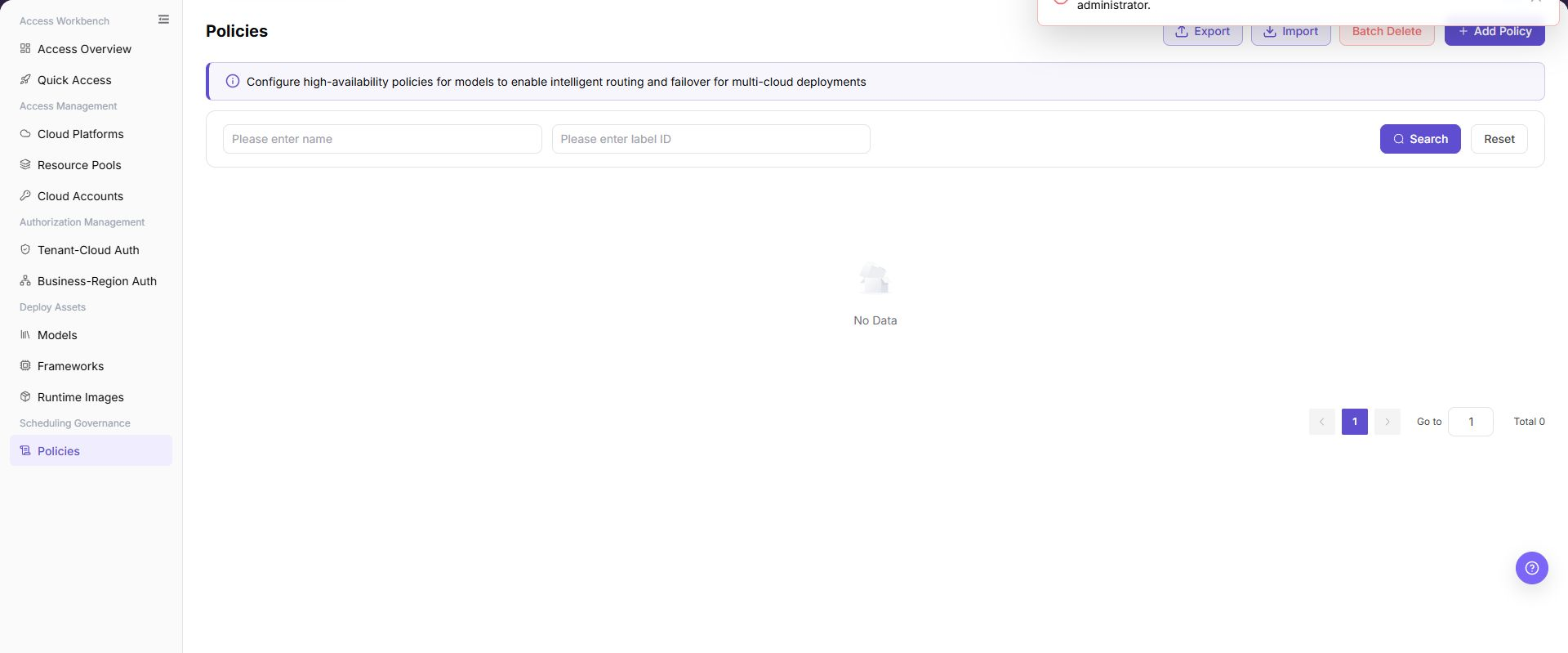
The image shows the Policies management page, displaying multi-cloud routing policy cards, scenario types, primary/backup topology, and runtime status, with an Add Policy button.
Main Operations
Create Policy
Step 1: Basic Information and Model Association
- Click "Add Policy" on the Policies page.
- Enter the policy name and select an application scenario (such as "Cost Priority", "High-Availability Production", or "Ultra-Fast Inference").
- Select the target model and version (such as
Qwen3-8b / v1.0), which automatically populates the available routing node resources across cloud platforms below. - Enter the description and click "Next".
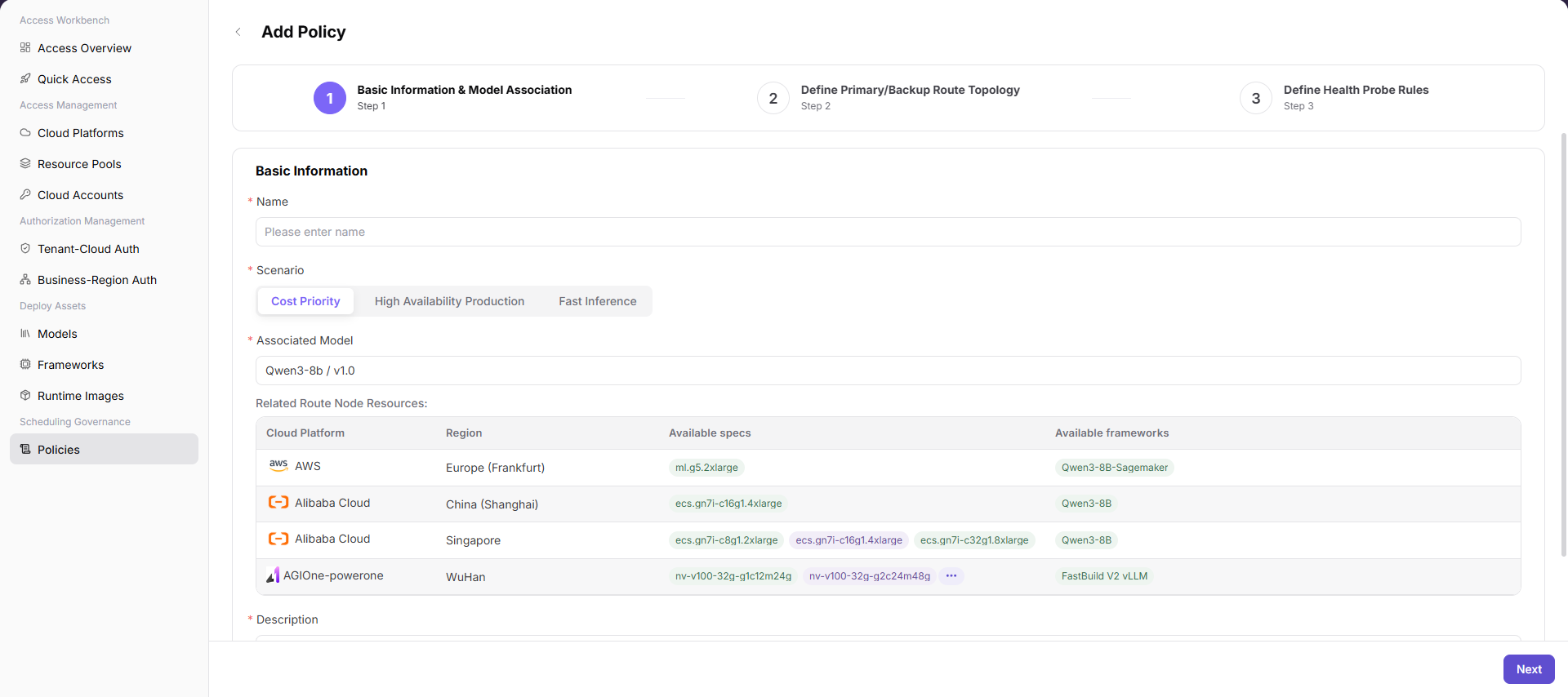
The image shows "Add Policy - Step 1: Basic Information and Model Association", entering policy name, scenario, and associated model while displaying available cloud nodes.
Step 2: Define Primary and Backup Route Topology
- In the routing configuration, select primary and backup route nodes based on multi-cloud resource specifications and costs.
- Configure priority rankings (P1, P2, etc.) for backup route nodes to establish traffic dispatching and failover orders.
- Review cloud providers, specifications, estimated costs, and inference framework versions for each node, then click "Next".
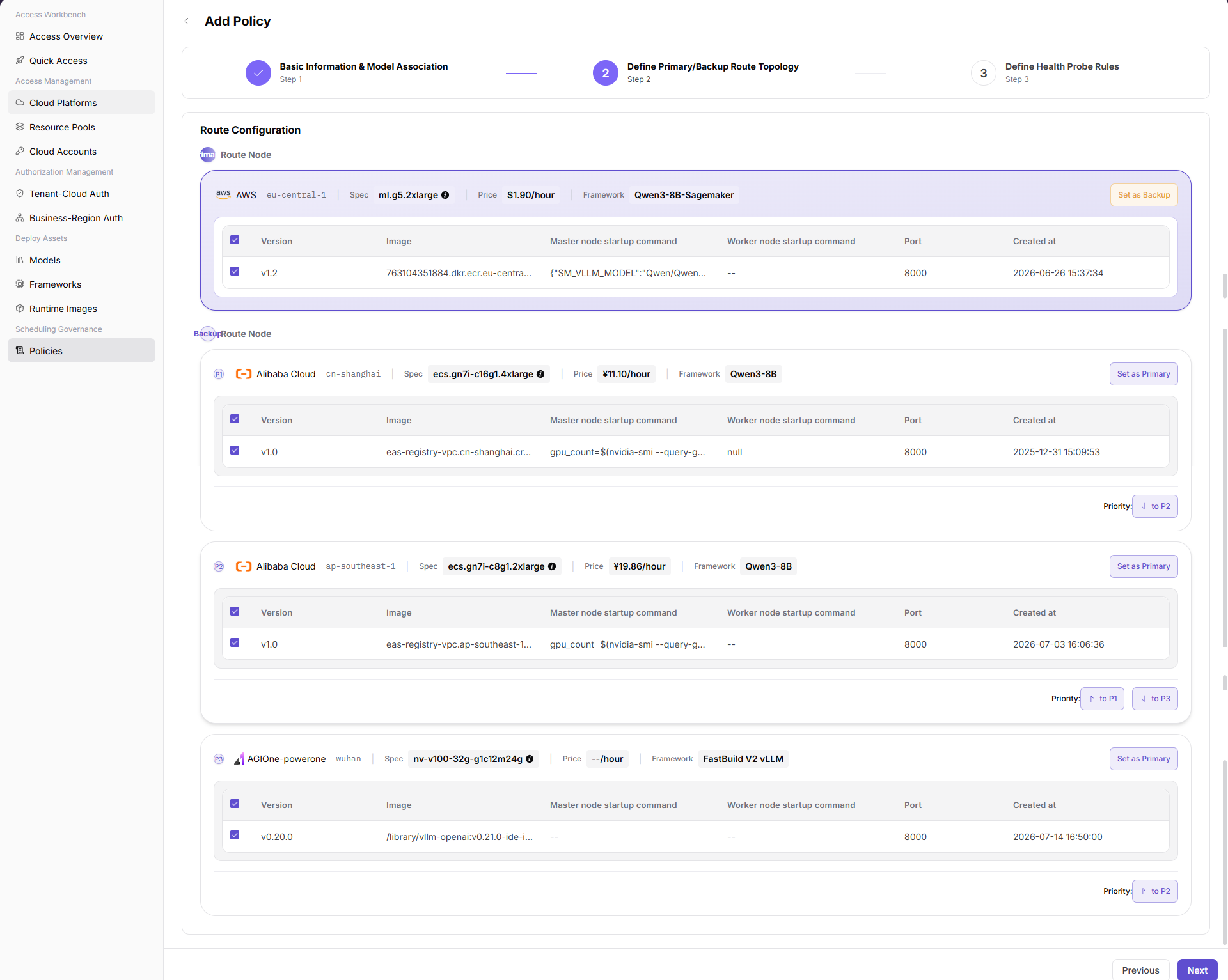
The image shows "Add Policy - Step 2: Define Primary and Backup Route Topology", configuring primary and backup route nodes with priority ranks and failover paths.
Step 3: Define Health Probe Rules
- Configure health probe parameters for primary and backup nodes, including probe intervals, timeouts, and healthy/unhealthy threshold counts.
- Specify the probe endpoint path and expected response status codes to ensure unhealthy nodes are promptly evicted and traffic shifted.
- Confirm the probe rules and click "Submit" to complete policy creation, then verify the new policy in the list.
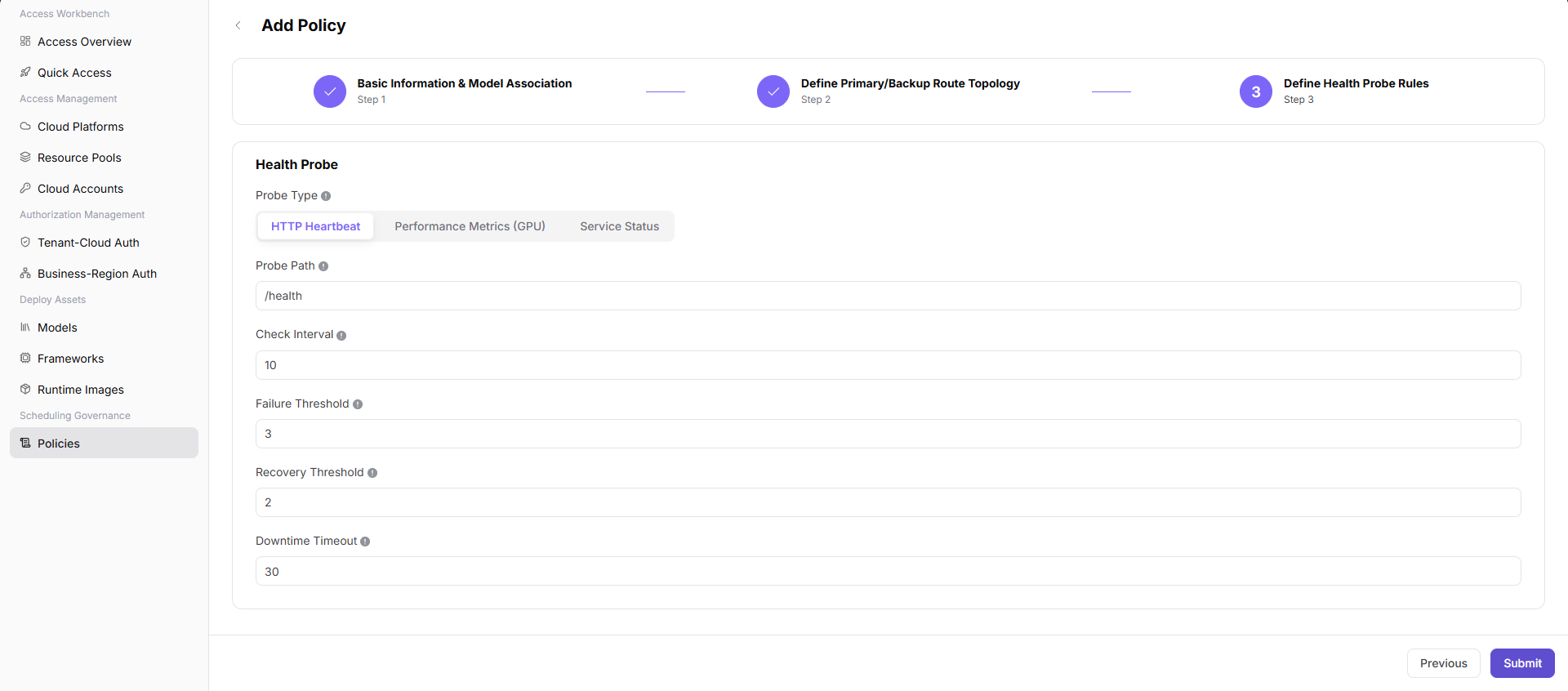
The image shows "Add Policy - Step 3: Define Health Probe Rules", configuring probe intervals, timeouts, and failover threshold rules.
View Policies
- Locate the target policy in the list.
- Verify application scenario, associated model, state, and update time.
- Open details and verify that topology and health probes match deployment targets.
Parameter Reference
| Field Name | Required | Field Type | Example | Description |
|---|---|---|---|---|
| Name | Yes | Text | policy-cost-priority-demo | Policy display name. Use sanitized examples or non-sensitive business-readable names. |
| Label ID | No | Text | label-demo | List filter field used to search policies by label identifier. |
| Scenario | Yes | Segmented control | Cost Priority | Selects the policy objective. The page supports cost priority, high availability production, and fast inference. |
| Associated Model | Yes | Select | Sample Model / v1.0 | Selects the model and version bound to the policy. |
| Cloud Platform | No | Table field | Sample Cloud Platform | Cloud platform to which the related route node resource belongs. |
| Region | No | Table field | Sample Region | Region where the related route node resource is located. |
| Available specs | No | Table field | gpu.example | Resource specs available for the current model. |
| Available frameworks | No | Table field | Sample Framework | Inference frameworks available for the current model. |
| Description | Yes | Multiline text | Sample policy description | Describes the policy purpose. Do not write real customer, tenant, business, or internal test parameters. |
| Route Node | Yes | Selection | Primary Route Node | Node selected in route configuration for the policy. |
| Primary Route | Yes | Operation state | Primary | Route node used first by the policy. |
| Backup Route | No | Operation state | Backup | Backup route node used when the primary route is unavailable. |
| Priority | No | Ordering control | P1 | Adjusts the priority order of backup routes or candidate nodes. |
| Spec | No | Display field | gpu.example | Resource spec used by the route node. |
| Price | No | Display field | Sample price/hour | Cost reference for the route node. Real amount details are not shown in documentation. |
| Framework | No | Display field | Sample Framework | Inference framework used by the route node. |
| Version | No | Table field | v1.0 | Image or runtime configuration version. |
| Image | No | Table field | <BASE_URL>/namespace/image:tag | Image address example. Use placeholders only and do not write real registry addresses. |
| Master node startup command | No | Table field | --model-path /models/example | Master node startup command. Use placeholder examples only. |
| Worker node startup command | No | Table field | --worker | Worker node startup command. Do not write internal startup parameters. |
| Port | No | Number | 8000 | Service listening port. |
| Created at | No | Date time | 2026-07-21 10:00:00 | Creation time of the route node or version configuration. |
| Probe Type | Yes | Segmented control | HTTP Heartbeat | Health probe type. The page supports HTTP heartbeat, GPU performance metrics, and service status. |
| Probe Path | No | Text | /health | HTTP heartbeat probe path. |
| Check Interval | No | Number | 10 | Frequency for running health probes. |
| Failure Threshold | No | Number | 3 | Number of consecutive failures before the service is considered abnormal. |
| Recovery Threshold | No | Number/Rule | 2 | Rule or threshold for determining service recovery. |
| Downtime Timeout | No | Number | 30 | Timeout before the service is judged as down. |
| Search | No | Button | Search | Queries policy records with the current filters. |
| Reset | No | Button | Reset | Clears filters and restores the list display. |
| Export | No | Button | Export | Exports policy records and may contain sensitive operational configuration. |
| Import | No | Button | Import | Imports policy records in bulk and may change multiple policy configurations. |
| Batch Delete | No | Button | Batch Delete | Deletes policies in bulk. Confirm the impact scope before using it. |
| Previous | No | Button | Previous | Returns to the previous configuration step. |
| Next | No | Button | Next | Validates the current step and moves to the next step. |
| Submit | Yes | Button | Submit | Final action that submits the policy configuration. Review carefully before clicking. |
Pitfalls
- Do not skip the upstream dependency check: The associated model has at least one available deployment target, with confirmed framework version and resource flavor.
- Confirm impact before a configuration change: Before changing a policy, assess live routing, capacity, cost, and failover impact.
- A success message does not prove downstream synchronization. Use Result Validation afterward.
- Use only
<API_KEY>,<PERSONAL_KEY>,<ACCESS_KEY_ID>,<ACCESS_KEY_SECRET>,<BASE_URL>, and<ENDPOINT_PATH>for credential and endpoint examples.
Result Validation
| Check Item | Success Signal | If Abnormal |
|---|---|---|
| Page is accessible | Title, navigation, and main content display correctly | Check role permission and navigation path |
| Managed objects are visible | Application scenarios, associated models, primary/backup routes, and health probes display as expected | Clear filters and verify upstream dependencies |
| Operation result is saved | The expected state or new record appears | Review page messages, required fields, and dependencies |
| Downstream result is consistent | Associated pages show the change | Wait for synchronization, refresh, and return to the responsible object |
FAQ
Target Object Is Missing in Policies
Symptom:
The expected object is missing from the list or selector.
Possible Causes:
- Active query criteria filter out the target object.
- An upstream object is disabled, or the current role lacks visibility.
Resolution:
- Clear filters and refresh the page.
- Verify the prerequisite object: The associated model has at least one available deployment target, with confirmed framework version and resource flavor.
- Confirm the current role and data scope, then locate the object again.
Policies Action Is Unavailable
Symptom:
An expected button, menu, or state switch is unavailable.
Possible Causes:
- The current account lacks the required action permission.
- Object state, references, or prerequisites block the action.
Resolution:
- Verify the permission for the action and the current object state.
- Check references and prerequisites identified by the page message.
- Remove the blocker, refresh the page, and perform the action once.
Policies Change Does Not Reach Downstream
Symptom:
The page reports success, but a downstream page still shows the old state.
Possible Causes:
- An associated page has stale cache or synchronization delay.
- The current and downstream pages use different roles, tenants, or data scopes.
Resolution:
- Wait for synchronization and refresh both pages.
- Confirm that both pages use the same role, tenant, and object scope.
- If they still differ, return to the responsible object and verify the saved result.
Policies Data Differs from Another Page
Symptom:
Counts or states differ from an associated page.
Possible Causes:
- The pages use different filters, aggregation rules, or update times.
- The change is still synchronizing, or role-based data scopes differ.
Resolution:
- Align filters and aggregation rules on both pages.
- Check update times and wait for synchronization.
- Compare object details instead of summary counts only.
How to Troubleshoot a Policies Failure
Symptom:
Submission fails or the state does not change for an extended period.
Possible Causes:
- Required fields, field combinations, or object state do not meet submission rules.
- An upstream dependency is invalid, the request failed, or the same action is already processing.
Resolution:
- Record the redacted object, time, and complete page message.
- Verify required fields, object state, and upstream dependencies.
- Confirm that no identical job is processing before one retry.
Notes
- Before changing a policy, assess live routing, capacity, cost, and failover impact.
- Do not put real accounts, credentials, internal locations, or customer data in documentation, screenshots, tickets, or chat records.
- Authorization, deployment, deletion, publication, state, or billing changes require an auditable record and recovery plan.
Next Steps
- Use a test deployment to validate policy hits, primary/backup routes, and failover behavior.
- Monitor model service status, latency, cost, and availability affected by the policy.
- Regularly review health probe thresholds, route priority, and associated model versions.