Monthly Bill
Document Information
Version: v1.0 Updated: 2026-08-27
Feature Overview
| Item | Content |
|---|---|
| Applicable Role | Model caller |
| Navigation path | Billing > User Billing > Monthly Bill |
| Page route | /billing/my/account/transactions/monthly-summary |
| Managed objects | Billing-cycle trends, cycle summaries, billing events, and grouped bills |
Monthly Bill shows consumption trends and billing summaries for the current account by billing cycle. Select a cycle to review consumption, top-ups, net change, and billing events, then break down cost sources by model, AI Infra, project, or member.
Beginner Explanation
Monthly Bill works like a credit-card statement. It summarizes consumption, top-ups, and net changes for a billing cycle instead of showing only one transaction. Confirm the billing cycle first, then break down the result by model, AI Infra, project, or member.
Terms Quick Reference
| Term | Meaning | Handling Tip |
|---|---|---|
| Monthly Bill | Monthly billing-reconciliation page. | Use it for billing-cycle-level checks. |
| Current-cycle consumption | Accumulated consumption in the selected cycle. | Compare it with Transactions under the same time range. |
| Net change | Credit change after top-ups, consumption, and adjustments. | Do not interpret it as consumption alone. |
| Grouping view | Bill breakdown by model, AI Infra, project, or member. | Use it to locate cost sources. |
| Billing event | Number of events that generated charges or credit changes. | Open Transactions when the event count is abnormal. |
Prerequisites
- The current account has permission to view user-side billing.
- Open
My Billing > Monthly Bill. - Confirm the billing cycle to reconcile.
- To explain an individual difference, use
Transactionsto inspect the source record.
Page Description
The page provides a billing-cycle selector and Refresh Data, then displays the consumption trend, current-cycle notice, current-cycle consumption, top-ups, net change, and billing events. Use By Model, By AI Infra, By Project, or By Member to switch the statistical view.
The following screenshot shows Monthly Bill. Amounts and trend values in shared screenshots must be sanitized.
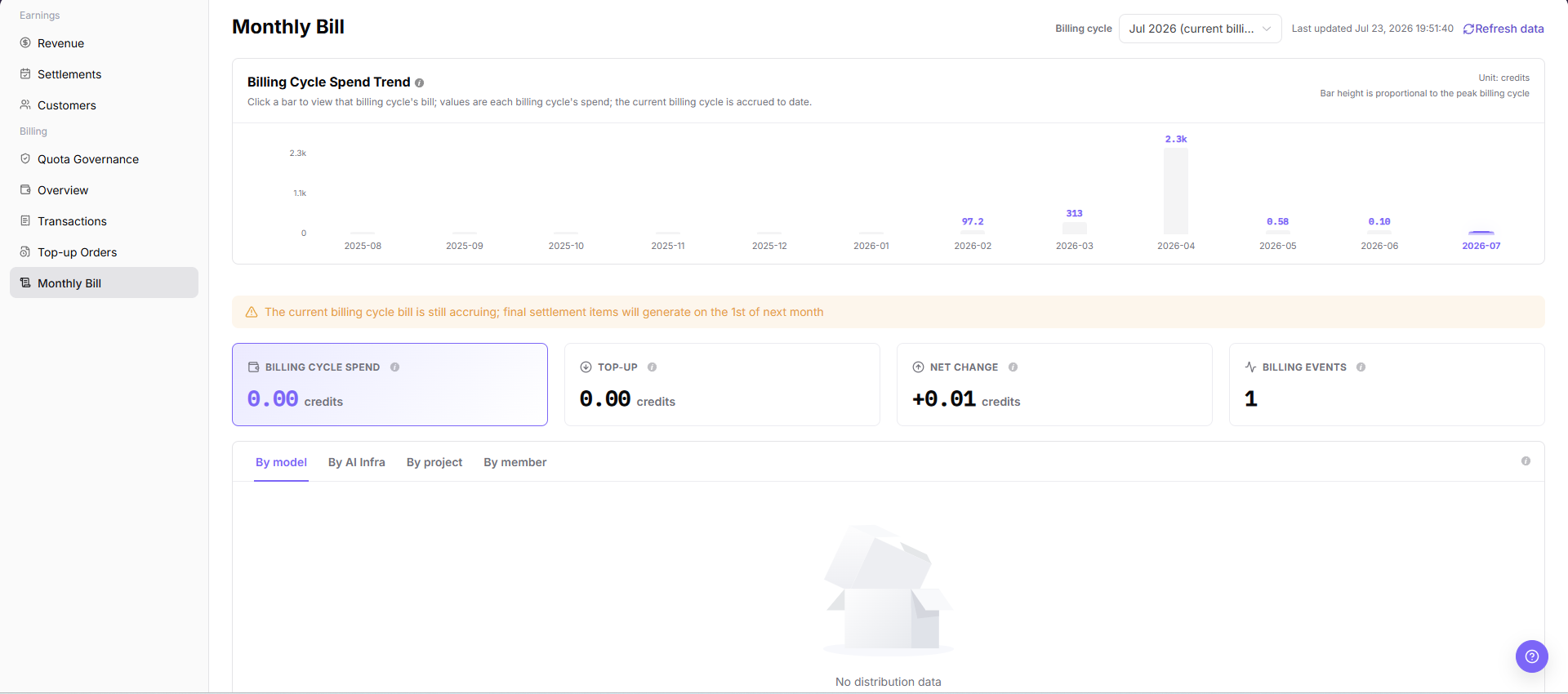
| Area | Description |
|---|---|
| Billing Cycle | Selects the monthly billing cycle to view. |
| Refresh Data | Reloads statistics for the selected cycle. |
| Consumption Trend | Displays consumption during the selected cycle. |
| Current-cycle Consumption | Displays accumulated consumption in the current cycle. |
| Top-ups | Displays top-ups in the current cycle. |
| Net Change | Displays the balance change after top-ups, consumption, and adjustments. |
| Billing Events | Displays the number of billing-related events in the current cycle. |
| Grouping View | Switches among By Model, By AI Infra, By Project, and By Member. |
| Detail List | Displays cost sources and summaries for the selected dimension. |
Main Operations
Change the Billing Period and Reconcile a Monthly Bill
- Go to
Billing > My Billing > Monthly Bill. - Select the target billing period and filter by project, business type, or billing status.
- Check opening, consumption, top-up, adjustment, and closing amount directions.
- If no data is shown, check the billing period and bill-generation status. Redact bill amounts and business information before sharing.
View a Monthly Bill
- Go to
Billing > User Billing > Monthly Bill. - Select the target month in
Billing Cycle. - Click "Refresh Data" to update statistics for the cycle.
- Review
Consumption Trend,Current-cycle Consumption,Top-ups,Net Change, andBilling Events. - Before exporting a bill, verify the billing period, data scope, and recipient permission.
Reconcile Consumption by Dimension
- Go to
Billing > User Billing > Monthly Bill. - Confirm that
Billing Cyclematches the month being reconciled. - Select "By Model",
By AI Infra,By Project, orBy Memberin the detail area. - Review the consumption summary and detail list for that dimension.
- For a high or abnormal cost source, open
Transactionsand use the same billing cycle. - In external communication, record only sanitized dimension names, time ranges, and symptoms.
Parameter Quick Reference
| Field Name | Required | Field Type | Example | Description |
|---|---|---|---|---|
| Billing Cycle | Yes | Month | 2026-07 | Selects the monthly bill to view. |
| Refresh Data | No | Button | Refresh Data | Reloads statistics for the selected cycle. |
| Consumption Trend | System-generated | Chart | Sanitized trend | Displays consumption in the selected cycle. |
| Current-cycle Consumption | System-generated | Credits | Sanitized amount | Accumulated consumption in the selected cycle. |
| Top-ups | System-generated | Credits | Sanitized amount | Top-up summary for the selected cycle. |
| Net Change | System-generated | Credits | Sanitized amount | Net balance change in the selected cycle. |
| Billing Events | System-generated | Number | Sanitized count | Billing-related events in the selected cycle. |
| By Model | No | Grouping view | By Model | Breaks the bill down by model. |
| By AI Infra | No | Grouping view | By AI Infra | Breaks the bill down by AI Infra resource. |
| By Project | No | Grouping view | By Project | Breaks the bill down by project. |
| By Member | No | Grouping view | By Member | Breaks the bill down by member. |
| Detail List | System-generated | Table | Sanitized details | Displays cost sources for the selected dimension. |
Pitfalls
- Monthly Bill and real-time transactions may have a synchronization delay. Do not treat an open billing cycle as final.
- Grouping views are different breakdowns of the same data; do not add their totals together.
- Net change includes top-ups, consumption, and adjustments and cannot be explained by consumption alone.
- When Monthly Bill shows an anomaly, open Transactions and use the same billing cycle.
- Do not record real accounts, emails, order numbers, transaction numbers, amounts, customer names, tenant names, Tokens, or Keys.
- Sanitize screenshots, exports, tickets, and comments.
Result Validation
| Check Item | Success Signal | If Abnormal |
|---|---|---|
| Page loading | Billing cycle, consumption trend, summary metrics, and detail list are displayed. | Refresh the page or check user-side billing permission. |
| Cycle switching | Selecting a billing cycle displays its data. | Select the cycle again and click "Refresh Data". |
| Summary visibility | Consumption, top-ups, net change, and billing events are visible. | Wait for loading to finish and refresh. |
| Dimension switching | Model, AI Infra, project, and member views can be selected. | Check permission or page loading state. |
| Bill export controlled | Bills are exported only by authorized users for the confirmed billing period and scope. | If an unintended export occurs, record the time and scope and notify the owner for review. |
FAQ
The Current-cycle Bill Is Still Accumulating
Symptom:
The page says that the current-cycle bill is still accumulating and final settlement items will be generated next month.
Possible Causes:
The billing cycle has not ended, so new consumption, top-ups, or billing events can still change the bill.
Solution:
Treat current-cycle data as an interim reference. Perform final reconciliation after the cycle ends and the data has been refreshed.
Monthly Bill and Transactions Show Different Amounts
Symptom:
The Monthly Bill summary differs from the filtered Transactions result.
Possible Causes:
The billing cycle, time range, transaction type, or grouping dimension is different.
Solution:
Align the billing cycle and time range, filter Transactions by income/expense direction and transaction type, then return to Monthly Bill and refresh.
Consumption Is High in One Dimension
Symptom:
One model, AI Infra resource, project, or member shows unusually high consumption.
Possible Causes:
The dimension may have more recent workloads or high-cost calls, training, or deployments.
Solution:
Record the sanitized dimension name and billing cycle, then review Transactions for the same time range and compare with business usage records when needed.
Monthly Bill Does Not Update After Refresh
Symptom:
The amount, count, or status in Monthly Bill remains unchanged after the related process finishes.
Possible causes:
- The billing cycle, tenant, customer, or business scope does not match the processed object.
- An upstream statistics, posting, or settlement task is still running.
- The current account can view only part of the data scope.
How to handle:
- Recheck the billing cycle and object scope in Monthly Bill.
- Refresh the page, reopen the target record, and verify the update time.
- Cross-check the upstream status in Transactions and Account Overview.
- If the value still does not update, provide authorized personnel with the desensitized billing cycle, object identifier, status, and update time.
What Must Be Checked Before Sharing Monthly Bill Information?
Symptom:
Monthly Bill results must be shared in a screenshot, ticket, or report.
Possible causes:
- Billing cycles, consumption amounts, model or resource usage, and accounts may be sensitive billing information.
- The sharing scope may exceed the recipient's business permission.
- A full screenshot may include account, environment, or unrelated information.
How to handle:
- Keep only fields, statuses, and time ranges required for troubleshooting.
- Use the specified light-gray opaque small-pixel mosaic only on sensitive text and values.
- Confirm that the screenshot does not contain top-menu account data, environment information, real credentials, or internal addresses.
- Share with the minimum required audience and record the desensitized scope.
Notes
- Current-cycle data can change before the cycle ends and is not the final monthly-settlement result.
- Sanitize amounts, accounts, order numbers, and transaction numbers when discussing bill differences externally.
- Monthly Bill is for summary reconciliation; use Transactions to explain an individual source.
- Before exporting a bill, verify the billing period, data scope, and recipient permission, and redact amounts and details.
Next Steps
- To trace an individual source, open Transactions.
- To review the current balance, open Account Overview.
- To review quota risk, open Quota Governance.