Top-up Approvals
Document Information
Version: v2.0 Updated: 2026-11-05
Feature Overview
| Item | Content |
|---|---|
| Applicable Role | Operations administrator |
| Navigation Path | Billing > Customer Billing > Top-up Approvals |
| Page Route | /billing/customers/top-ups/approvals |
| Managed Object | Customer top-up requests and their audit information |
Top-up Approvals provides customer name and status filters to locate top-up requests and review requested credits, request details, audit information, and remarks.
Beginner Explanation
Top-up Approvals is like a request register: identify the customer and status to query, then read the matching request information.
Terms Quick Reference
| Term | Description |
|---|---|
| Requested credits | The number of credits requested in a top-up request. |
| Audit info & remarks | The list column for audit information and remarks. |
Prerequisites
- You are signed in and can open
Billing > Customer Billing > Top-up Approvalsfrom the sidebar. - Have the customer name ready when querying by customer.
Page Description
| Area | Description |
|---|---|
| Filters | Above the list, with a Customer name input and a Status dropdown. |
| Request list | Seven columns: Customer & Applicant, Requested credits, Request details, Status, Audit info & remarks, Applied at, and Actions. |
| Pagination | Shows the total for the current query, page size, and page number. |
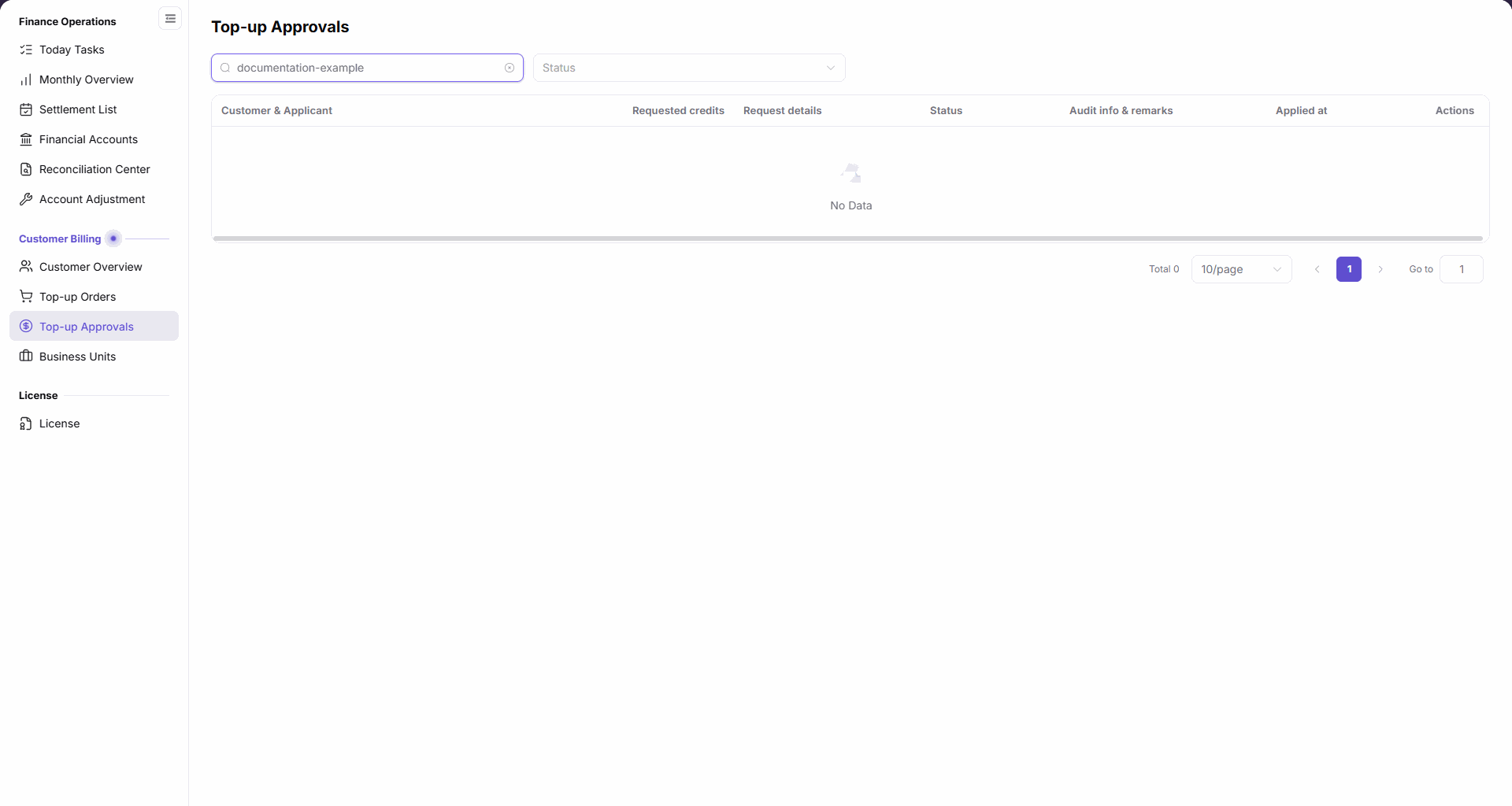
The figure shows the Top-up Approvals list after entering documentation-example as the customer name: the status selector remains available, and No Data and Total 0 apply only to the current query scope.
Main Operations
Query by Customer Name
- Go to
Billing > Customer Billing > Top-up Approvals. - Enter the name to find in
Customer name; for example, enterdocumentation-exampleto view results for that example name. - Read the list and total to check whether records are returned for the current name condition.
Narrow the Scope by Status
- Open the
Statusdropdown above the list. - Select the status you need from the options currently offered by the interface.
- Read the results together with the
Customer namecondition and check theStatuscolumn.
Review Request Information
- Check
Customer & Applicantfirst to identify the request being read. - Read
Requested credits,Request details,Status,Audit info & remarks, andApplied atin the same row. - If the list is empty, check the current customer name and status conditions first; do not conclude that no customers have requests.
Parameter Quick Reference
The table distinguishes query inputs from list display items; display items require no input.
Query and Filters
The query group lists the real controls of the page filter area. "As needed" describes how the control is used, not a backend required rule; "—" means this page does not specify an example.
| Field Name | Required | Field Type | Example | Description |
|---|---|---|---|---|
| Customer name | No | Text filter | documentation-example | Enter the customer name to query. |
| Status (filter) | No | Dropdown filter | Current UI options | Select a status to narrow the query scope. |
Existing Fields
| Field Name | Required | Field Type | Example | Description |
|---|---|---|---|---|
| Customer & Applicant | Not applicable (display item) | List column | — | Identify the customer and applicant for the request. |
| Requested credits | Not applicable (display item) | List column | — | Read the number of credits requested. |
| Request details | Not applicable (display item) | List column | — | Read the request description. |
| Status | Not applicable (display item) | List column | — | Check the request status. |
| Audit info & remarks | Not applicable (display item) | List column | — | Read audit information and remarks. |
| Applied at | Not applicable (display item) | List column | — | Check the application time. |
| Actions | Not applicable (display item) | List column | — | The action area for a record row. |
Pitfalls
Customer nameandStatusare query conditions; theStatuscolumn displays a request's status. Distinguish the filter from the result field.Total 0after enteringdocumentation-exampleapplies to that query scope, not to the total requests across all customers.
Result Validation
| Check Item | Success Signal | If Abnormal |
|---|---|---|
| Page location | The page displays Top-up Approvals, with Customer name and Status filters. | Locate the page again through Customer Billing > Top-up Approvals. |
| List fields | The headers include Customer & Applicant, Requested credits, Request details, Status, Audit info & remarks, Applied at, and Actions. | Check that you opened Top-up Approvals rather than Top-up Orders. |
| Empty-result scope | The example name documentation-example returns No Data and Total 0. | Check the name and status conditions before drawing conclusions about other customers. |
FAQ
Does an Empty Result Mean That No Customers Have Top-up Requests?
Symptom:
After entering documentation-example as the customer name, the list shows No Data and Total 0.
Possible Causes:
The current result is restricted by the customer name and status conditions; its scope is not all customers.
Resolution:
Check the name input and status selection, change the query conditions as needed, and read the list for that scope. An empty result for one name does not mean that no customers have requests.
Notes
- Requested credits, approval status, and credited funds are different information. Do not treat the request list or an empty result as proof that funds were credited.
- The operations described here cover queries and list review only, not submission steps for approval, rejection, or other fund processing.
Next Steps
- To review customer information, see Customer Overview.
- To query top-up orders, see Top-up Orders.