Members
Document Information
Version: v2.2 Updated: 2026-11-16
Feature Overview
| Item | Content |
|---|---|
| Applicable Role | Model Consumer |
| Navigation Path | Settings > Members & Roles > Members |
| Page Route | /user/user-space/team-members |
| Managed Object | Tenant administrators, members, roles, and contact information |
Beginner Explanation
Members is the tenant contact directory and permission entry. Use it to confirm whether a member has joined, can sign in, is enabled, and has the expected role. When a member cannot access the platform, check member status and role assignment first.
Terms Quick Reference
| Term | Description |
|---|---|
| Member | An account that can sign in to or collaborate in a tenant. Confirm its status and tenant ownership first. |
| Member status | Indicates whether a member is enabled, disabled, or pending. Check it first when sign-in fails. |
| Role assignment | The permission set assigned to a member. Check it when a menu is missing. |
| Reset Password | A management action that restores member access. Confirm the person's identity before using it. |
Prerequisites
- The current account has permission to view members.
- Before adding a member, you have confirmed the identity, contact information, email address, role, and initial status.
- Do not retain complete phone numbers, email addresses, or passwords in documentation or screenshots.
Page Description
The page shows member usernames, names, contact information, role labels, status, creation time, and actions. Use the identity badge and username together before you open an action. An identity badge is display information. It does not replace the assigned role or permission check.
| Area | Description |
|---|---|
| Top action | Add Member |
| Filters | Username and Phone Number |
| Table columns | Username, name, phone number, email, role, status, creation time, and actions |
| Form fields | Username, name, phone number, email, password, confirm password, role, and status |
| High-risk action | Adding and enabling a member |
Main Operations
View Members
- Go to
Settings > Members & Roles > Members. - Use the search box for username, name, phone number, or email, and filter by
All Members,No Tags, or tag categories. - Review username, display name, contact information, roles, member tags, status, and creation time.
- If the list is empty, confirm the current tenant and filters. Redact personal information before sharing.
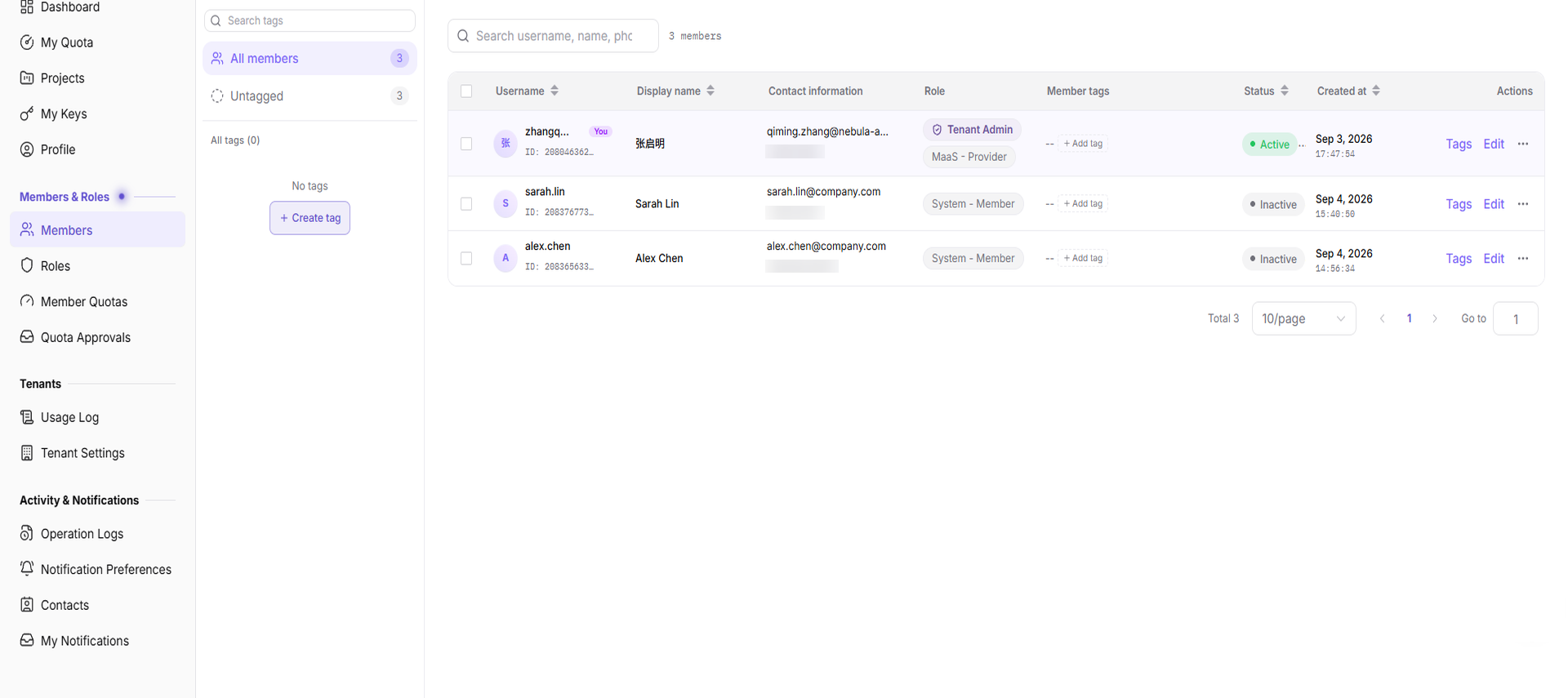
The member list supports search by username, name, phone, or email and filtering by tag category. If it is empty, confirm the tenant and filters.
Add a Member
- Click
Add Memberin the upper-right corner. - Enter
Username,Display name,Email,Contact phone,Password, andConfirm password. - Select a
RoleandStatus. - Before clicking
Confirm, verify the member identity, role permissions, and enabled status. UseCancelfor read-only inspection.
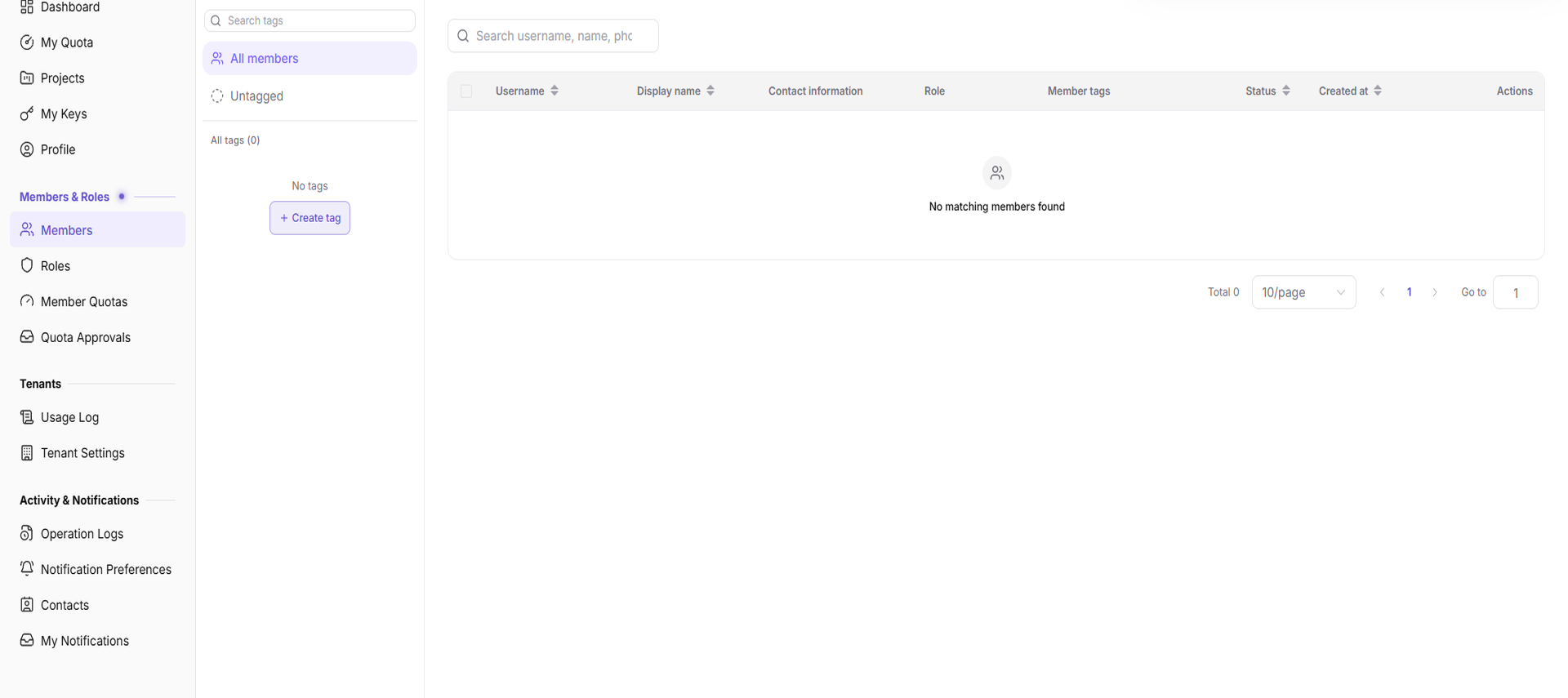
The figure shows an empty Members list before the Add Member form is opened. The form fields are described in the steps above; saving creates a real account.
Edit a Member
- Locate the target member in the list and click
Edit. - Review or change the display name, email, phone number, roles, and status. The username is usually read-only.
- Save, return to the list, and verify the roles, status, and update time.
Parameter Quick Reference
Query and Filters
This group is for queries and filters only. An em dash means the source does not specify required status, type, or example; it is not a backend rule. Grouped controls list their conditions in the Description column.
| Field Name | Required | Field Type | Example | Description |
|---|---|---|---|---|
| Filters | — | — | — | Username and Phone Number |
Existing Configuration and Result Fields
| Field Name | Required | Field Type | Example | Description |
|---|---|---|---|---|
| Member Name | No | Text | Example Member A | Identifies the member. |
| Identity Badge | System generated | Badge | Displayed on page | Shows identity information. It does not grant permissions. |
| No | Text | member@example.com | Provides the member's contact and sign-in information. | |
| Role | System generated | Tag | Member | Shows the member's assigned permission role. |
| Status | System generated | Tag | Active | Shows whether the member account is active. |
| Copy icon | No | Icon | Copy | Copies a supported member value and shows success feedback. |
| Actions | System generated | Button / link | Profile / Edit | Opens actions that are available to the current account. |
Pitfalls
- Do not change roles, members, login policies, Keys, or API rate-control rules without confirming the affected users and systems.
- UI entries can differ by role and tenant scope; verify the current account context before troubleshooting.
- Never copy complete Keys, AK/SK, tokens, or secrets into documentation, tickets, or screenshots.
Result Validation
| Check Item | Success Signal | If Abnormal |
|---|---|---|
| Member added | The new member appears in the list. | Check the email address, tenant scope, and invitation status. |
| Status | The member status matches the form selection. | Open member details and verify the status. |
| Role | The expected role is displayed for the member. | Verify that the role is still valid on Roles. |
FAQ
A member cannot sign in
Symptom:
The member cannot access the platform after receiving the account.
Possible cause:
- The member is disabled.
- The initial password or account information is incorrect.
- The assigned role lacks permission.
Resolution:
- Check the member status on Members.
- Verify the role configuration.
- Reset or reissue sign-in information through the tenant account process.
Why is a target member missing from the list?
Symptom:
The member is absent, or an invited member has not appeared.
Possible cause:
The member joined another tenant, has not accepted the invitation, is disabled, or the current account cannot view all members.
Resolution:
Confirm the tenant scope and member email address. Check invitation status, member status, and role permission. Ask a tenant administrator to invite or restore the member when required.
Why are member invitation or edit actions unavailable?
Symptom:
Members are visible, but Add, Disable, or Change Role cannot be selected.
Possible cause:
The current account is not a member administrator, the target member is the tenant owner, or the current member state does not allow the action.
Resolution:
Verify member-management permission and the target member's role. Owner or administrator changes must follow the tenant process and be performed by an account with higher permission.
Notes
- Adding a member grants tenant access. Confirm the person's identity first.
- Do not record member passwords in documentation, screenshots, or communication records.
Next Steps
- Verify member role permissions on Roles.
- Set member quota on Member Quotas.
- Review the add-member record in Operation Logs.
Related pages: Roles、Member Quotas