Monthly Usage
Document Information
Version: v2.3 Updated: 2026-11-16
Feature Overview
| Item | Content |
|---|---|
| Applicable Role | Operator |
| Navigation Path | On-Prem > Quotas & Metering > Monthly Usage |
| Page Route | /powerone/quota-metric/month |
| Managed Object | Billing period, region, resource name, and tenant filters, plus monthly metering records, usage summaries, and exports |
Beginner Explanation
Monthly usage is like a monthly resource bill summary. It groups compute, storage, and instance consumption by billing period, tenant, and resource type, then lists it as hourly metering records.
Terms Quick Reference
| Term | Description |
|---|---|
| Billing Period | Month to which the metering data belongs, and also a page filter. |
| Line Type | Type label of a metering record. Only Usage appears in this evidence batch. |
| Billing Method | Conversion basis of a single record, either credits or Flavor quota. |
| Batch Number | Identifier of one generation or aggregation task, used to trace records back to the same run. |
Recommended Operation Order
Confirm prerequisites for the billing period, region, resource name, and tenant filters, then follow the order of query, summary check, record-by-record check, generate usage, and detail download, run Result Validation, and continue to the next page.
First-Time User Notes
Confirm that the task involves the billing period, region, resource name, tenant, and monthly metering records, and then follow the recommended order. If fields or state differ from expectations, check prerequisites before continuing downstream.
Prerequisites
- The current account has operator permissions.
- For region-specific checks, confirm the target region and its state, then select it in the page
Regionfilter. Do not treat this as a prerequisite for viewing theAllrange. - Related resources, jobs, or metering tasks have reported data.
- When records must be filled or recalculated, the processing range and billing period have been confirmed internally.
Page Description
In the current operator Demo, Monthly Metering lists resource records in eight columns: Billing Period, Tenant, Project, Resource, Region, Zone, First Metered, and Last Metered. Switch to Usage Details for the 19-column metering table, the Query Results summary, and the Generate Usage and Detail Download entries described below.
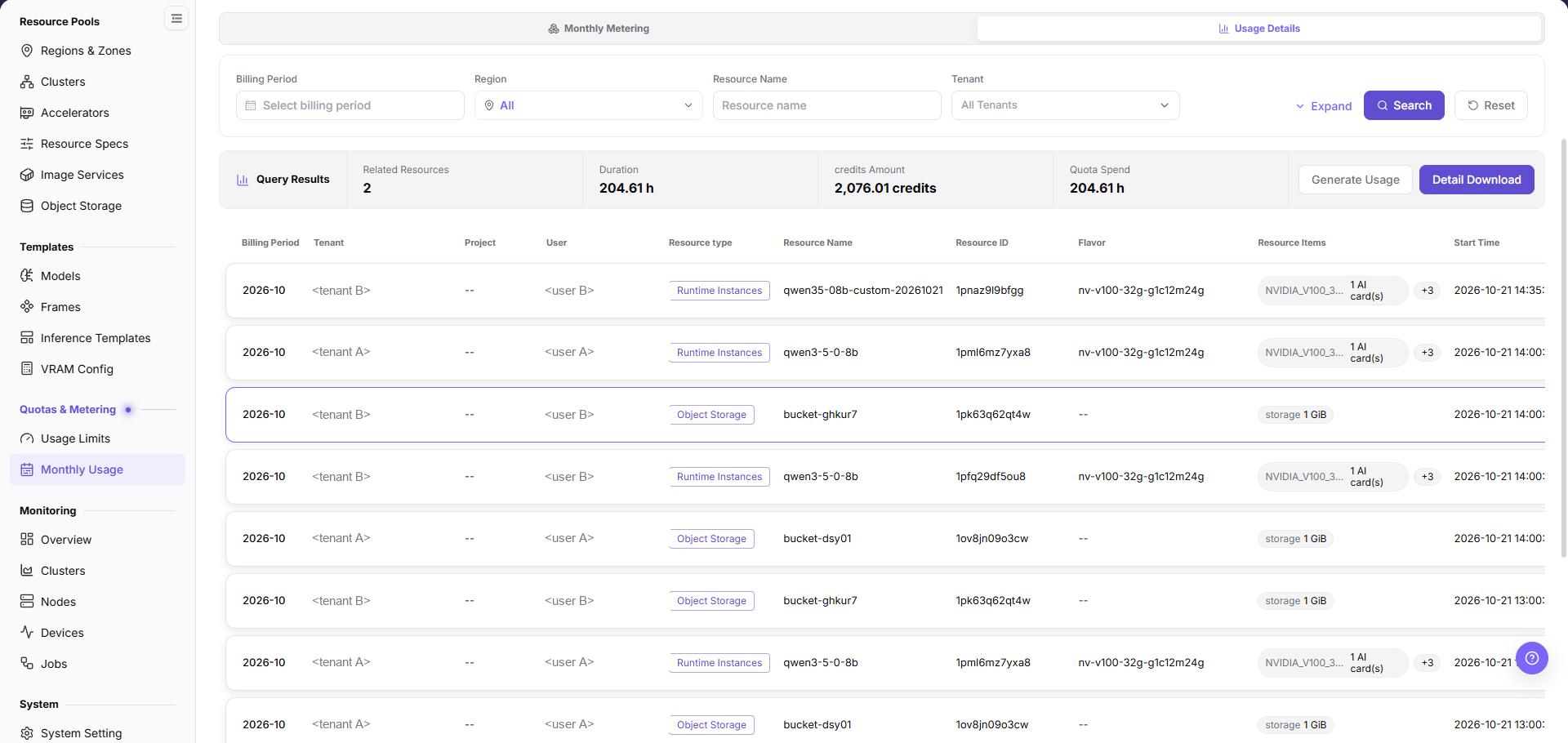
The figure shows the selected Usage Details tab alongside Monthly Metering. Use Monthly Metering for the monthly queries below; Usage Details opens the sibling detail view. The empty-result figure below shows Monthly Metering. Under the left menu group Quotas & Metering, the entries Usage Limits and Monthly Usage are visible.
The filter row contains Billing Period, Region, Resource Name, and Tenant from left to right, followed by Expand, Search, and Reset. Billing Period shows the placeholder Select billing period when unset; Region shows All when unset and displays a status dot next to the selected region; Resource Name shows the placeholder Resource name; Tenant defaults to All Tenants.
On Usage Details, the summary bar is below the filter row. Its left Query Results block shows Related Resources, Duration (unit h), credits Amount (unit credits), and Quota Spend (unit h). Its right side provides the Generate Usage and Detail Download buttons, where the latter uses the solid emphasis style.
The Usage Details table columns are Billing Period, Tenant, Project, User, Resource type, Resource Name, Resource ID, Flavor, Resource Items, Start Time, End Time, Duration (h), Line Type, Billing Method, Metered Amount (credits), Quota Spend (h), Region, Zone, and Batch Number. Project and Flavor show -- when empty, Resource Items renders as a grey chip such as a card model with 1 AI card(s) or storage 1 GiB, and GPU records carry a +3 collapse marker after the chip.
The same resource produces multiple hourly rows within one billing period, so the row count is not the resource count. Use the summary bar for totals and the table rows to locate a single consumption record.
Main Operations
Query Monthly Metering Records
Applicable Scenarios
Use this when you must locate monthly metering records within a range by billing period, region, resource name, or tenant. All four filters are optional, so querying without conditions returns every record visible to the current account.
Steps
- Go to
On-Prem > Quotas & Metering > Monthly Usageand confirm the page stays on theMonthly Meteringtab. - Select a month in the
Billing Periodpicker; the input shows the placeholderSelect billing periodwhen unset. - Select the target region in the
Regiondrop-down, which shows a status dot next to the selected value; keepAllwhen no region limit is needed. - Enter a keyword in the
Resource Nameinput and select a single tenant in theTenantdrop-down;TenantshowsAll Tenantswhen unset.
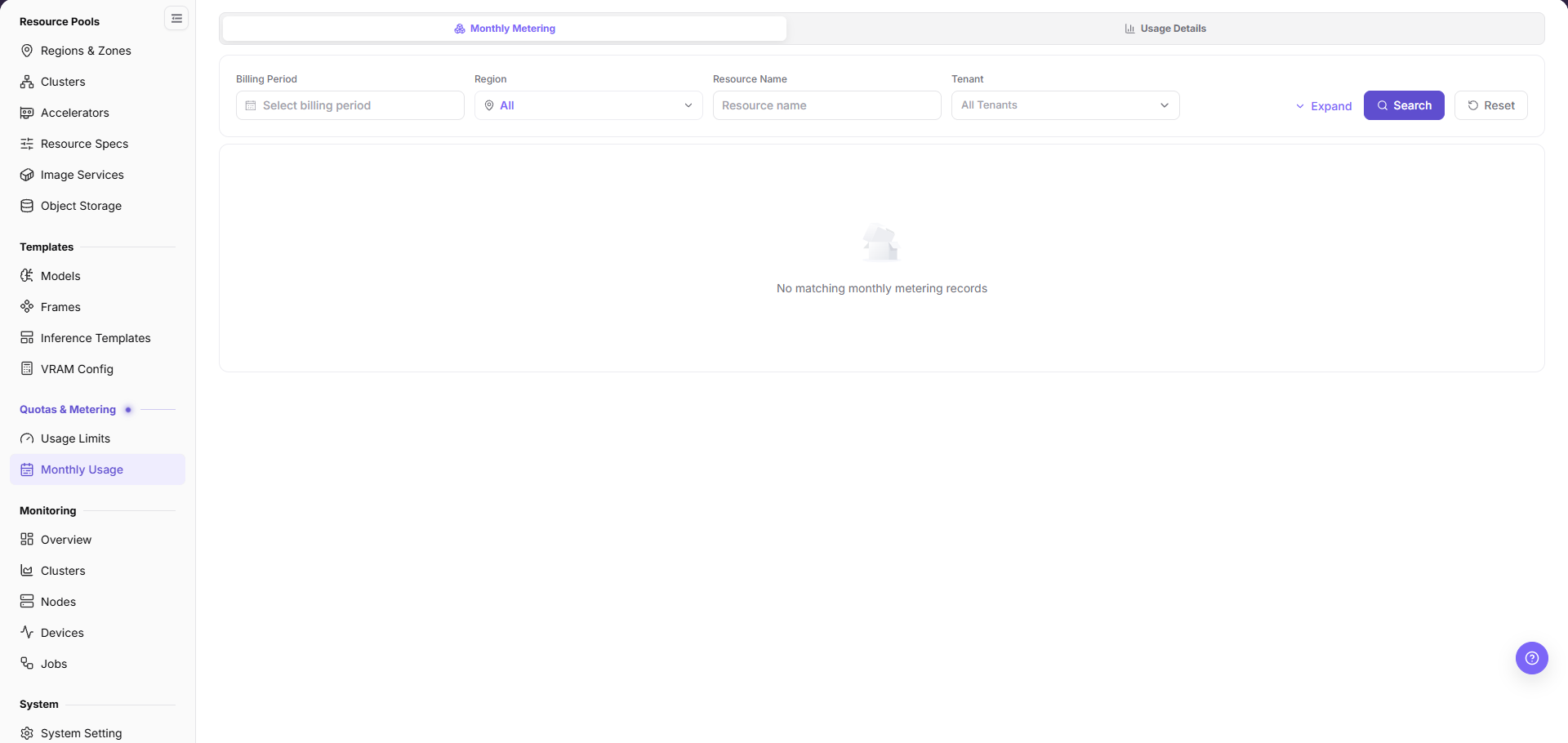
The figure shows the historical empty-result example on Monthly Metering, with the four basic filters and Search/Reset. It is not the 19-column Usage Details table or its summary bar.
- Click
Expandwhen more conditions are needed. - Use
Searchfor theMonthly Meteringlist orResetto reset its filters. To inspect the summary and hourly detail columns described below, switch toUsage Details.
Result Validation
- When records exist, the first column
Billing Periodmatches the selected month and theRegioncolumn matches the selected region. - When no record matches, the list area shows the placeholder illustration and the text
No matching monthly metering records, and the summary values must not be used as a conclusion. - After
Reset,Billing PeriodandResource Namereturn to placeholder state,Regionreturns toAll, andTenantreturns toAll Tenants.
Notes
- On
Usage Details, one resource can have multiple hourly rows within a billing period; do not count those rows as resources. - The
StatusandCreation Timecolumns and theConfirmaction are from the older layout and do not appear on this page. - Screenshots were sanitized per G3 before ingestion; locate records by
Resource NameandResource IDwhen reconciling.
Check the Query Result Summary
Applicable Scenarios
Use this to confirm the resource scale, duration, and total consumption hit by one query before checking individual records, or to compare how the statistics change across different filter ranges.
Steps
- Switch to
Usage Details. After a query completes, read theQuery Resultsblock of the summary bar above its table. - Check
Related Resources,Duration,credits Amount, andQuota Spend, noting thatDurationandQuota Spenduse the unithwhilecredits Amountusescredits. - Change
Billing PeriodorRegionand clickSearchagain, then observe how the four statistics move as the filter range widens or narrows. - When splitting by basis, compare
credits Amountwith theMetered Amount (credits)column andQuota Spendwith theQuota Spend (h)column.
Result Validation
Related Resourcesequals the number of distinctResource IDvalues in the current result.credits Amountreconciles with the total of theMetered Amount (credits)column, andQuota Spendreconciles with the total of theQuota Spend (h)column, within the same filter range.DurationandQuota Spendshare the hourly unit on screen.
Notes
- The summary bar reflects only the current filter result; it is not the full monthly bill and does not replace the settlement basis.
- When a statistic is empty or zero, first confirm that
Billing PeriodandRegionactually match before concluding that no metering data exists. - During read-only checks, do not click
Generate UsageorDetail Downloadon the right of the summary bar, because the former rewrites metering data.
Check Metering Records One by One
Applicable Scenarios
Use this to verify a single metering record by resource, time window, and billing basis, or to locate missing records for a specific period.
Steps
- On
Usage Details, locate the target row and readBilling Period,Tenant,Project, andUserto confirm ownership;Projectshows--when empty. - Read
Resource type,Resource Name,Resource ID, andFlavorto confirm the metered object; object-storage records show--inFlavor. - Check the
Resource Itemschip: GPU records show a card model with1 AI card(s)followed by a+3collapse marker, and storage records showstorage 1 GiB.
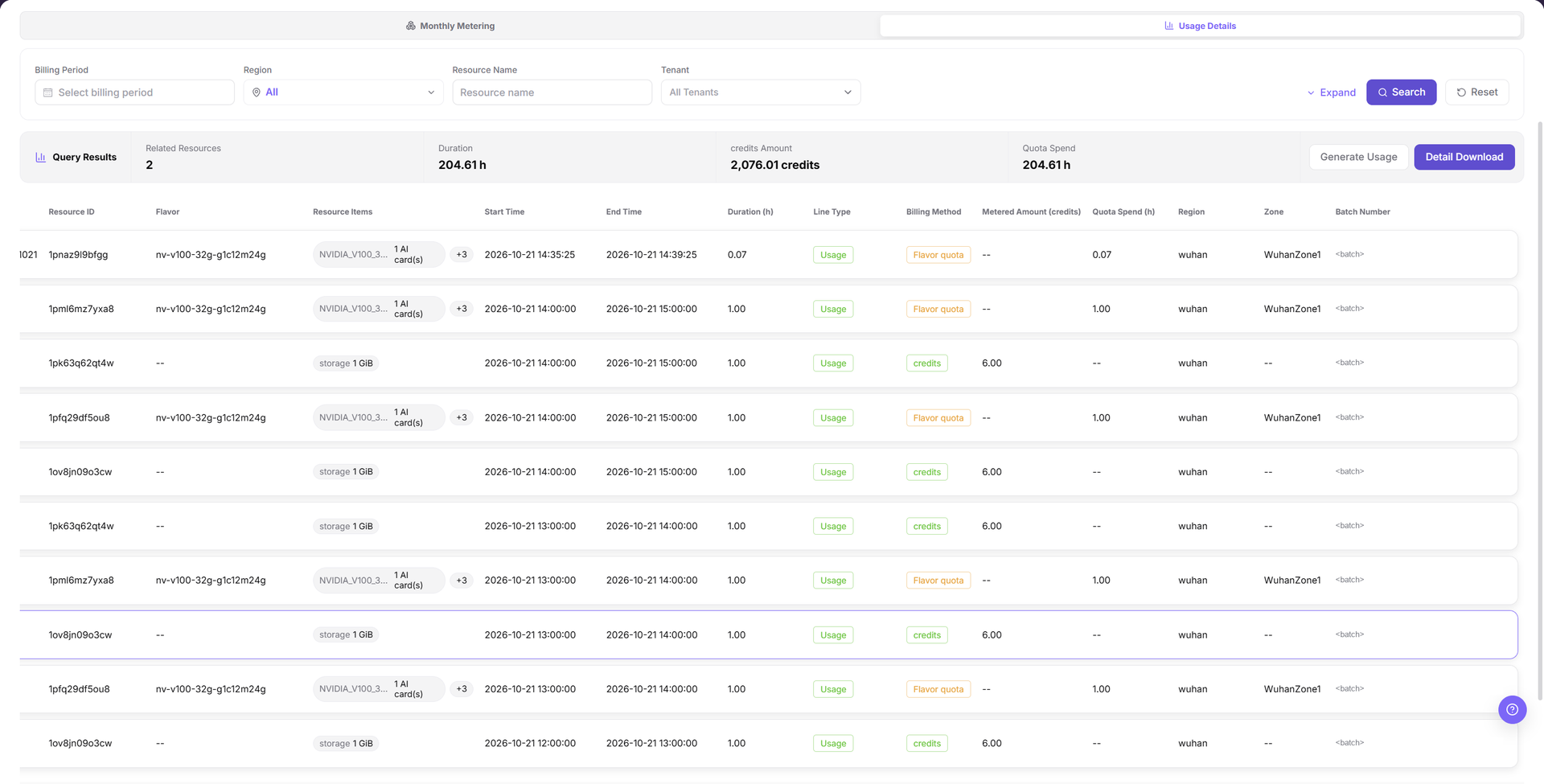
The figure shows the right-hand columns on the Usage Details tab, not a Monthly Metering tab capture.
- Scroll the list horizontally and read
Start Time,End Time,Duration (h),Line Type,Billing Method,Metered Amount (credits),Quota Spend (h),Region,Zone, andBatch Number. - Group totals by
Billing Method: records valuedcreditsare read from theMetered Amount (credits)column, records valuedFlavor quotafrom theQuota Spend (h)column, and the other column shows--. - When you find a gap between adjacent periods, record the
Resource ID, the missing start and end times, and theBatch Numberof sibling rows, then handle it throughGenerate Usage.
Result Validation
- Each row's
Start TimeandEnd Timeconnect with neighbouring rows, andDuration (h)matches their difference. - Multiple rows of the same
Resource IDkeep the sameResource Name,Flavor, andRegion. - The
Line TypeandBilling Methodlabels stay consistent within one record basis;Line TypeshowsUsage.
Notes
- Record-by-record checks explain a single consumption only; return to the summary bar and the monthly bill for whole-month conclusions.
Batch Numberis masked in the ingested screenshots; use the on-page value when tracing an actual batch.- Do not edit record values on the page; use
Generate Usageto fill or recalculate.
Generate Usage
Applicable Scenarios
Use this when monthly metering records are missing, a time window is not covered, or existing details must be recalculated under a new basis. This operation rewrites metering data and is therefore a write action.
Steps
- On
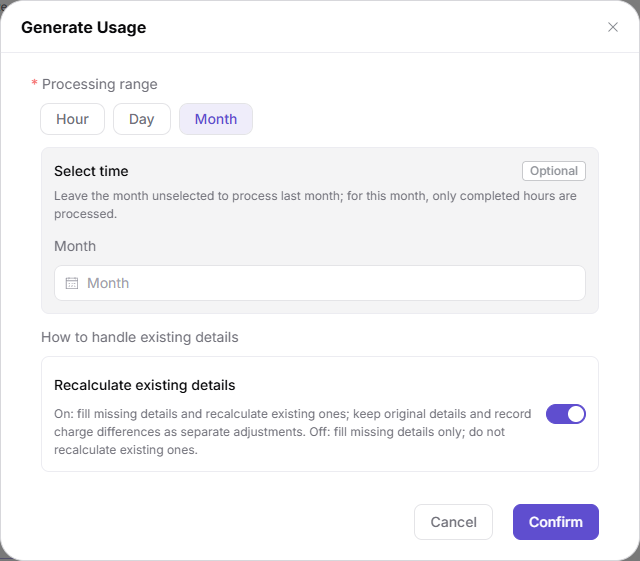
Usage Details, useGenerate Usageon the right of the summary bar to enter the generation flow. This is a write-operation entry, not a read-only validation step. - Select
Hour,Day, orMonthunder* Processing range; the dialog defaults toMonth. - To limit the month, choose it in the
Monthinput of theSelect timecard. The card is markedOptionalin its corner and states: Leave the month unselected to process last month; for this month, only completed hours are processed. - In the
How to handle existing detailsgroup, confirm theRecalculate existing detailsswitch. The card states: On: fill missing details and recalculate existing ones; keep original details and record charge differences as separate adjustments. Off: fill missing details only; do not recalculate existing ones.
- Click
Confirmin the dialog footer to submit the generation task, or clickCancelor the×in the corner to discard the unsaved settings.
Result Validation
- Return to the list and click
Searchagain with the sameBilling PeriodandRegionto confirm that the missing periods are filled. - Switch to the
Usage Detailstab and confirm that theBatch Numberof the new records corresponds to this generation run. - Use the re-queried list result to confirm the generation completed.
Notes
- When
Recalculate existing detailsis on, charge differences are recorded as adjustments; confirm the settlement state of the target billing period and internal approval first. - A narrower processing range is safer; do not run
Monthrecalculation on a settled billing period without approval. - Do not click
Confirmrepeatedly on a real tenant period to probe behavioural differences.
Detail Download
Applicable Scenarios
Use this to export details or summaries within the current filter range to a file for reconciliation, metering review, or troubleshooting.
Steps
- On
Usage Details, useDetail Downloadon the right of the summary bar to enter the export flow; confirm the authorized data scope before proceeding. - Select
Detail DataorSummary dataunderData Type; the dialog defaults toDetail Data. - Fill
Start TimeandEnd Timein the* Time Rangepicker; this field is required. - Optionally select
Billing Period,Resource type,Region,Zone,Tenant, andProject, or enterResource Name,Resource ID, andBatch Numberto narrow the export.Resource typeshowsAll resource typeswith a clear icon on the right when unset, andZoneis disabled and showsAll ZoneswhileRegionisAll.
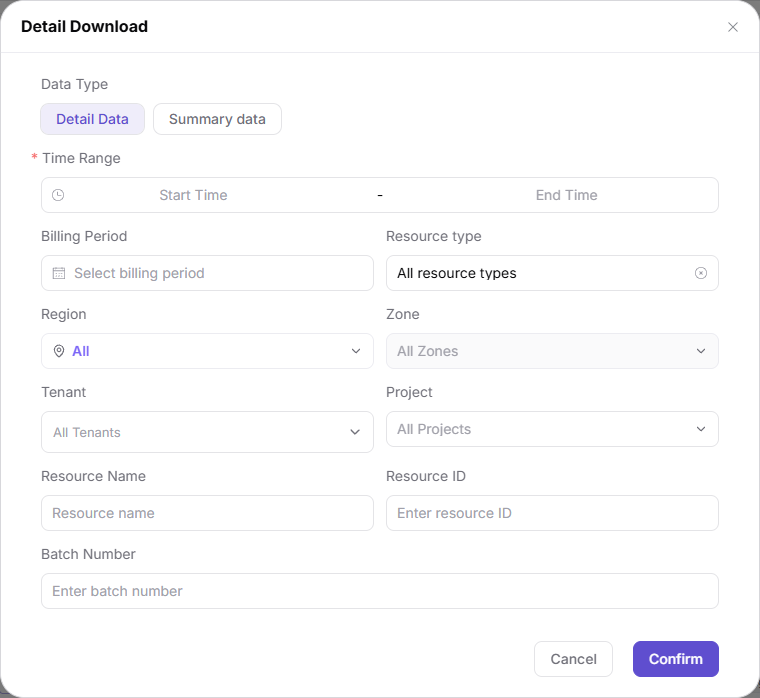
- Click
Confirmin the dialog footer to start the export, or clickCancelto abandon it. - After the download completes, verify the file content, then keep the file in a controlled directory and use it only for reconciliation, metering review, or troubleshooting.
Result Validation
- The column names and time range in the downloaded file match the conditions selected in the dialog.
- The file totals reconcile with
Duration,credits Amount, andQuota Spendin the page summary bar within the same filter range.
Notes
- Exported files contain tenant, resource, and metering information; share them by permission and never to unauthorized channels.
- Reconfirm
Time RangeandData Typebefore clickingConfirmto avoid exporting an oversized range or another tenant's data.
Parameter Quick Reference
Query and Filters
The query group lists the real controls of the page filter area. "As needed" describes how the control is used, not a backend required rule; "—" means this page does not specify an example.
| Field Name | Required | Field Type | Example | Description |
|---|---|---|---|---|
| Billing Period | Optional | Month picker | 2026-07 | Filter that maps to the first column Billing Period. |
| Region | Optional | Drop-down | wuhan | The selected value shows a status dot next to it. |
| Resource Name | Optional | Text | <text> | Filters records by resource name. |
| Tenant | Optional | Drop-down | All Tenants | Covers every visible tenant when unset. |
Existing Fields
| Field Name | Required | Field Type | Example | Description |
|---|---|---|---|---|
| Related Resources | System-generated | Number | <number> | Number of distinct resources in the current result. |
| Duration | System-generated | Duration | hours | Statistic in the summary bar. |
| credits Amount | System-generated | Number | credits | Statistic that maps to the Metered Amount (credits) column. |
| Quota Spend | System-generated | Duration | hours | Statistic that maps to the Quota Spend (h) column. |
| Line Type | System-generated | Label | Usage | Record type. |
| Billing Method | System-generated | Label | credits / Flavor quota | Decides which column carries the measured value. |
| Batch Number | System-generated | Text | <text> | Traces records back to one generation or aggregation task. |
| Processing range | Required | Radio chips | Hour / Day / Month | Field of the Generate Usage dialog, default Month. |
| Time Range | Required | Time range | start - end | Field of the Detail Download dialog. |
| Data Type | Optional | Radio chips | Detail Data / Summary data | Field of the Detail Download dialog, default detail data. |
Pitfalls
- Monthly usage is an aggregated view; do not judge whether a specific resource is metered correctly from summary values alone.
- The hourly records described here are on
Usage Details; resources spanning periods or billing cycles can produce multiple rows. Do not infer a whole month from one period. - Metering data may be delayed or need filling, so align
Billing Period,Region, and the statistical basis before reconciling. Generate Usagerewrites metering data, and turning onRecalculate existing detailsalso creates adjustment records; neither is a validation action.- Files from
Detail Downloadcontain tenant names, resource identifiers, and usage details, so confirm the filters before exporting. - The
Status,Creation Time, and export-state columns and theConfirmentry are from the older layout and do not appear on this page.
Configuration Rules and Impact
- Summary before details: Locate the range from the summary bar first, then trace individual records and usage details.
- Do not mix billing periods: Fix the boundaries of
Billing PeriodandTime Rangebefore checking or exporting. - Run write actions separately: Keep
Generate Usageapart from querying and exporting so data is not rewritten while old values are being compared.
Result Validation
| Check Item | Success Signal | If Abnormal |
|---|---|---|
| Page entry | Monthly Metering shows its filters and resource list; Usage Details shows the metering table and summary bar | Check the selected tab, menu permission, current business identity, and tenant scope |
| Data scope | The list and summary match the selected billing period, region, resource name, and tenant | Click Reset, query again, and verify time boundaries and statistical basis |
| Data update | The latest record's End Time and Batch Number match the expected cycle | Check whether the source job, metering, or quota record has been generated |
| Cross-check | Record time ranges, billing method, and amounts correspond to usage detail records | Switch to the Usage Details tab and compare by Resource ID and time range |
FAQ
No Records on Monthly Usage
Symptom:
The page opens, but the list area shows No matching monthly metering records.
Possible Causes:
- Filters are too narrow.
- source records are not generated.
- the role cannot see them.
Solution:
- Click
Resetand query again - verify the source job or metering cycle
- check business identity and tenant scope.
Monthly Usage Shows the Wrong Scope
Symptom:
Data does not belong to the expected billing period, region, or resource.
Possible Causes:
- Time boundaries differ.
- The
Regionfilter did not apply. - ownership changed.
Solution:
- Select
Billing PeriodandRegionagain and clickSearch - verify
Resource IDandResource Name - confirm ownership in source details.
Monthly Usage Is Delayed
Symptom:
A source operation completed, but its record is not visible.
Possible Causes:
- Aggregation is not complete.
- the page is cached.
- source state is still processing.
Solution:
- Verify source state
- wait one aggregation cycle and query again
- inspect the missing periods through the
Generate Usageflow if delay persists.
Details or Download Is Unavailable
Symptom:
The Detail Download, Expand, or tab entry is disabled.
Possible Causes:
- The record does not support it.
- role permission is insufficient.
- a required condition is still empty.
Solution:
- Run one query first
- check role permission
- complete required fields such as
* Time Rangeinside the dialog.
Summary and Details Do Not Match
Symptom:
The summary differs from the total of individual records.
Possible Causes:
- Periods differ.
creditsandFlavor quotabases were mixed in the total.- some records are still processing.
Solution:
- Align the billing period and query time
- compare by
Billing Methodgroup and byResource ID - wait for pending records and check again.
Notes
- Monthly usage is a reference for business operations and settlement. Confirm statistical definitions and final posting status before publishing.
- Exported reports may contain tenant names, fees, and usage details. Restrict distribution scope.
- Resources running across billing cycles are split into multiple rows. Do not infer full-month fees from a single period.
Next Steps
- When monthly records look abnormal, switch to the
Usage Detailstab to reconcile resources and time ranges. - After confirming missing periods, select a processing range in
Generate Usageand fill the records. - Before settlement, confirm that statistical cycles, delayed postings, and correction records have been processed.
- After exporting reports, perform internal reviews by tenant or business line.