Audio
Document Information
Version: v2.0 Updated: 2026-11-04
Feature Overview
| Item | Content |
|---|---|
| Applicable Role | Model Provider & User |
| Navigation Path | Model Services > Playground > Audio |
| Page Route | /modelone/exploration/audio |
| Managed Object | Audio model, input text, and generation tasks |
New to this page: Audio converts text into speech. Choose an audio model, enter the text to read, and review the generated audio in Task query.
Terms Quick Reference
| Term | Description |
|---|---|
| Text-to-Speech (TTS) | AI speech synthesis technology converting input plain text into realistic, natural human speech. |
| Task Query | Asynchronous audio rendering queue dashboard tracking speech task IDs, durations, statuses, and playback/download URLs. |
| Voice & Speed | Preset vocal characteristics (e.g., male, female, news anchor, emotional audiobook) and playback speed adjustments supported by the model. |
| Character Billing | Audio models typically bill based on valid input character count or generated audio seconds, differing from LLM token billing. |
Prerequisites
- Your account can open Playground > Audio.
- The account has available credits or a free quota for the model.
- The input limit and billing unit of the audio model are confirmed.
Page Description
The page contains a model area, an action area, and an input area:
| Area | Description |
|---|---|
| Top model & action bar | Provides model selector dropdown, Task query entry, and Model Compare button |
| Central text input console | Multi-line text box for input scripts, supporting Shift+Enter line breaks and character counts |
| Audio playback & result area | Asynchronously renders audio player controls (waveform, play/pause, speed) with WAV/MP3 export support |
| Footer disclaimer | Displays AI-generated synthesis compliance notices and fraud prevention statements |
- Model area: Select Model opens the model list.
- Actions: Task query opens past tasks; Model Compare opens comparison.
- Input: multi-line box with
Please enter your question, Shift+Enter for a new line; the heading readsWhat audio would you like to create?.
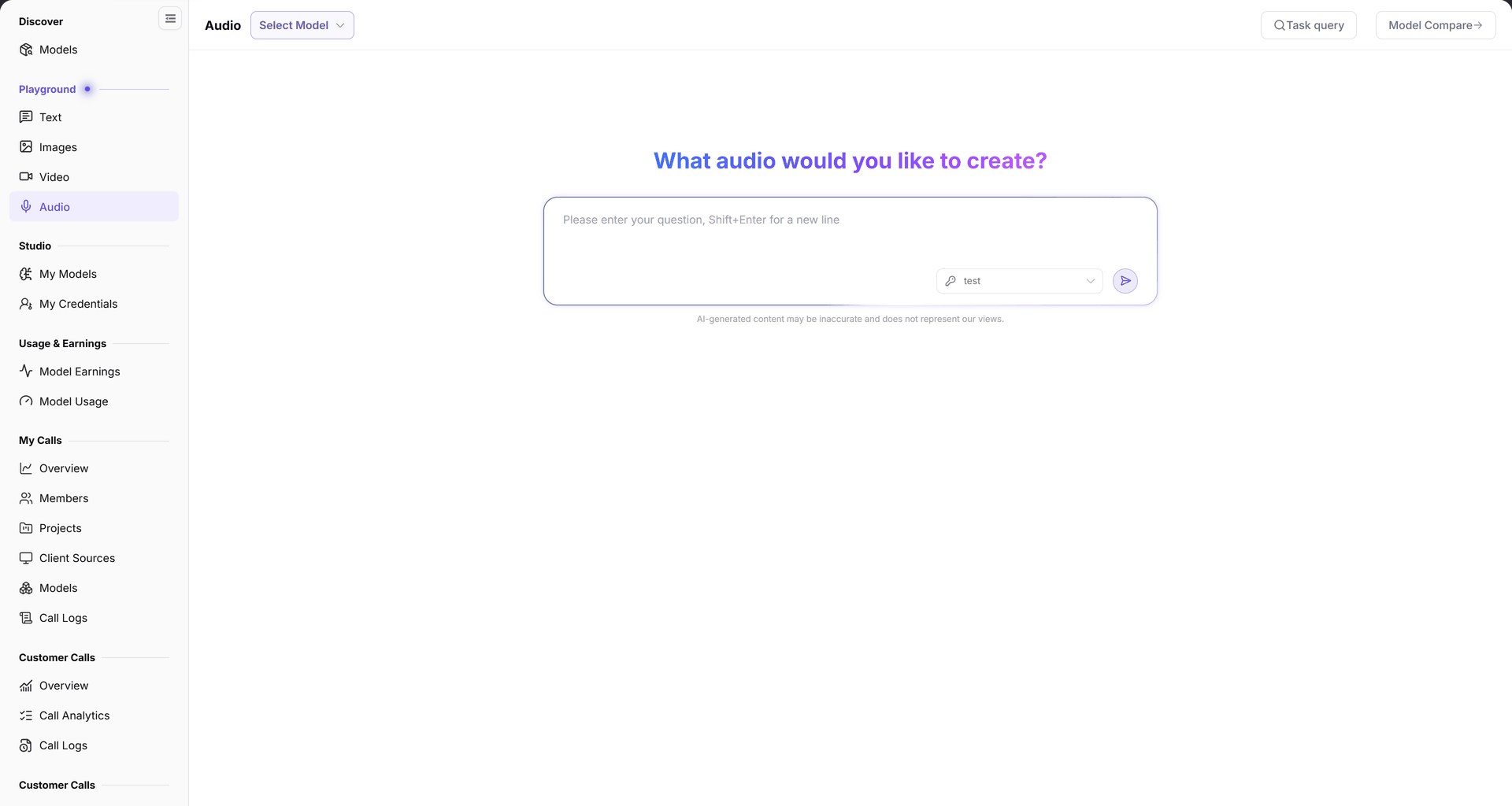
The figure shows the top provides Select Model, Task query, and Model Compare; the input prompt is Please enter your question, Shift+Enter for a new line, with the disclaimer AI-generated content may be inaccurate and does not represent our views..
Main Operations
Select an audio model
- Click "Select Model".
- Choose an audio model and verify its provider.
Generate audio
- Enter the text to read.
- Use
Shift+Enterfor new lines, then submit. - Review the generated audio in the result area.
Query tasks
- Click "Task query".
- Locate the current or previous tasks.
Compare models
- Click "Model Compare".
- Select audio models and generate from the same text.
Parameter Quick Reference
| Field Name | Required | Field Type | Example | Description |
|---|---|---|---|---|
| Model | Yes | Selector | Mock MiniMax Speech T2A | Current audio model |
| Text | Yes | Multi-line text | Welcome to AGIOne | Text to convert to speech |
| Task query | No | Button | — | View previous generation tasks |
| Model Compare | No | Button | — | Open multi-model comparison |
Pitfalls
- Audio models differ in text length and voice support; test long text in segments.
- Billing may be per character, second, or request; confirm the unit before submitting.
- Output depends on model capability; listen to important announcements before publishing.
Result Validation
| Check Item | Success Signal | If Abnormal |
|---|---|---|
| Audio model selected | The top area accurately displays the model name (e.g., Mock MiniMax Speech T2A) and provider info | If the list is empty, open Models to verify authorization for speech synthesis models |
| Script submission | Clicking submit shows "Task created", keeps the input box active, and queues background rendering | If character limits are exceeded, divide long scripts by punctuation and submit in segments |
| Player playback normal | An audio player renders in the result area; playback is clear without stuttering or robotic artifacts | If synthesis fails, open Task query to review detailed error codes (such as content moderation rejection) |
| Task list history | Clicking "Task query" loads historical audio tasks including duration and creation timestamps | Verify that the correct tenant environment and query time range are selected |
| Model Compare audition | Opening "Model Compare" synthesizes parallel audio from multiple models with side-by-side players | Confirm that all selected models have active compute resources allocated |
FAQ
No audio model is available
Symptom: Clicking "Select Model" displays an empty list or the target model is missing.
Possible Causes: The tenant lacks visibility or access permissions for the model; the model has not passed operator review; or no audio inference instances are online.
Resolution:
- Navigate to Models and filter by "Speech" to confirm model status and release state.
- Verify tenant account permissions and project quota assignments.
- Contact the platform administrator or model provider to verify release status.
Generation fails
Symptom: Submitting text results in a generation failure notice or abnormal task termination in the result area.
Possible Causes: Text length exceeds the model's maximum character limit; content contains restricted terms triggering safety filters; or credit balance is insufficient.
Resolution:
- Check character count and keep scripts under 500 characters per batch.
- Review input text for policy-violating or sensitive terms.
- Open Task query to inspect the root cause, and verify account balance in the billing console.
Notes
- Do not enter other people's private or unauthorized text.
- Audio generation is billed by the model; confirm quota before batch conversion.
- Verify copyright and compliance before commercial use.
Next Steps
- Verify character-based or duration-based deduction logs in call logs and usage reports.
- Once audition quality is verified, copy Quick Start API snippets to integrate into voice assistants or notification services.
- Explore the text chat or image generation playgrounds for other multimodal AI capabilities.
Related pages: