Customer Overview
Document Information
Version: v2.1 Updated: 2026-11-05
Feature Overview
| Item | Content |
|---|---|
| Applicable Role | Operations administrator |
| Navigation Path | Billing > Customer Billing > Customer Overview |
| Page Route | /billing/customers/overview |
| Managed Object | Customer identities, tags, consumption accounts, and revenue accounts |
Customer Overview locates customers by business identity, keyword, and tags, displays balances and consumption, and provides Details, Grant Credit, and Recall Credit entries.
Beginner Explanation
Customer Overview works like a customer billing index: End User consumption appears in a table, while Provider cards separate consumption and revenue accounts.
Terms Quick Reference
| Term | Description |
|---|---|
| End User | The end-user business identity, with a customer consumption table. |
| Provider | The service-provider business identity, with consumption and revenue account cards. |
| Credits | The unit used to display balances, consumption, and revenue. |
| Built-in tags | Tags provided and locked by the platform; Provider and Operator share the same set. |
| Custom tags | Tags private to the current Operator. |
Prerequisites
- Sign in with an operator account that can access
Customer Billing > Customer Overview. - Confirm the business identity before querying; confirm the target customer and business reason before granting or recalling credit.
Page Description
| Area | Description |
|---|---|
| Page header | Displays the MTD spend updated: time and provides Refresh and Manage Tags. |
| Filters | Business identity uses an End User / Provider segmented control. The keyword placeholder is Enter a keyword. Filter by tag supports multiple selections; matching any selected tag includes the customer (OR). |
| Summary | Four cards cover customer scale, funds, consumption, and balance risk. Read them separately from the customer results below. |
| End User results | A table displays customer identities, tags, balances, and consumption. |
| Provider results | Customer cards display consumption accounts, revenue accounts, and creation time rather than using the End User table layout. |
The four summary card names and visible metrics are listed below. An empty keyword-query table does not establish that summary values are 0.
| Area | Description |
|---|---|
| Total customer base | Total customers, End User / Provider counts, and customers active in consumption this month. |
| Credits pool | Credits funds, last month spend, and estimated days supported at this month's daily average. |
| This month spend | This month's consumption, daily average, and comparison with last month's daily average. |
| Balance risk | Count of customers below the 3-day runway and estimated days remaining. |
The End User table uses the following column names.
| Area | Description |
|---|---|
| Tenant | Customer tenant identity. |
| Admin | Customer administrator identity. |
| Tags | Tags applied to the customer. |
| Available balance | Credits currently available to the customer. |
| Lifetime spend | Cumulative Credits consumed by the customer. |
| Last month spend | Credits consumed by the customer last month. |
| This month spend | Credits consumed by the customer this month. |
| Created at | Customer account creation time. |
| Actions | Entries include Details, Grant Credit, and Recall Credit; an Actions entry is also available. |

The figure shows an empty End User keyword-query result table with tenant, administrator, tags, balance, consumption, creation time, and action columns; it does not include summary cards or Provider cards.
Provider cards separate Consumption Account and Revenue Account. The former contains Available balance, This month spend, and Last month spend; the latter contains Revenue balance, Current pending revenue, and Last month revenue. Cards also display Created at and provide Details, Grant Credit, Recall Credit, and Actions entries.
Main Operations
Query End User Customers
- Go to
Billing > Customer Billing > Customer Overview. - Select
End Userin theBusiness identitysegmented control. - Enter a query in
Enter a keywordand select tags as needed; multiple tags use OR matching. - Review the result table and verify the target customer's tenant, administrator, tags, available balance, and consumption fields.
- To view customer information, verify the target customer first, then use that row's
Detailsentry.
View Provider Customers
- Select
Providerin theBusiness identitysegmented control. - Enter a keyword and select tags as needed to locate the target customer card.
- Check
Available balance,This month spend, andLast month spendunderConsumption Account. - Separately check
Revenue balance,Current pending revenue, andLast month revenueunderRevenue Account, along with the card'sCreated atvalue.
Review Tag Management
- Click
Manage Tagsto openTag Management. - Review the
PLATFORM BUILT-INtags:VIP,High Potential,Trial,Follow-up, andChurn Risk, each markedBuilt-in · Locked. - Review
CUSTOM TAGS. The illustrated state readsNo custom tags yet. Create one below.The area providesNew tag name, color choices, and aCreate tagentry; names are limited to 16 characters. - Click
Closeor the top-right close button to exit the dialog.
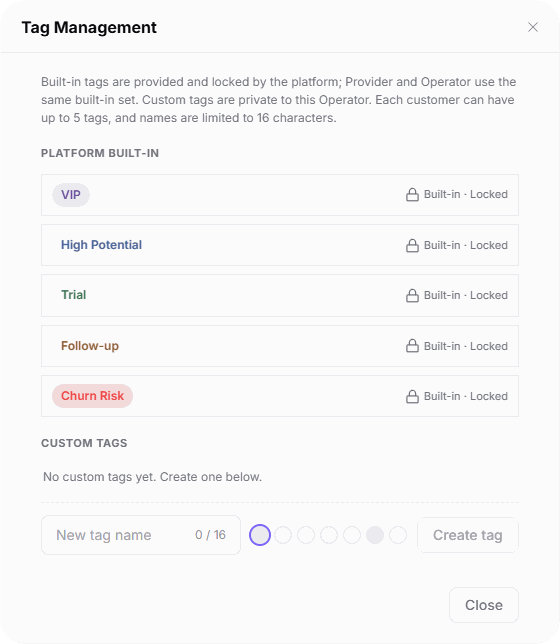
The figure shows the Tag Management dialog with five locked built-in tags, an empty custom-tag area, and the new tag name input, color choices, Create tag, and Close entries.
Grant Credit
- Locate and verify the target customer, then click
Grant Credit. - Check that the prefilled, read-only customer identity matches the target customer.
- Fill in
Grant AmountandReason; both have required markers. - Recheck the customer, amount, and reason; click
Confirmwhen you intend to submit. - To abandon the operation, click
Cancelor the top-right close button.
Recall Credit
- Locate and verify the target customer, then click
Recall Credit. - Check that the prefilled, read-only customer identity matches the target customer.
- Fill in
Recall AmountandReason; both have required markers. The form also provides aRecall allbutton. - Recheck the customer, amount, and reason; click
Confirmwhen you intend to submit. - To abandon the operation, click
Cancelor the top-right close button.
Parameter Quick Reference
Query and Filters
The query group lists the real controls of the page filter area. "As needed" describes how the control is used, not a backend required rule; "—" means this page does not specify an example.
| Field Name | Required | Field Type | Example | Description |
|---|---|---|---|---|
| Business identity | Select for query | Segmented selection | End User | Select End User or Provider. |
| Enter a keyword | No | Text | <query> | Locates customers within the selected business identity using the entered keyword. |
| Filter by tag | No | Multi-select | VIP | Matching any selected tag includes the customer (OR). |
Existing Fields
| Field Name | Required | Field Type | Example | Description |
|---|---|---|---|---|
| Tenant | Read-only | Identity information | <tenant> | Customer tenant in the End User table. |
| Admin | Read-only | Identity information | <administrator> | Administrator in the End User table. |
| Tags | Read-only | Tag set | VIP | Each customer can have up to 5 tags. |
| Available balance | Read-only | Credits | 0 | Available balance in the End User table or Provider consumption account. |
| Lifetime spend | Read-only | Credits | 0 | Cumulative consumption in the End User table. |
| Last month spend | Read-only | Credits | 0 | Last month's consumption in the End User table or Provider consumption account. |
| This month spend | Read-only | Credits | 0 | This month's consumption in the End User table or Provider consumption account. |
| Created at | Read-only | Time | <creation time> | Shown in the End User table and Provider cards. |
| Revenue balance | Read-only | Credits | 0 | Provider revenue account balance. |
| Current pending revenue | Read-only | Credits | 0 | Provider revenue pending settlement this month. |
| Last month revenue | Read-only | Credits | 0 | Provider revenue from last month. |
| New tag name | Enter when creating | Text | <tag name> | Up to 16 characters; custom tags are private to the current Operator. |
| Color choices | Not marked required | Color options | <color> | Color choices provided in the custom-tag area. |
| Customer identity | Read-only | Prefilled information | <customer identity> | Identifies the target customer in the grant and recall forms. |
| Grant Amount | Yes | Number | <amount> | Required field in the Grant Credit form. |
| Recall Amount | Yes | Number | <amount> | Required field in the Recall Credit form. |
| Reason | Yes | Multiline text | <business reason> | Required in both credit forms. |
| Recall all | No | Button | Recall all | A separate entry provided in the Recall Credit form. |
Pitfalls
- Multiple tags use OR matching; customers do not need to have every selected tag.
- End User uses a table, while Provider uses account cards. Do not compare both identities using the same table columns.
No Dataafter a keyword query means the current query has no results, not that the platform has no customers or that summary amounts or counts are 0.- The limit of 5 tags per customer concerns an individual customer's tags, not the total size of the tag library.
Result Validation
| Check Item | Success Signal | If Abnormal |
|---|---|---|
| Identity and layout | End User displays a table; Provider displays consumption and revenue account cards | Check the selected business identity. |
| Query scope | Results can be checked against the current keyword and selected tags; an empty result displays No Data | Check the current keyword and selected tags first; do not treat empty results as the platform customer count. |
| Tag Management | The dialog displays five built-in tags with locked markers and the current custom-tag content | Check the built-in and custom-tag areas separately. |
| Credit forms | The grant form shows required Grant Amount and Reason; the recall form shows required Recall Amount and Reason | Check the form entry and read-only customer identity; cancel or close if not proceeding. |
FAQ
Why Does an Empty Query Table Not Mean the Platform Has No Customers?
Symptom:
The End User table displays No Data after entering a keyword.
Possible Causes:
The current keyword query has no matches; the table displays query results rather than the total customer base.
Resolution:
Check the current keyword, business identity, and selected tags, and read the summary cards separately from customer results.
Why Does the Provider View Not Have the End User Table Columns?
Symptom:
After selecting Provider, customer information appears as cards instead of a table.
Possible Causes:
The Provider view uses a card layout divided into Consumption Account and Revenue Account.
Resolution:
Check consumption and revenue fields separately in the cards rather than expecting the End User table columns.
Notes
- Granting and recalling credit concern customer credit handling. Recheck the customer, amount, and reason before using the
Confirmsubmission entry; opening a form or seeing required markers does not establish completion. Recall allandConfirmare different buttons in the recall form; do not treat them as interchangeable.- Built-in tags are provided and locked by the platform, with the same set shared by Provider and Operator. Custom tags are private to the current Operator.
- Share only necessary verification information; do not disclose real customer identities, accounts, emails, financial amounts, or credentials.
Next Steps
- See Top-up Orders to check top-up orders.
- See Business Units to review customer business-unit configuration.