AGIOne User Guide for End Users
This guide is written for first-time AGIOne users. It walks you through the full basic workflow: signing in, claiming free quota, trying a model in the web playground, and calling the model with curl. Usernames, passwords, and API keys are shown as placeholders only.
Applicable Roles
- End User trying and calling a model
- Model Provider reviewing the resulting customer call records
1. Before You Start
Prepare the following information before using AGIOne.
| Item | Example or Description |
|---|---|
| Platform URL | https://agione.pro/ |
| Username | {USERNAME} |
| Password | {PASSWORD} |
| Model API Key | {API_KEY}, copied from the Quick Start page |
This guide uses Qwen3.5-27b as an example. Model availability and provider-instance identifiers can vary by environment.
| Item | Value |
|---|---|
| Model Name | Qwen3.5-27b |
| Model Identifier | {MODEL_IDENTIFIER} |
| Protocol | openai/chat_completions |
| API Endpoint | https://agione.pro/hyperone/xapi/api/v1/chat/completions |
Provider-instance call identifiers can vary by environment, provider, or region. Copy the identifier shown in the current environment from the selected provider card or
Quick Startbefore calling.
2. Sign In to AGIOne
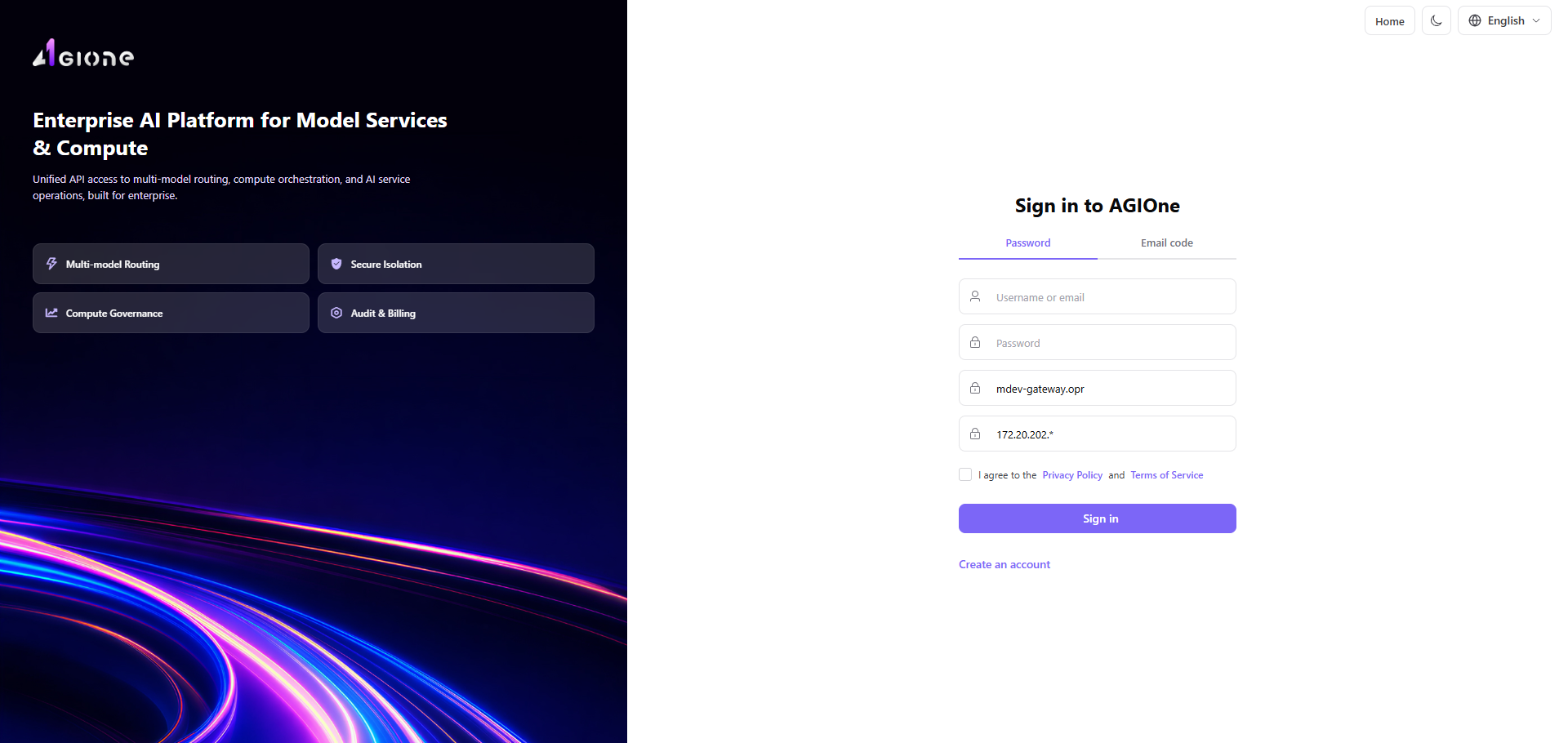
2.1 Open the Sign-In Page
Enter the following address in your browser:
https://agione.pro/user/loginYou will see the AGIOne sign-in page.
2.2 Fill In the Sign-In Form
Fill in the form in the following order.
| Step | Action | Value |
|---|---|---|
| 1 | Enter your username in Username or email | {USERNAME} |
| 2 | Enter your password in Password | {PASSWORD} |
| 3 | Select the agreement checkbox | Check it |
| 4 | Click Sign in | Wait for the platform to open |
If a privacy policy or service terms dialog appears, click Agree.
2.3 Confirm That Sign-In Succeeded
After signing in successfully, you should see a user avatar or initial in the upper-right corner. The left-side menu should show entries such as Discover, Playground, Studio, Usage & Earnings, and My Calls.
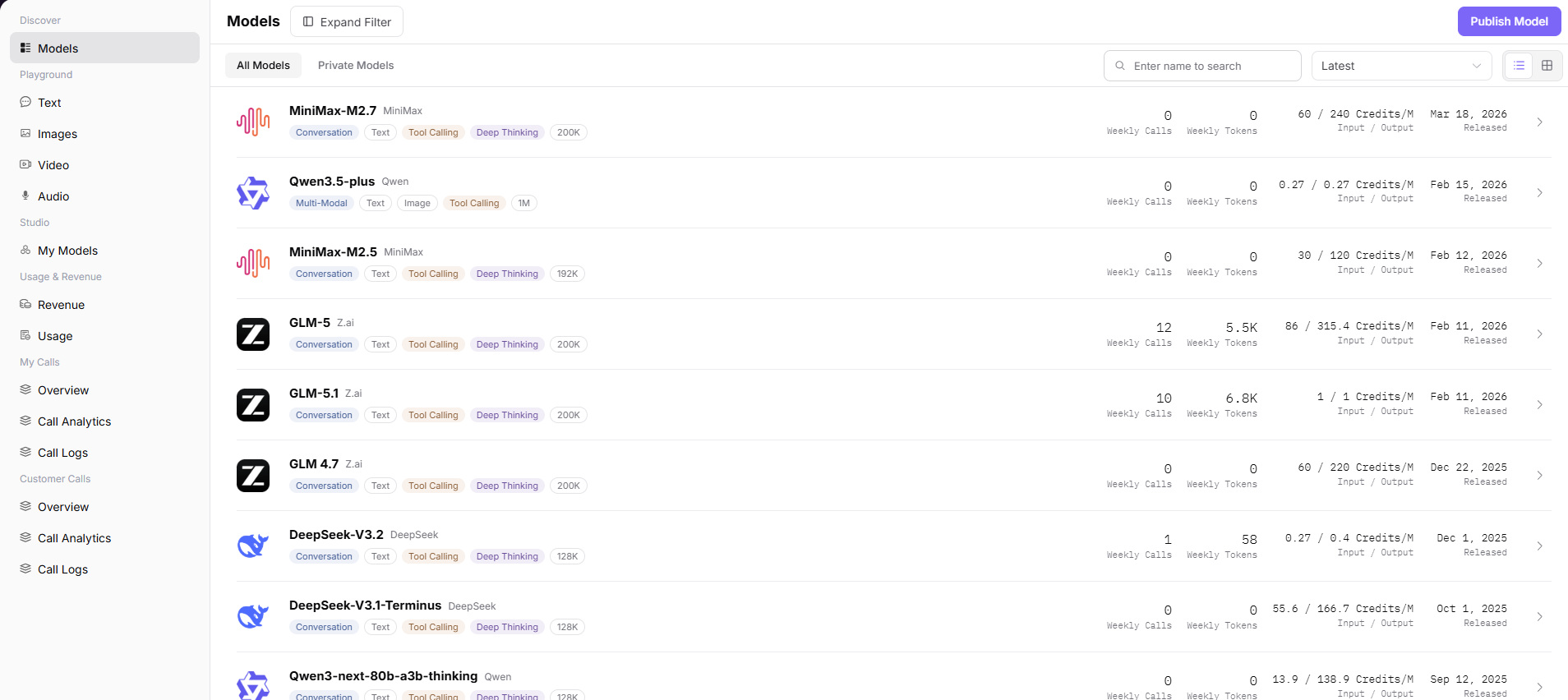
3. Open the Model List
3.1 Open Model Services
After signing in, open:
https://agione.pro/modelone/store/modelYou can also navigate through the page menu:
Model Services > Discover > Models3.2 Find Qwen3.5-27b
Search for Qwen3.5-27b in the model list. The list is sorted by Newest, so use the search box instead of relying on the model's position in the current list. After you find it, click View on the model row.
4. Claim Free Quota
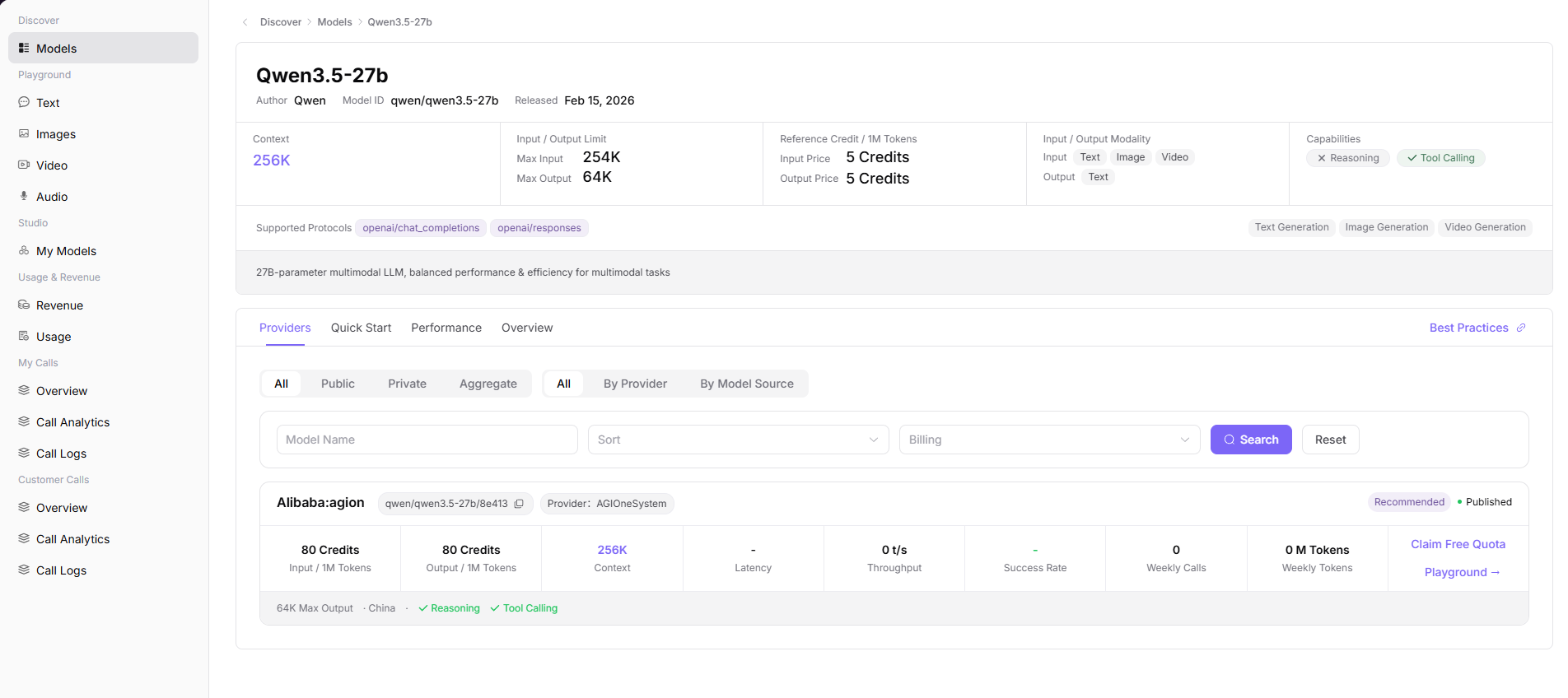
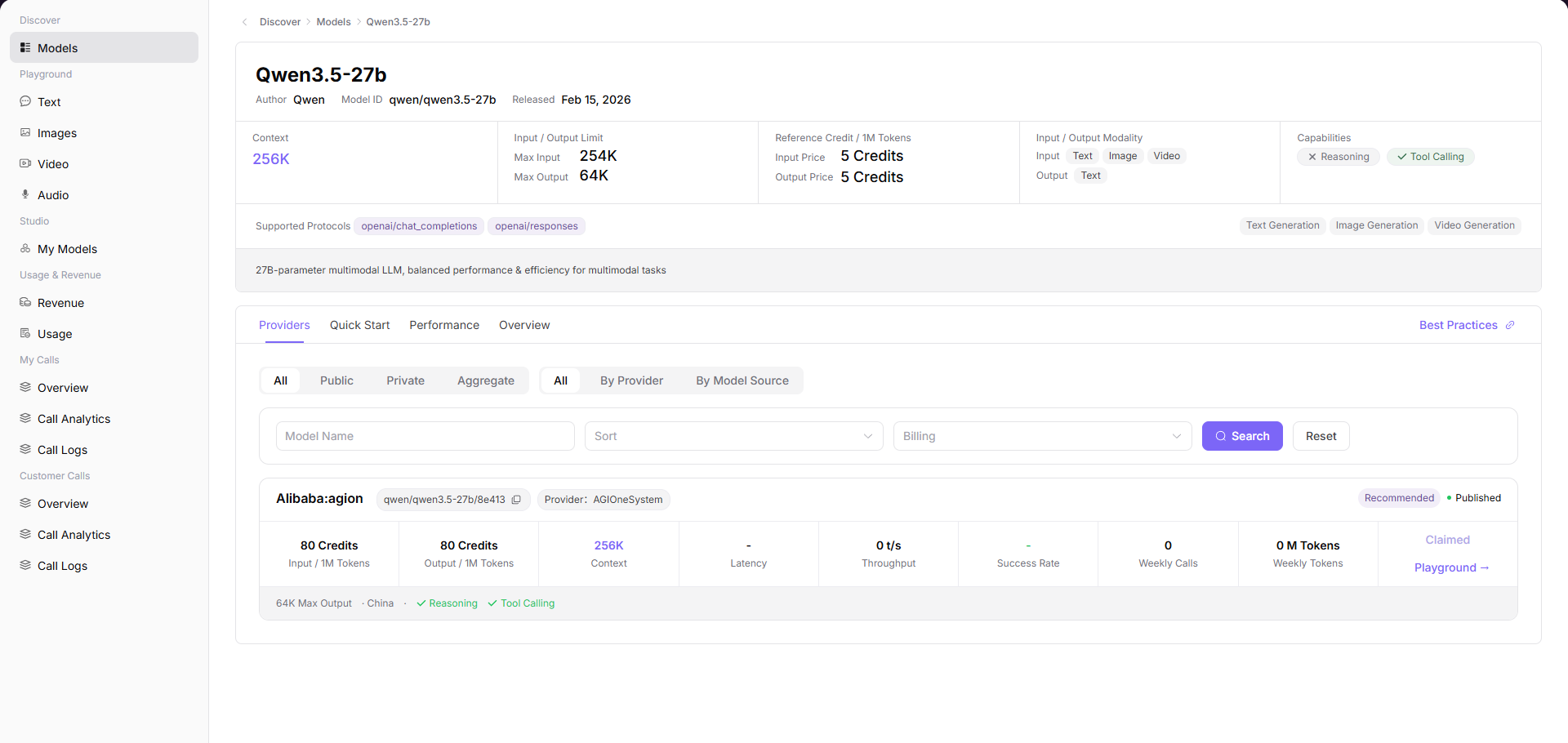
The free quota entry is on the provider card in the model detail page, next to the Playground button.
4.1 Open the Model Detail Page
After opening the Qwen3.5-27b detail page, confirm that you can see the following information.
| Check Item | Expected Value |
|---|---|
| Model Name | Qwen3.5-27b |
| Model ID | qwen/qwen3.5-27b |
| Provider Card Call Identifier | {MODEL_IDENTIFIER} |
| Quota Button | Claim Free Quota |
| Trial Entry | Playground |
4.2 Click to Claim
On the provider card, click:
Claim Free QuotaAfter the quota is claimed successfully, the page shows a success message and the button changes to:
Claimed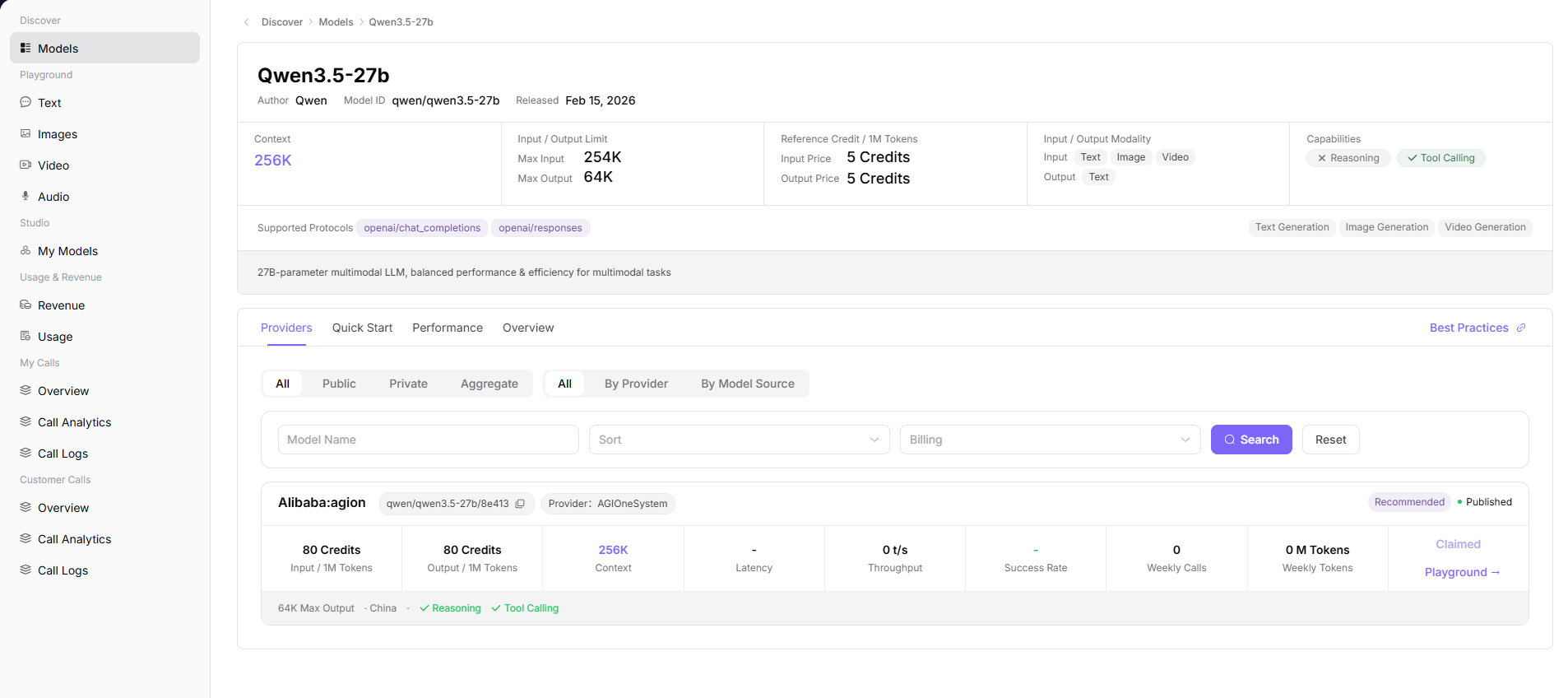
4.3 Confirm That the Quota Was Claimed
Any of the following signs means the quota has been claimed successfully.
| Success Sign | Description |
|---|---|
The page shows Successfully claimed | The platform has completed the claim |
The button changes to Claimed | The current account has already claimed the free quota for this model |
The model detail page still shows Claimed after reopening it | The claim status has been saved |
5. Try the Model in the Web Playground
The web playground is the easiest way to try a model. You do not need to write code.
5.1 Open Playground from the Detail Page
On the Qwen3.5-27b model detail page, click the following button on the provider card:
PlaygroundYou can also open it from the left-side menu:
Playground > TextIf you open it from the left-side menu, select the target model manually. If you open it from the model detail page, the current model is usually preselected.
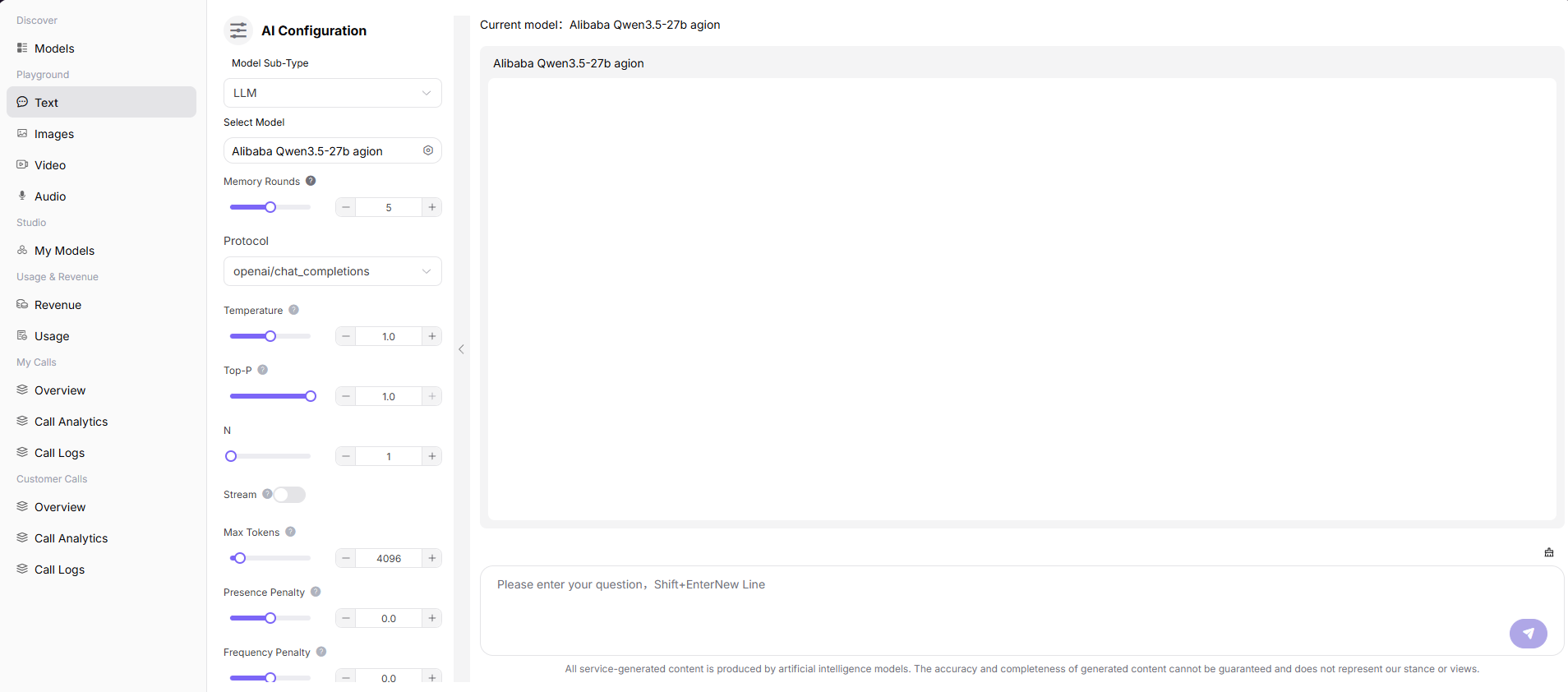
5.2 Send a Test Message
After entering the text playground page, follow these steps.
| Step | Action | Recommended Value |
|---|---|---|
| 1 | Confirm Model Sub-Type | LLM |
| 2 | Confirm or select the model | The provider model for Qwen3.5-27b |
| 3 | Confirm Protocol | openai/chat_completions |
| 4 | Adjust parameters if needed | Beginners can keep the default values |
| 5 | Enter a question in the input box at the bottom | Introduce AGIOne in one sentence. |
| 6 | Click the send button | Wait for the model response |
If the generated response appears in the chat area, the playground call has succeeded.
5.3 Select the Playground That Matches the Model Modality
The model's capabilities and input/output modalities determine which playground to use. Do not validate image, video, or audio models with text-model parameters.
| Modality | Menu Path | Validate |
|---|---|---|
| Text / chat | Playground > Text | Prompt, Temperature, Top-P, Max Tokens, response, and latency |
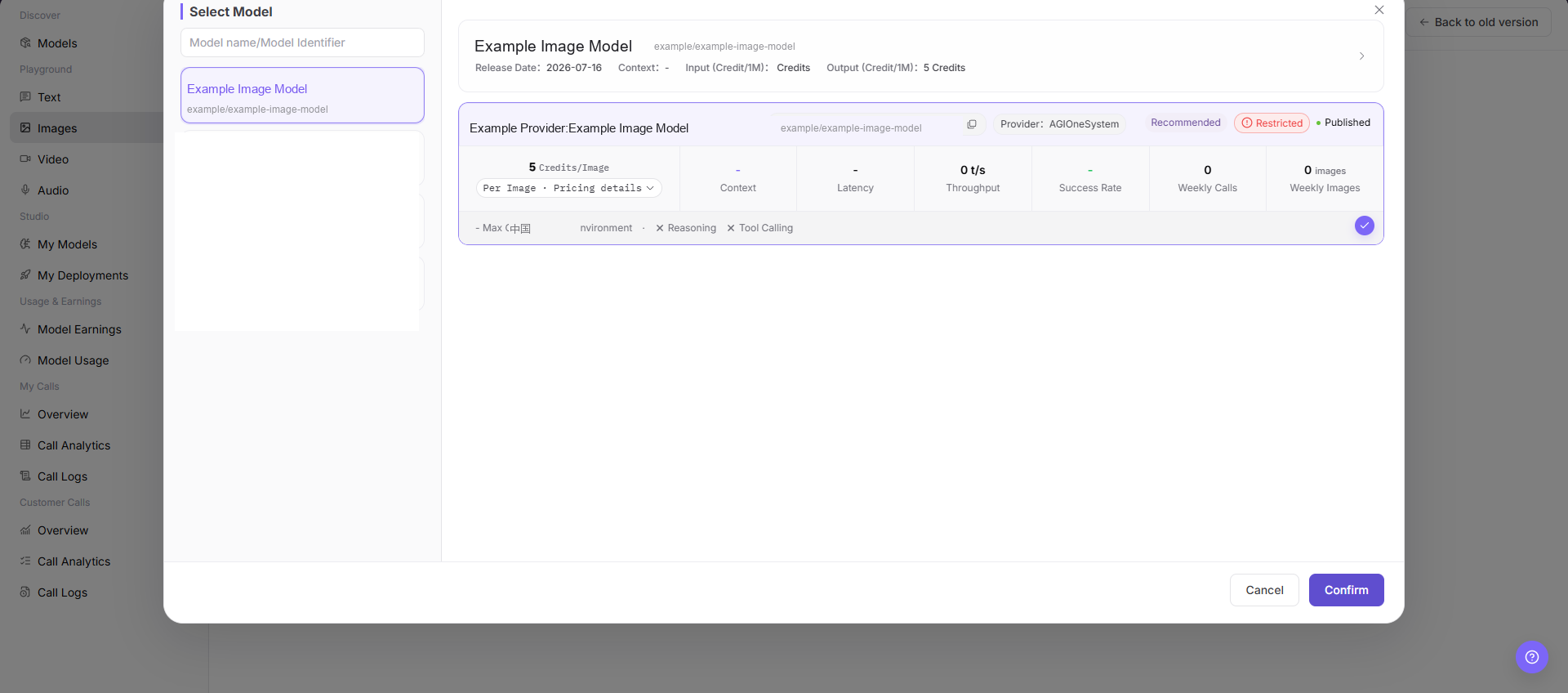
| Image / multimodal | Playground > Images | Authorized image, prompt, size, count, output image, and request ID |
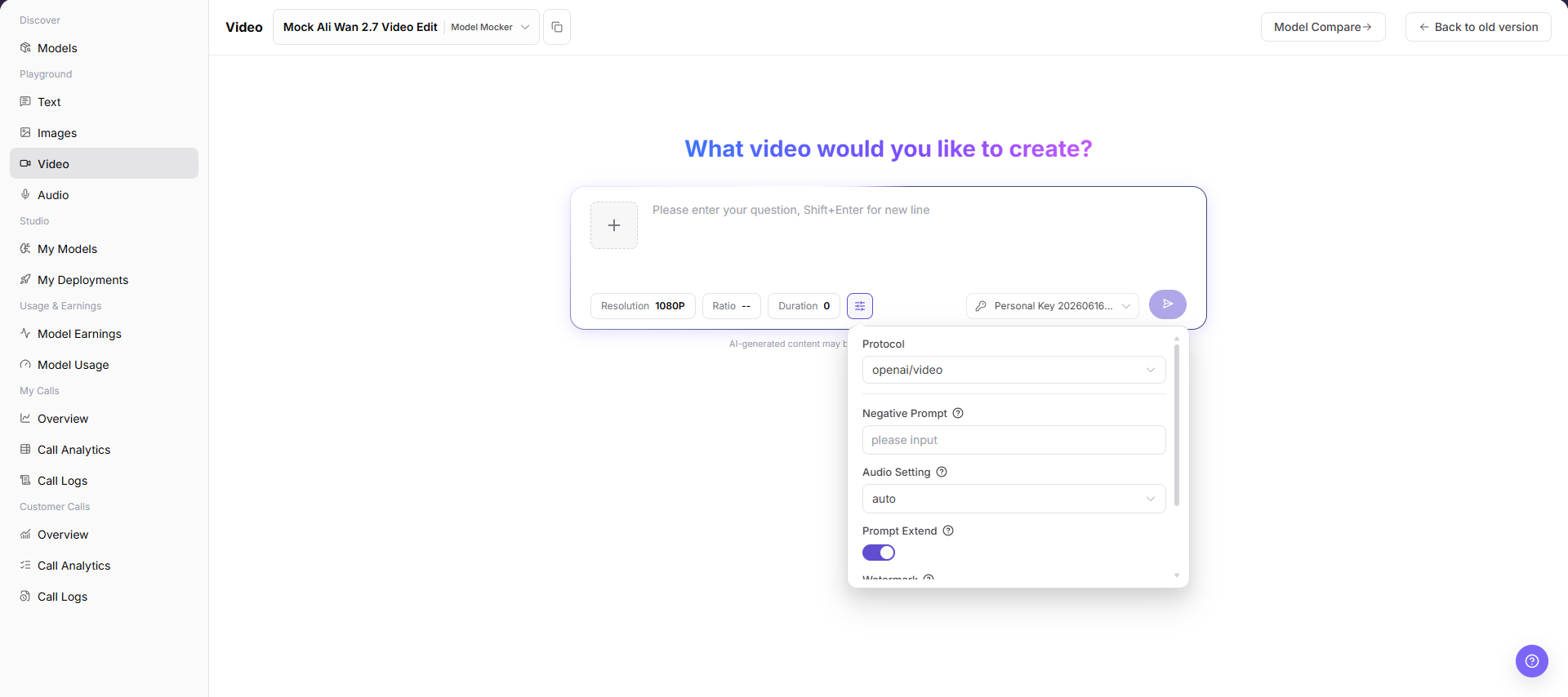
| Video | Playground > Video | Authorized short video, frame sampling, duration, result, and asynchronous latency |
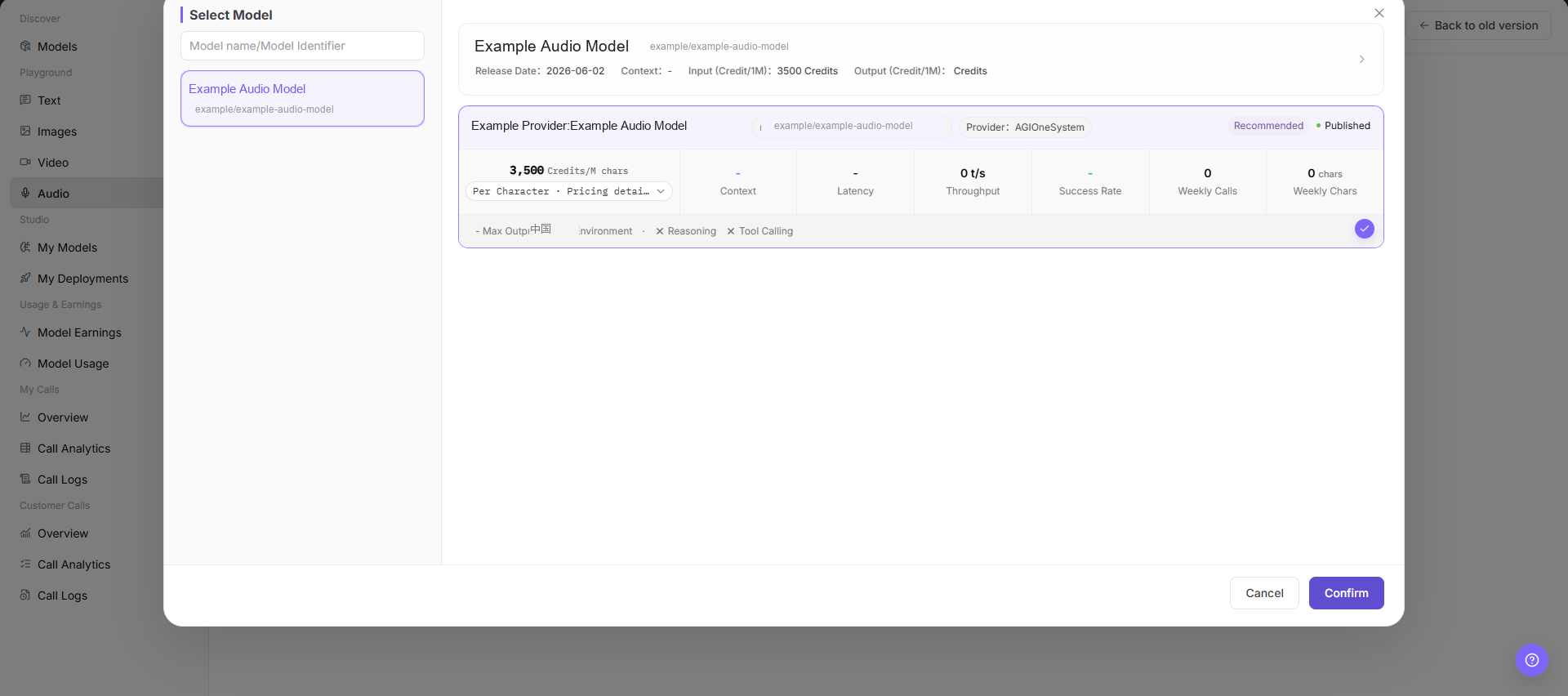
| Speech / audio | Playground > Audio | Audio format, sample rate, language, voice, and text or audio output |
For an image model, choose an available image or multimodal model, upload sanitized and authorized material, set the prompt and size, and send the request.
For a video model, first use a short sanitized sample to validate frame sampling, output format, and asynchronous results before increasing input size.
For an audio model, confirm input format, language, and output type. Do not upload original recordings that contain customer privacy.
6. Call the Model with curl
Use curl when you want to call the model from a command line, script, or backend service.
6.1 Open the Quick Start Page
Go back to the model detail page and click:
Quick StartOn the Quick Start page, you can find the following information.
| Information | Purpose |
|---|---|
| Model ID Call Identifier | The provider-specific value used in the model field |
| Base URL | The API service base address |
| Path | The protocol path appended to the base URL |
| Full URL | The complete curl request URL |
| Model API Key | The authentication key selected in the AUTHENTICATION section |
| Curl Example | A ready-to-use reference command |
The API key in the screenshot is redacted. In actual use, copy your own API key from the page.
6.2 Copy the API Key
Find Model API Keys in the AUTHENTICATION section, select an authorized key, then click Copy.
Please note:
| Note | Description |
|---|---|
| Do not share your API key with others | The API key can be used to call models under your account |
| Do not commit it to public documents or code repositories | Store it as an environment variable when possible |
This guide uses {API_KEY} | Replace it with your real key when calling the API |
6.3 curl Example
Replace {API_KEY} and {MODEL_IDENTIFIER} with values copied from the current environment, then run the command in your terminal.
curl -X POST "https://agione.pro/hyperone/xapi/api/v1/chat/completions" \
  -H "Content-Type: application/json" \
  -H "Authorization: Bearer {API_KEY}" \
  -d '{
    "stream": true,
    "model": "{MODEL_IDENTIFIER}",
    "messages": [
      {
        "role": "user",
        "content": "Hello"
      }
    ]
  }'
6.4 Confirm That the API Call Succeeded
When the call succeeds, your terminal returns generated model output. Common signs of success include:
| Check Item | Success Sign |
|---|---|
| Response content | The response includes generated text |
| Model field | The response includes the current environment's model identifier |
| No authentication error | No Unauthorized or Invalid API key error appears |
| No quota error | No insufficient quota message appears |
6.5 Quick Practice
Go to AGIOne Best Practices.
7. View Your Call Records
To confirm whether the model was actually called, check the call logs.
7.1 Open Call Logs
Open the following menu from the left side:
My Calls > Call Logs7.2 Filter Call Records
| Step | Action |
|---|---|
| 1 | Select the call time range |
| 2 | Enter the model name or model ID |
| 3 | Select the call status, such as success or failure |
| 4 | Click Search |
| 5 | Check the call time, model, status, token usage, and latency in the list |
| 6 | To view more information, click Details on the target row |
8. FAQ
8.1 What Should I Do If Sign-In Fails?
| Possible Cause | What to Do |
|---|---|
| Incorrect username or password | Confirm {USERNAME} and {PASSWORD} |
| Agreement checkbox not selected | Select the checkbox and sign in again |
| Agreement dialog not confirmed | Click Agree |
8.2 What Should I Do If I Cannot Find Qwen3.5-27b?
| What to Do | Description |
|---|---|
Search for Qwen3.5-27b in the model list | Use the search box to locate it quickly |
Make sure you are viewing All Models | Avoid filtering to private models only |
| Change sorting or page through the list | The model may not be visible in the first screen |
8.3 What Should I Do If the Claim Button Cannot Be Clicked?
| Page Status | Description |
|---|---|
The button shows Claimed | The current account has already claimed it |
Claim Free Quota is missing | The model may not support free quota, or your account may not have permission |
| Nothing happens after clicking | Refresh the page and try again, or confirm that you are still signed in |
8.4 What Should I Do If the curl Call Fails?
| Error Symptom | What to Check |
|---|---|
| Authentication failure | Check whether the API key is complete and whether the header is Authorization: Bearer {API_KEY} |
| Model not found | Check whether model matches the provider card call identifier copied from the current environment |
| Incorrect request URL | Check whether the URL is https://agione.pro/hyperone/xapi/api/v1/chat/completions |
| Invalid JSON | Check quotation marks, commas, and braces |
| Insufficient quota | Confirm that free quota has been claimed, or check your account quota |
9. Quick Reference
| Feature | Entry |
|---|---|
| Sign in | https://agione.pro/user/login |
| Model list | https://agione.pro/modelone/store/model |
| Qwen3.5-27b detail page | Model Services > Discover > Models > Qwen3.5-27b > View |
| Claim free quota | Qwen3.5-27b detail page provider card > Claim Free Quota |
| Web playground | Qwen3.5-27b detail page provider card > Playground |
| API instructions | Qwen3.5-27b detail page > Quick Start |
| Call logs | My Calls > Call Logs |
Completion Checklist
Purpose: These are the exit criteria for the current feature task. Use them to decide whether the result is observable and reviewable and whether you can continue to the next step in the scenario. They do not repeat the procedure; if any item fails, follow the troubleshooting section below.
| Check | Pass Criteria |
|---|---|
| 1 | Sign-in succeeds and the intended model can be found. |
| 2 | Free quota or other authorized quota is available. |
| 3 | A playground request and an API request both return valid responses. |
| 4 | The API call appears in Call Logs with the expected model and status. |
Troubleshooting
| Symptom | Check First |
|---|---|
| The intended model cannot be found | Model publication state, public/private scope, account authorization, and marketplace filters |
| Playground works but the API request fails | Personal Key, endpoint, request headers, protocol, model identifier, and rate limit |
| The request succeeds but no call log appears | Account and project scope, time range, model filter, and processing delay |