Sign In, Register, and Reset a Password
Target Outcome
A new End User completes registration and email verification; all roles can enter the correct workspace and recover access after forgetting a password. An email code is time-limited verification information, not a long-term password.
Applicable Roles
- End User registering an account
- Model Provider and Platform Operator signing in or recovering access
Before You Start
- Prepare an email address that can receive verification codes and a password that meets the tenant policy.
- Confirm the platform URL, tenant, expected role, and whether self-registration, verification-code sign-in, and Google sign-in are enabled with the tenant administrator.
- Available methods, code validity, and sending limits are governed by Login Properties. Follow only the entries enabled on the current page. A resend timer is not the code's validity period; contact the administrator when an entry is unavailable rather than repeatedly submitting.
Role handoff: The administrator supplies the confirmed platform entry and allowed sign-in methods; the user signs in with their own account. For a failure, return the time, visible message, and sanitized screenshot so the administrator can check settings and account membership before retrying. Do not hand over passwords, verification codes, or recovery links.
Procedure
Create an Account
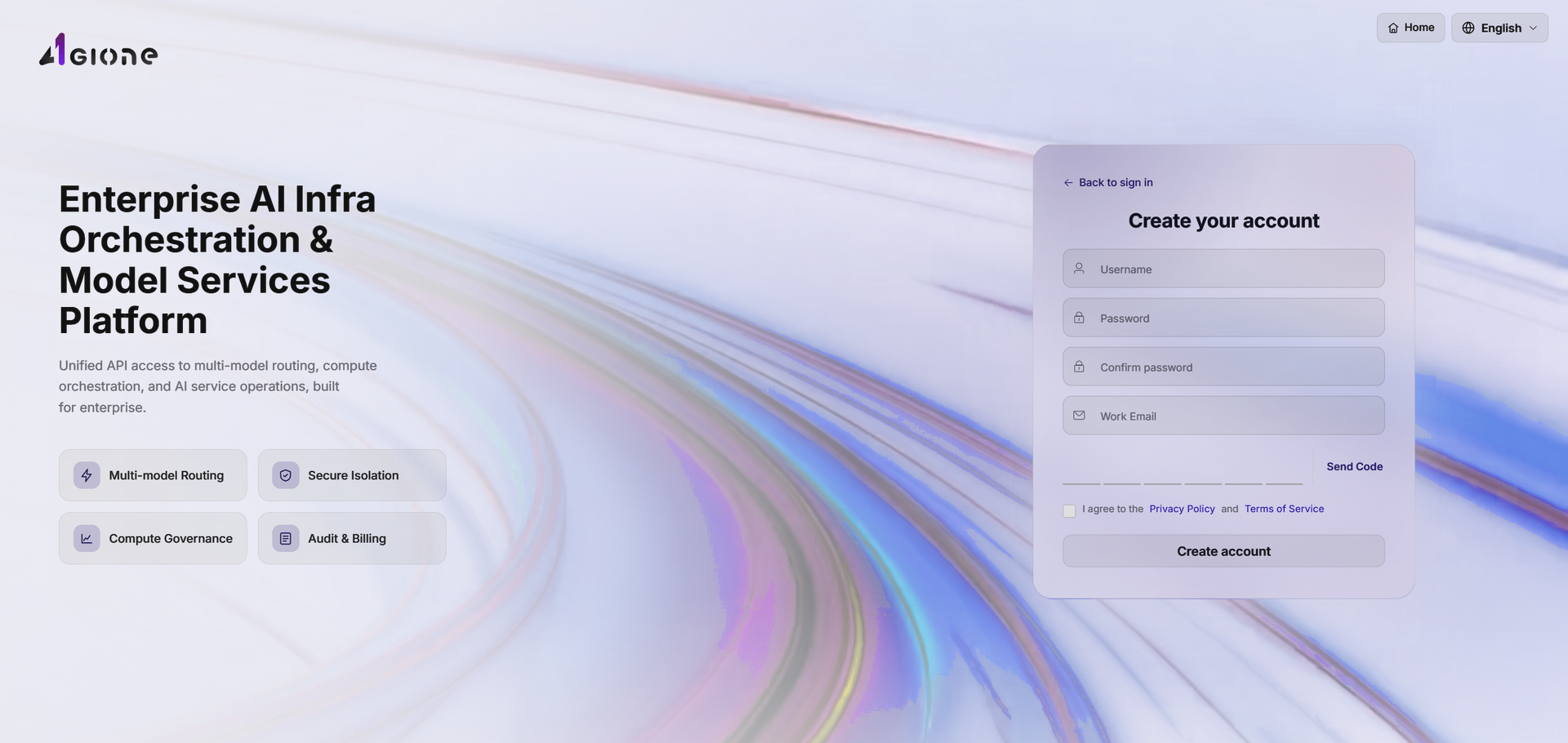
- Open the AGIOne sign-in URL provided by the tenant, such as
https://agione.pro/user/login. - Select Create Account at the bottom of the sign-in card.
- Complete the registration form:
- Username: account username.
- Password: account password.
- Confirm Password: enter the same password again.
- Work Email: address used to receive the verification code.
- Select Send Code.
- Enter the six-digit code received by email.
- Read and accept the Privacy Policy and Terms of Service.
- Select Create Account. After registration succeeds, use the new account to sign in.
- Select Back to Sign In to return without registering.
Parameter Reference
| Field | Type | Example | Description |
|---|---|---|---|
| Username | Text | new-user-001 | Required; new account username |
| Password | Password | ******** | Required; new account password |
| Confirm Password | Password | ******** | Required; must match Password |
| Work Email | Text | user@example.com | Required; receives verification codes |
| Send Code | Button | Not applicable | Required; sends a six-digit code |
| Verification Code | Text | 4 4 2 5 6 8 | Required; six-digit code received by email |
| Privacy Policy and Terms | Checkbox | Selected | Required; accepts the user agreements |
| Create Account | Button | Not applicable | Required; submits registration |
| Back to Sign In | Link | Not applicable | Optional; returns to sign-in |
Sign In to AGIOne with Password
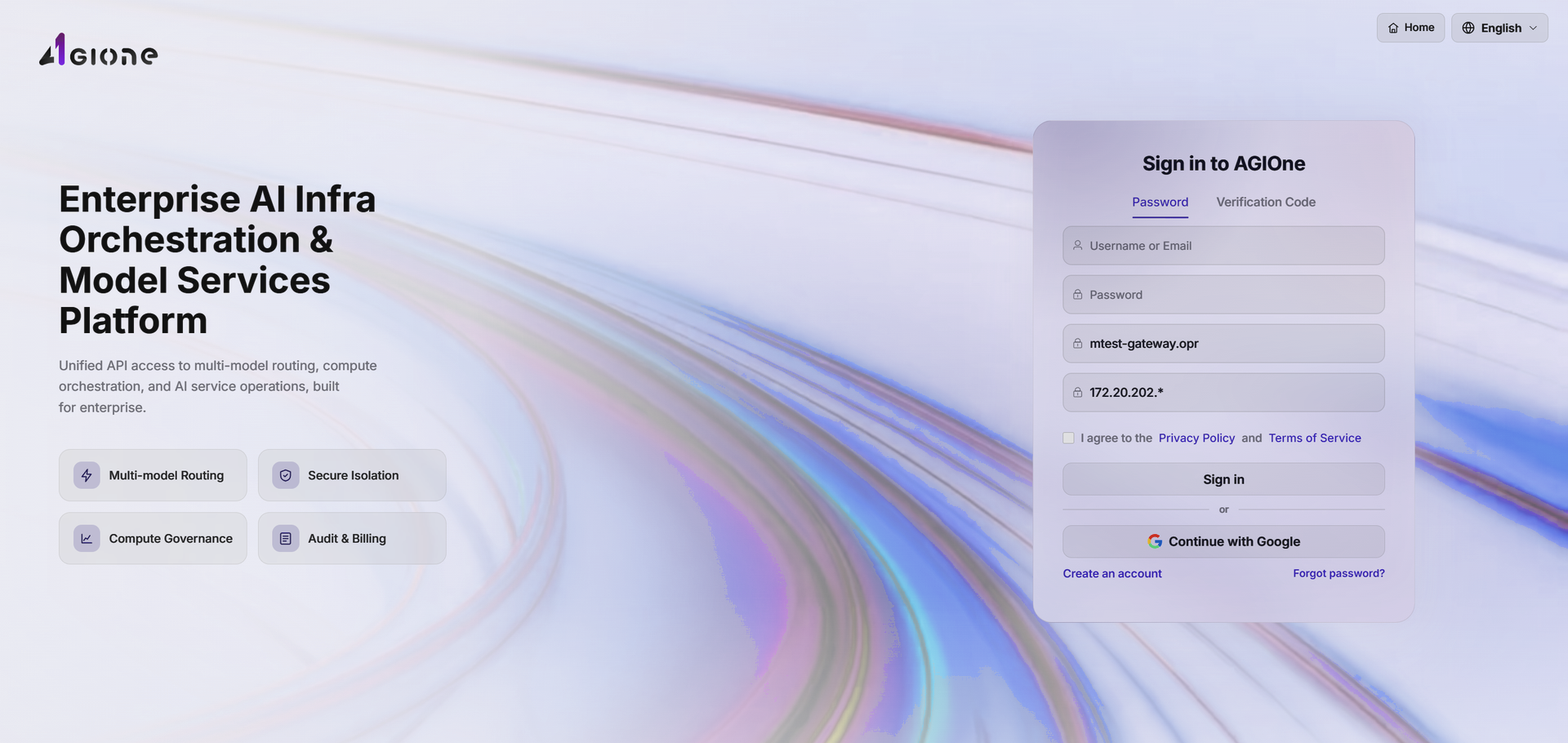
- Open the AGIOne sign-in URL provided by the tenant.
- Select the Password tab, which is selected by default.
- Enter the username or registered email and the password.
- Read and accept the Privacy Policy and Terms of Service.
- Select Sign in and verify that the correct workspace opens.
- If sign-in fails, use the on-screen error to check the credentials and network before retrying.
- Use Home, Create Account, or Forgot Password when the corresponding action is needed.
Parameter Reference
| Field | Type | Example | Description |
|---|---|---|---|
| Username or Email | Text | provider-user | Required; username or registered corporate email |
| Password | Password | ******** | Required; account password |
| Privacy Policy and Terms | Checkbox | Selected | Required; accepts the user agreements |
| Sign in | Button | Not applicable | Required; submits the credentials |
| Home | Link | Not applicable | Optional; returns to the platform home page |
| Create Account | Link | Not applicable | Optional; opens registration |
| Forgot Password | Link | Not applicable | Optional; opens password recovery |
Sign In to AGIOne with a Verification Code
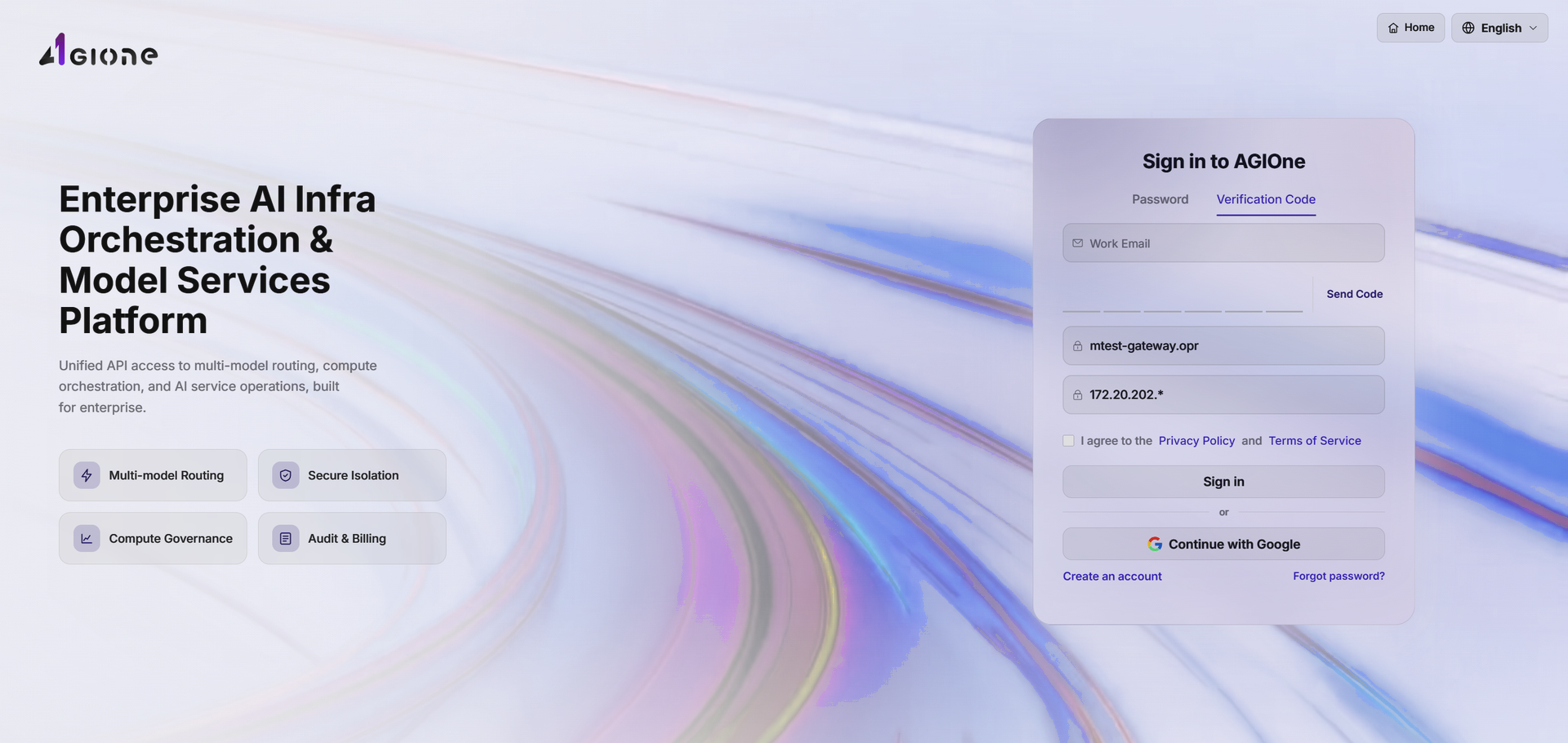
- Open the AGIOne sign-in URL provided by the tenant.
- Select the Verification Code tab.
- Enter the registered corporate email.
- Select Send Code.
- Enter the six-digit code before it expires.
- Read and accept the Privacy Policy and Terms of Service.
- Select Sign in and verify that the correct workspace opens.
- Select Continue with Google only when the tenant allows Google sign-in.
Parameter Reference
| Field | Type | Example | Description |
|---|---|---|---|
| Work Email | Text | user@example.com | Required; registered email |
| Send Code | Button | Not applicable | Required; sends a six-digit code |
| Verification Code | Text | 4 4 2 5 6 8 | Required; code received by email before expiry |
| Privacy Policy and Terms | Checkbox | Selected | Required; accepts the user agreements |
| Sign in | Button | Not applicable | Required; submits verification-code sign-in |
| Continue with Google | Button | Not applicable | Optional; uses tenant-approved Google sign-in |
Reset a Forgotten Password
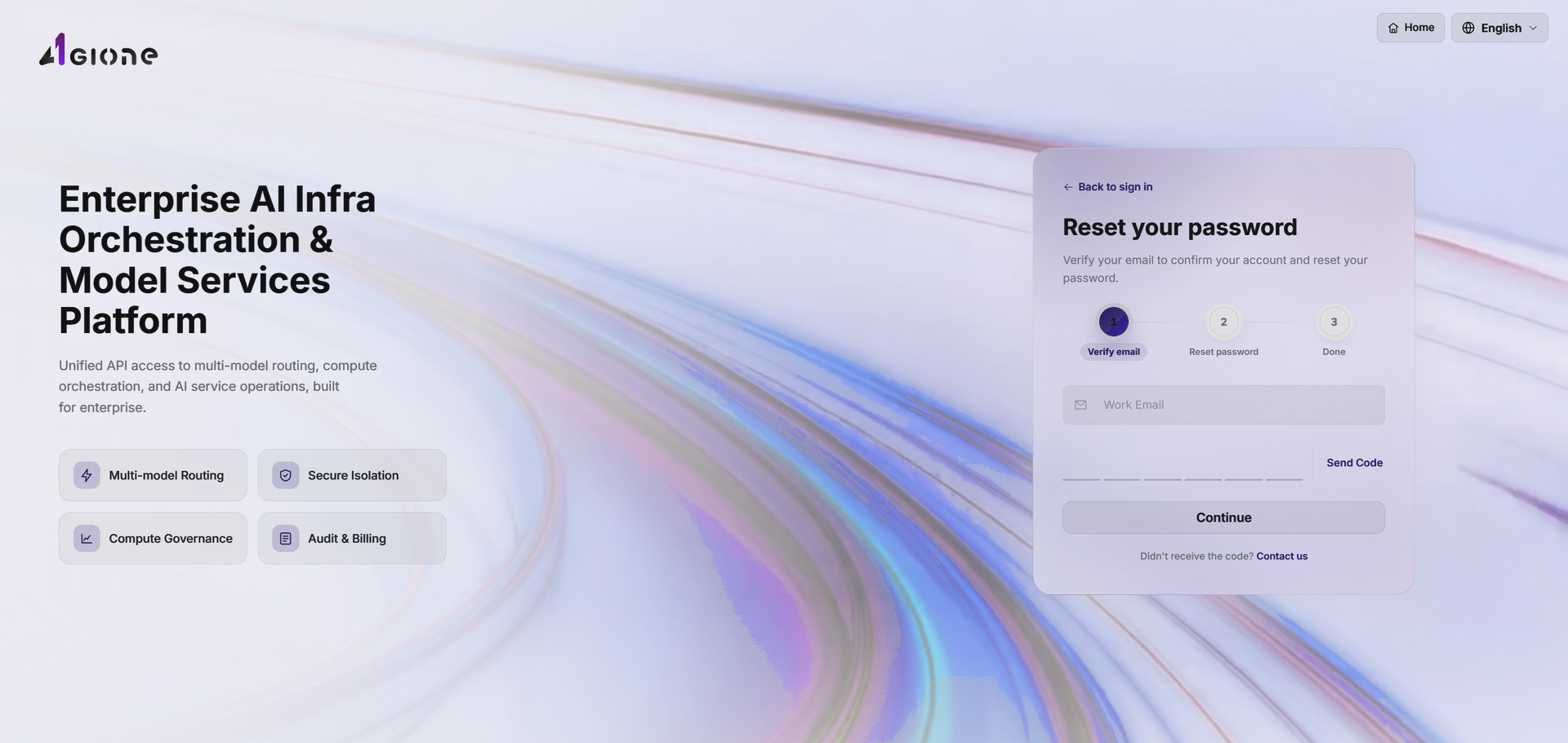
Password recovery has three steps: verify the email, reset the password, and complete the flow.
Step 1: Verify the Email
- Open the AGIOne sign-in URL provided by the tenant.
- Select Forgot Password.
- Enter the registered corporate email.
- Select Send Code and wait for the resend timer before requesting another code.
- Enter the six-digit code received by email.
- Select Continue.
- Select Contact Us if the code does not arrive after the checks below.
- Select Back to Sign In to leave password recovery.
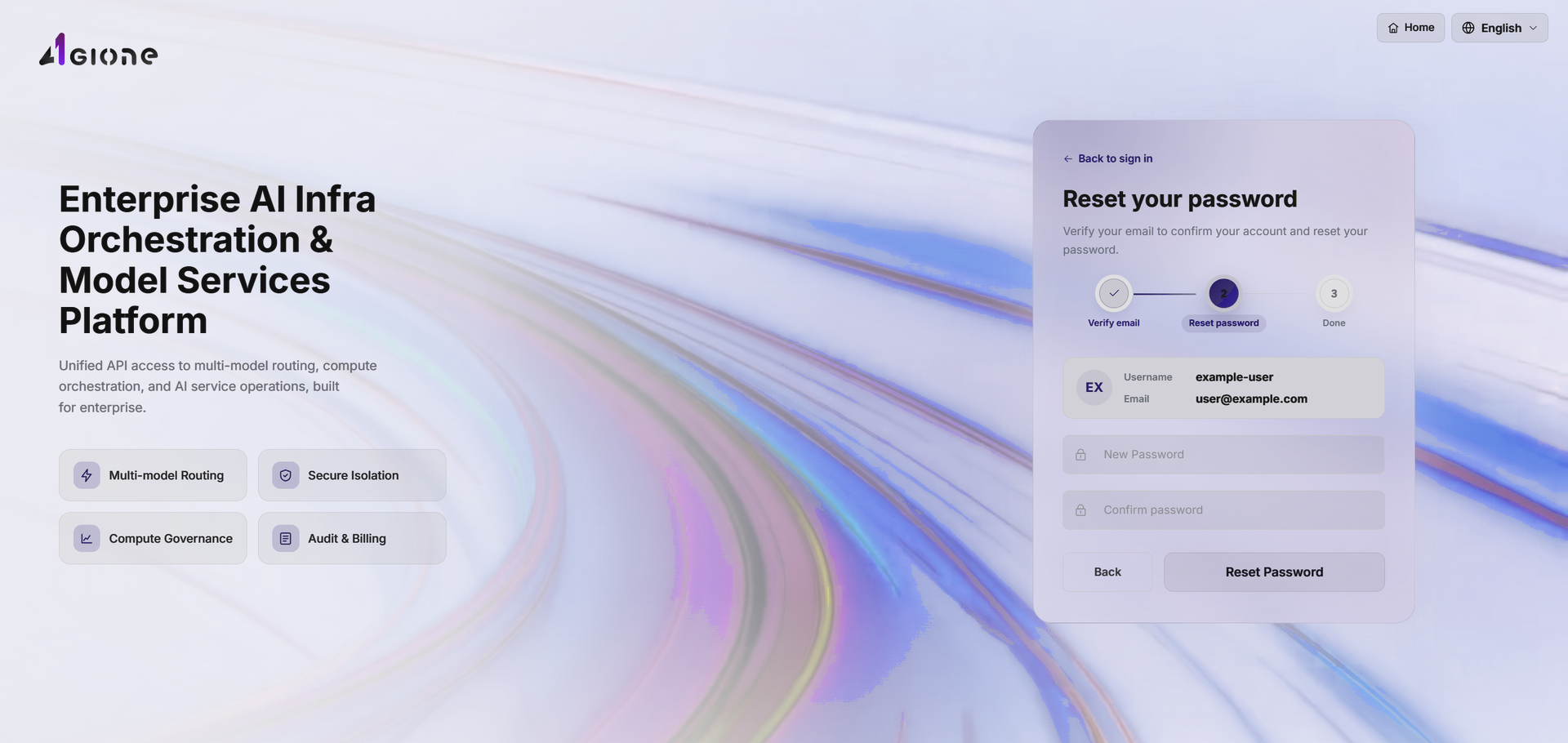
Step 2: Reset the Password
- After email verification, confirm the account information shown on the Reset Password step.
- Enter the new password and enter it again under Confirm Password.
- Resolve any validation message, such as an empty password or mismatched values.
- Select Reset Password.
- Select Back to return to email verification when needed.
Step 3: Complete
- Confirm that the page reports a successful password reset.
- Select Back to Sign In and sign in with the new password.
Parameter Reference
| Field | Type | Example | Description |
|---|---|---|---|
| Work Email | Text | user@example.com | Required; registered email |
| Send Code | Button | Not applicable | Required; sends a six-digit code after the resend timer |
| Verification Code | Text | 4 4 2 5 6 8 | Required; six-digit code received by email |
| Continue | Button | Not applicable | Required; submits email verification |
| Contact Us | Link | Not applicable | Optional; requests help when no code arrives |
| Back to Sign In | Link | Not applicable | Optional; returns to sign-in |
| New Password | Password | ******** | Required; new account password |
| Confirm Password | Password | ******** | Required; must match New Password |
| Back | Button | Not applicable | Optional; returns to email verification |
| Reset Password | Button | Not applicable | Required; submits the new password |
Completion Checklist
Check the results below; resolve failed items using the troubleshooting section before continuing.
| Check | Pass Criteria |
|---|---|
| 1 | A new account completes email verification and signs in. |
| 2 | Password and email-code sign-in enter the correct tenant and workspace. |
| 3 | The old password no longer works after reset and the new password does. |
| 4 | Failed authentication shows a useful error without exposing whether an account exists. |
Common Issues
| Symptom | Check First |
|---|---|
| Verification email is missing | Email address, spam folder, resend timer, and mail-service state |
| Account creation fails | Duplicate username, password policy, code expiry, and accepted terms |
| The wrong workspace opens | Tenant assignment, assigned role, and default entry |
| The new password does not work | Use of the new password, account state, keyboard input, and sign-in method |