Provider Revenue and Settlement Reconciliation
Use this task to explain provider revenue sources and confirm a monthly settlement result. Credit is the platform account's accounting unit, not the original-currency payment amount of an order.
The provider or its authorized finance viewer first reconciles its own revenue. For a discrepancy, hand the cycle, statement identifier, estimate-versus-posted scope, and discrepancy notes to platform billing staff. After receiving their findings, the provider verifies the result in its own revenue pages. Only a person with the relevant permission and authorization performs a balance transfer.
Applicable Roles
- Model Providers, provider finance viewers, and revenue operators
Before You Start
- Identify the target billing cycle and the customers or models to reconcile.
- Confirm permission to view Provider revenue and settlement data.
- Confirm the destination account, operator, and reviewer before transferring a balance.
Procedure
1. Review Revenue Overview
Open Revenue Overview under Billing > Earnings > Revenue. Read the live balance, current-cycle estimate, next-settlement notice, and cycle analysis separately. Estimates are unsettled and excluded from the revenue-account balance; the next-settlement notice is only a time reminder. The analysis cycle affects daily revenue and customer/model rankings, not live balances or historical outflows.
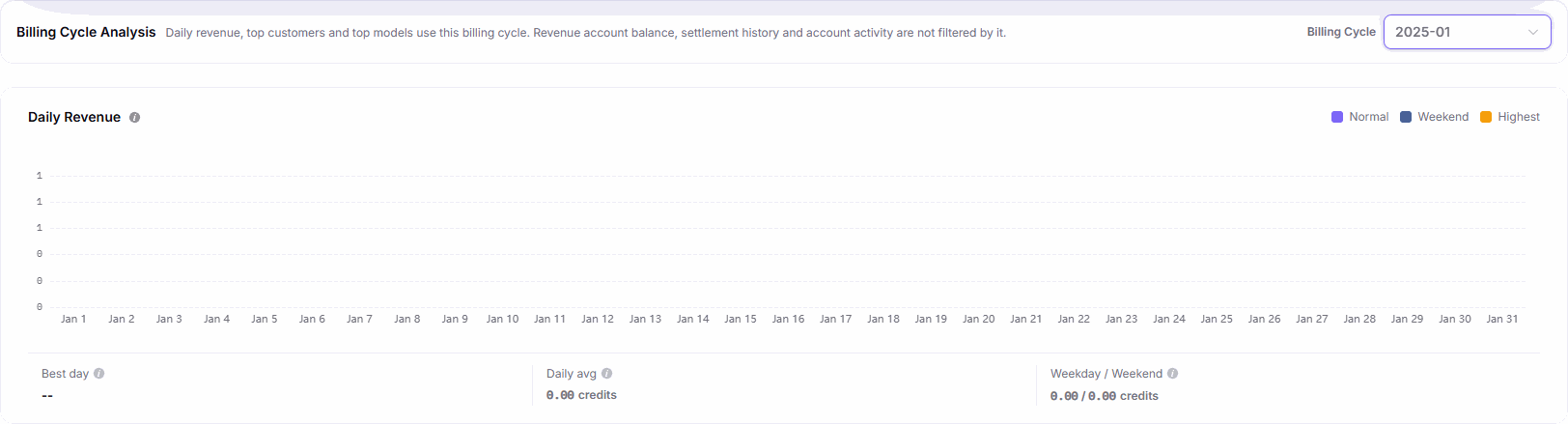
The figure shows the analysis area for a historical billing cycle, not the live account balance; check account totals separately on the page.
2. Explain Revenue Sources
Select the target billing cycle and review the top customers and top models. Then open Customers, filter by customer or tag, and open details to reconcile the revenue contribution.

The figure shows an empty customer-results table. It does not show the query controls, customer identities, summary cards, or detail results; check the selected cycle and filters on the actual page.
3. Reconcile Monthly Settlements
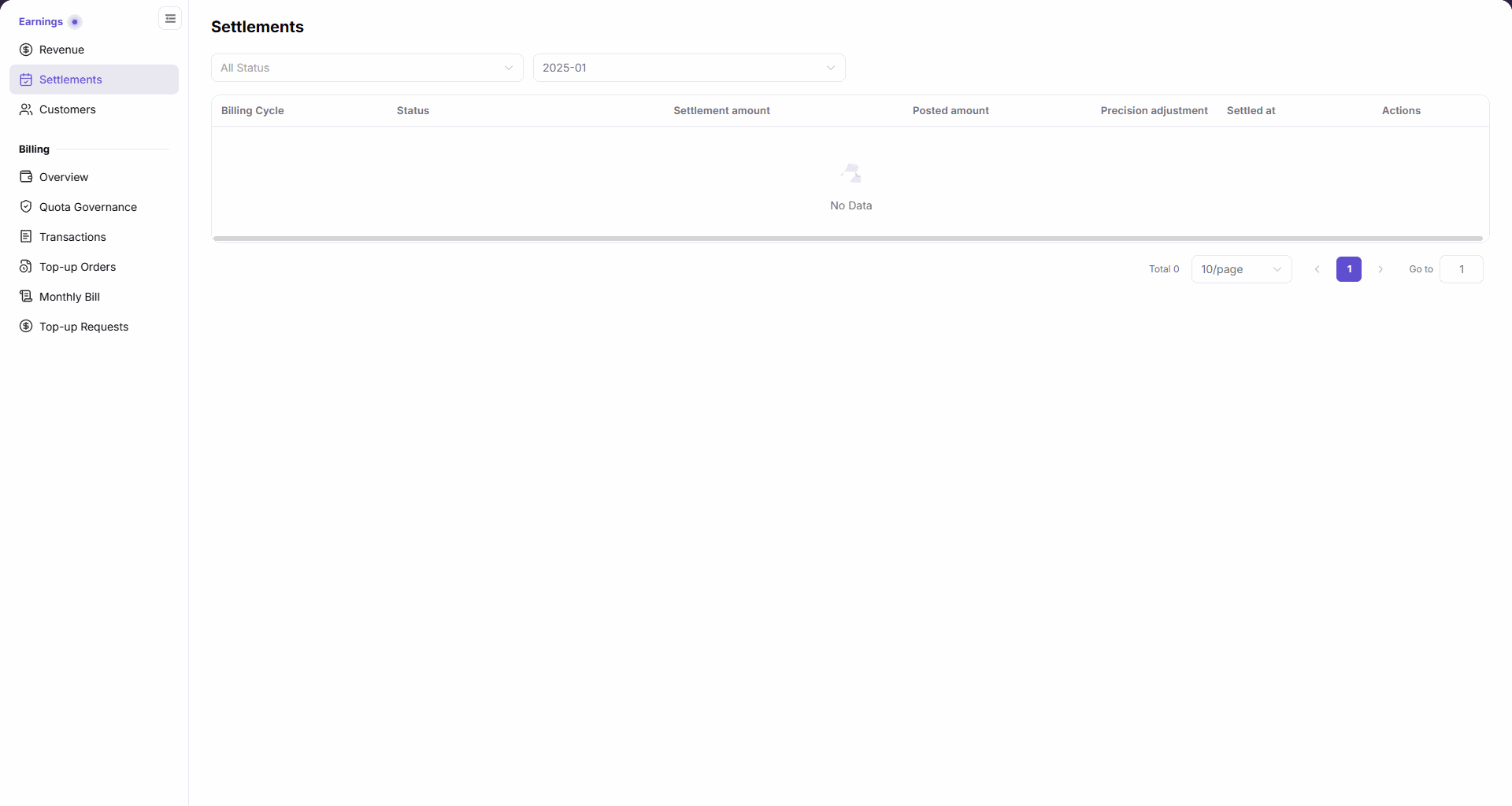
Open Monthly Settlements, filter by status and billing cycle, and compare settlement amount, posted amount, precision adjustment, settled time, and processing status. The current estimated/pending row opens a full estimate-details page: no statement has been generated or posted to the revenue account. Read historical rows by their own status; do not treat an estimate as a received amount.
4. Transfer the Balance
Return to Revenue Overview and click Transfer to Available to open its form. Check the transferable balance, required transfer amount, and optional remarks; this action is not in the Monthly Settlements list. Use the final transfer confirmation only after verifying the amount and business authorization. Cancel for read-only inspection or when a discrepancy remains; do not submit merely to test availability.
Completion Checklist
Do not transfer a balance until its sources and settlement results reconcile.
| Check | Pass Criteria |
|---|---|
| Revenue totals | Balance, estimated revenue, and billing-cycle trend are confirmed. |
| Revenue sources | Major customer and model contributions can be explained. |
| Settlement status | Expected settlement, actual receipt, and status are consistent. |
| Transfer conditions | Amount, destination account, permission, and reviewer are confirmed. |
Troubleshooting
| Symptom | Check First |
|---|---|
| Revenue balance differs from expectation | Billing cycle, model calls, pricing rules, and synchronization time |
| Customer revenue is empty | Customer scope, tag filter, and valid calls |
| Expected settlement differs from actual receipt | Statement status, rounding adjustment, receipt time, and outbound transactions |
| Transfer action is unavailable | Settlement status, account permission, and destination account |