Identity Authorization
This scenario guides platform administrators through setting organizational boundaries with tenants, packaging permissions in roles, assigning roles to users, and verifying menu, button, and resource access.
Target Outcome
- The user belongs to the correct tenant and has a role appropriate to the job.
- The user sees only authorized subsystems, menus, and buttons.
- Platform governance permissions remain separate from regular tenant permissions.
- Changes can be verified by a new session and traced through records.
Applicable Roles
operator: confirms operational access requirements and maintains the permission scope using least privilege.providerandenduser: validation accounts for the resulting access model.
Before You Start
- Confirm the user's organization, tenant, and responsibilities.
- Prefer built-in roles and create a custom role only when responsibilities are not covered.
- List required and explicitly prohibited menus, actions, and resource scopes.
- Prepare a validation account that does not carry production workloads.
Procedure
| Step | Action | Reference | Completion Signal |
|---|---|---|---|
| 1 | Understand tenant, user, role, and menu relationships | Identity and Access Model | Boundaries and role choice are clear |
| 2 | Select a role from the default capability matrix | Role Comparison | Role matches responsibilities |
| 3 | Confirm member ownership in Tenant Settings and Members | Tenant Settings, Members | The member is active in the correct tenant |
| 4 | Select a built-in role or create a least-privilege role | Roles | The role contains only necessary permissions |
| 5 | Sign in with the validation account and inspect menus, actions, and resource scope | Roles | Allowed items work and prohibited items do not |
| 6 | Review the permission change and validation in Operation Logs | Operation Logs | Time, operator, and target are traceable |
Choose the execution scope first. Tenant-side member and role work in steps 3–4 requires an account with management permission in that tenant. For platform operations roles, follow the operator Roles manual. The menu path may be the same, but the forms and authorization targets differ. In step 5, use the actual target account to validate its access; an ordinary member does not need to enter operator role management.
Review the role record and permission scope on the appropriate Roles page before signing in with the validation account. The administrator hands the target tenant, assigned role, and allowed/denied checklist to the validator. The validator uses the target account and returns visible menus, available actions, and failed checks for the administrator to review; validation is not permission to expand access.
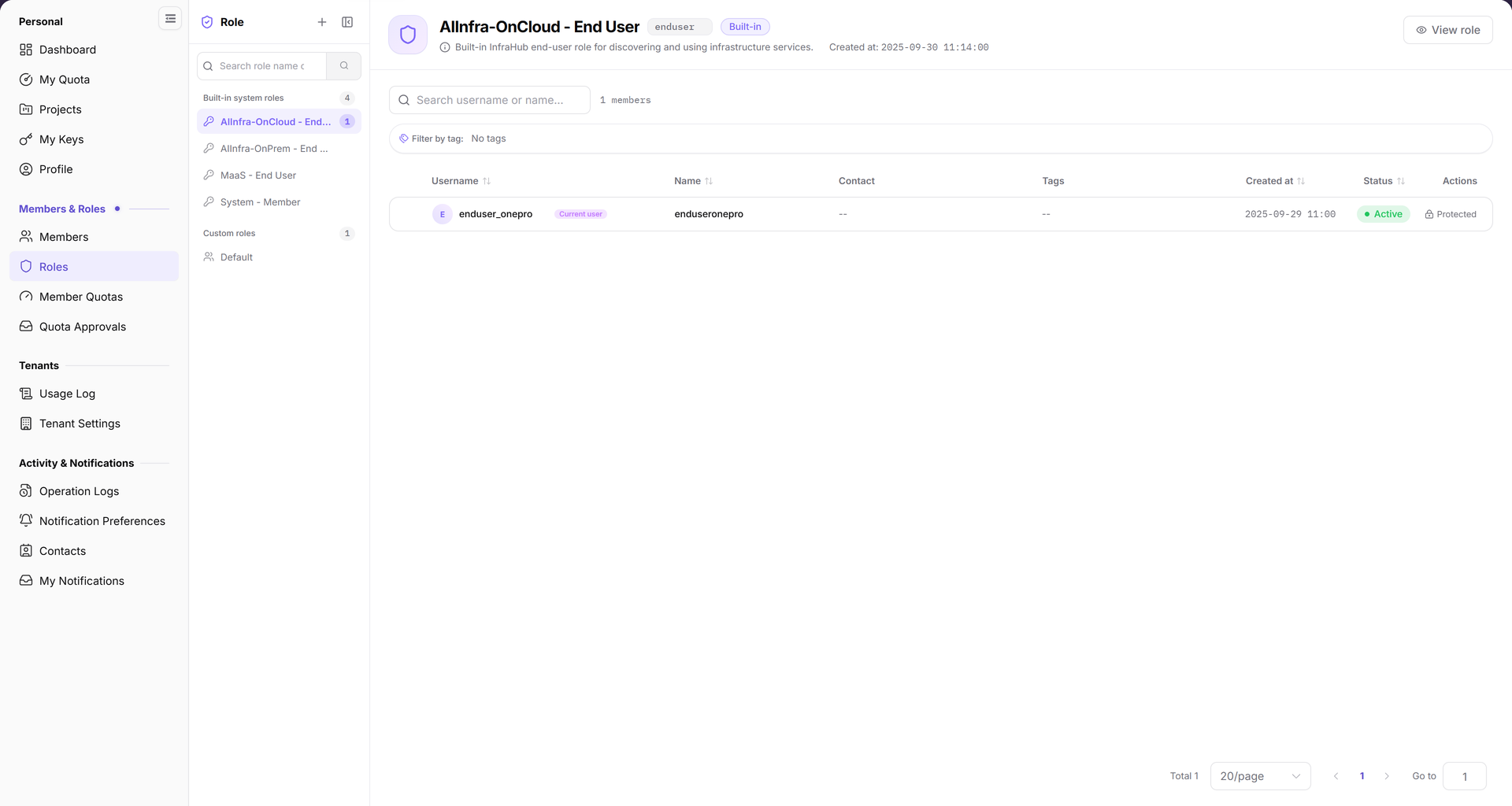
The figure shows built-in/custom roles on the left and the selected role information, member count, and member table on the right. Confirm that records or a completed empty state are visible before reviewing the permission scope.
Completion Checklist
Check the results below; resolve failed items using the troubleshooting section before continuing.
| Check | Pass Criteria |
|---|---|
| 1 | The user belongs to the correct tenant and is active. |
| 2 | The role matches responsibilities without unnecessary platform permissions. |
| 3 | Required menus and actions are available. |
| 4 | Prohibited menus, actions, and resources are unavailable. |
| 5 | A fresh session reflects the change and records are traceable. |
Troubleshooting
| Symptom | Check First |
|---|---|
| Target menu is missing | Tenant assignment, role assignment, menu permission, and a fresh session |
| Menu is visible but actions fail | Action permission code, API permission, and role-menu mapping |
| User sees another tenant's resources | Tenant boundary, resource authorization, and business filters |
| Changes do not take effect | Session cache, re-login, role state, and whether changes were saved |
| Custom role is too broad | Compare it with built-in roles and remove unrelated menus and APIs |
User Manual
Open the user-manual entry and choose the subsystem whose access you are configuring