Publish Public Models
This guide publishes an existing upstream service through BYOK (Bring Your Own Key). Compute deployment is not a deployment-method choice inside this publishing wizard; prepare deployed services through Model Deployment and Status Check first.
Target Outcome
Pass protocol connectivity testing, configure billing and rate limits, and verify the published revision and intended users' access.
Applicable Roles
- Model Provider; an Operator processes review when required.
Before You Start
- Your account can open Model Services > Studio > My Models.
- Confirm the meta model (capability profile), model source (upstream source), Endpoint (access point under the source), request URL, credential, and upstream model name.
- Confirm publication scope, billing, and limits, and prepare non-sensitive test input. Testing and subsequent calls can consume credits; verify price and authorization first.
1. Open the Publishing Entry
- Sign in to AGIOne, open Model Services > Studio > My Models, and switch to My Published.
- Click Publish Model, choose Public Model in Select publish type, then click Publish as Public Model.
- Alternatively, start from the 02 BYOK area on the Overview tab of My Models. A deployment card showing Environment not configured. does not provide a direct deployment action.
2. Configure Basic Information and Test Connectivity
- In Step 1 Basic Information, select the meta model, model source, and Endpoint; fill the request URL, credential, and Upstream model name. Check input/output modalities.
- Configure Function/Tool Support, Thinking Mode, and token limits only for verified model capabilities.
- Select at least one protocol under Official Native Protocol & Default Advanced Parameters, and complete connectivity testing before proceeding.
- Review the custom tag, model name preview, publication method, and Access Mode. Global needs no additional tenant authorization; Authorized requires tenant authorization even when the model is visible in the marketplace.
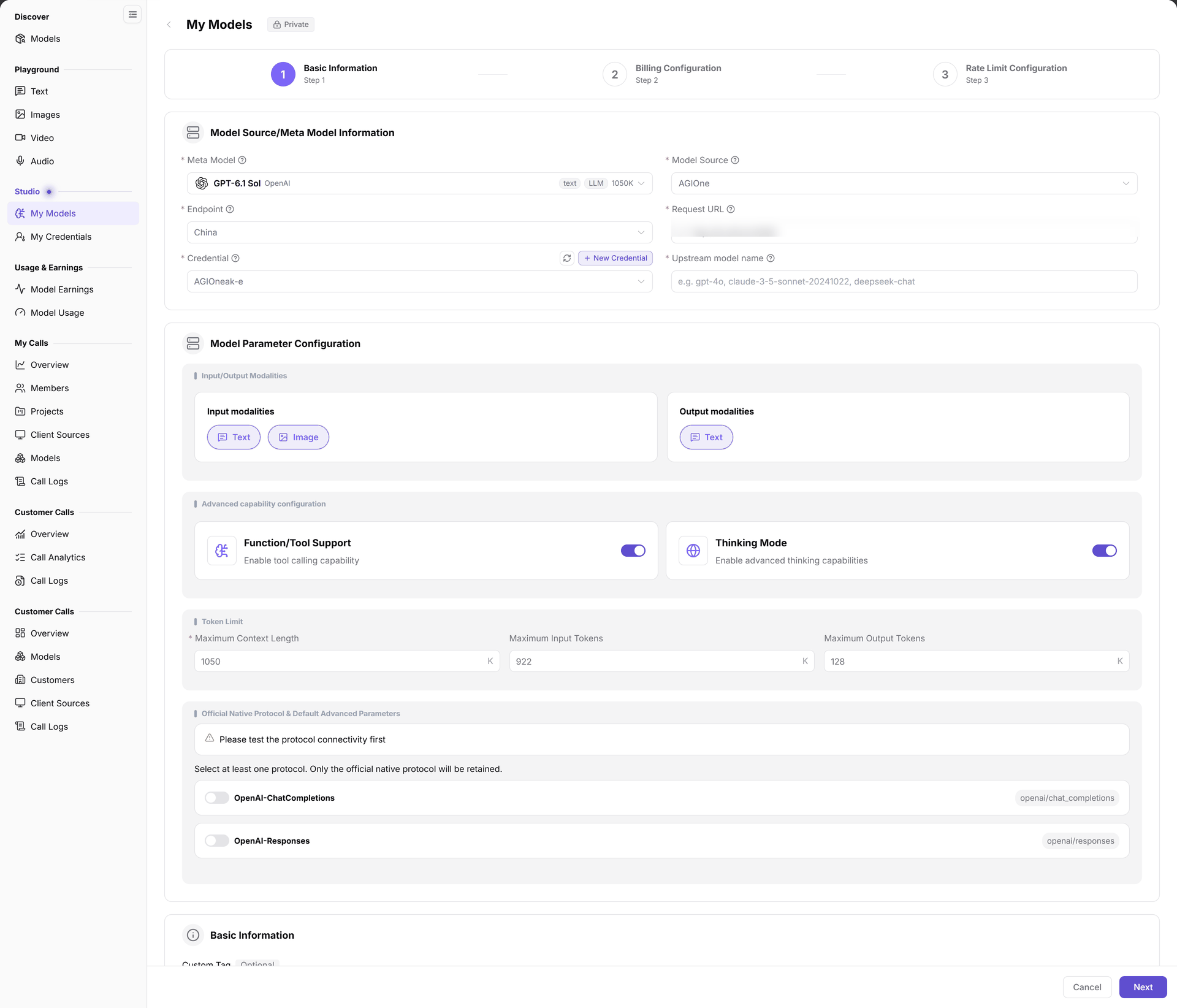
The figure shows a private text-model example, used only to explain shared fields such as meta model, source, Endpoint, request URL, credential, upstream model name, and protocols. It does not demonstrate the public-model publication flow or result. Access Mode is below the area shown; verify publication type and access control on the current public publishing page.
3. Complete Billing, Rate Limits, and Publication Checks
- Click Next to complete Step 2 Billing Configuration. Check the billing method, unit, and price.
- Complete Step 3 Rate Limit Configuration, confirm whether limits are enabled, and submit through the page.
- Return to My Published and check the target record's status, Effective version, and Pending version. Hand the target model, submitted revision, and publication scope to the operator and use Model Publishing Approval when review is required; submission alone does not establish that the model is listed.
- With the intended user's account, open Model Services > Discover > Models, click the model name, and check the provider card's price, route ID, and access. Use Playground or Quick Start to verify a controlled call.
Completion Checklist
| Check | Pass Criteria |
|---|---|
| Protocol | Connectivity testing passes for the intended model and protocol. |
| Publication record | My Published shows the target revision and expected status. |
| Cost and access | Price, billing unit, limits, and Access Mode have been reviewed. |
| User verification | The authorized audience can find the model and complete a controlled call. |
Troubleshooting
| Symptom | Check First and Continue |
|---|---|
| Basic information cannot proceed | Check required fields and protocol testing in My Models. |
| Publication record is missing | Confirm My Published, reset search, and check review status. |
| Visible model cannot be called | Verify Access Mode, tenant authorization, and provider selection in Models. |