Connect a Cloud Platform
Register the cloud-platform type before connecting accounts and regions.
Target Outcome
The required public- or private-cloud platform is available for later account access and authorization.
Applicable Roles
- Platform Operator
Before You Start
- Confirm the cloud type, vendor identifier, localized display name, and private-cloud URL when applicable.
- Confirm that you are authorized to maintain platform-level access settings.
Procedure
Add a Platform
- Open On-Cloud > Access Management > Cloud Platforms and check that the platform is not already registered.
- Select Add Cloud Platform, choose Public Cloud or Private Cloud, and select the target in Select Platform.
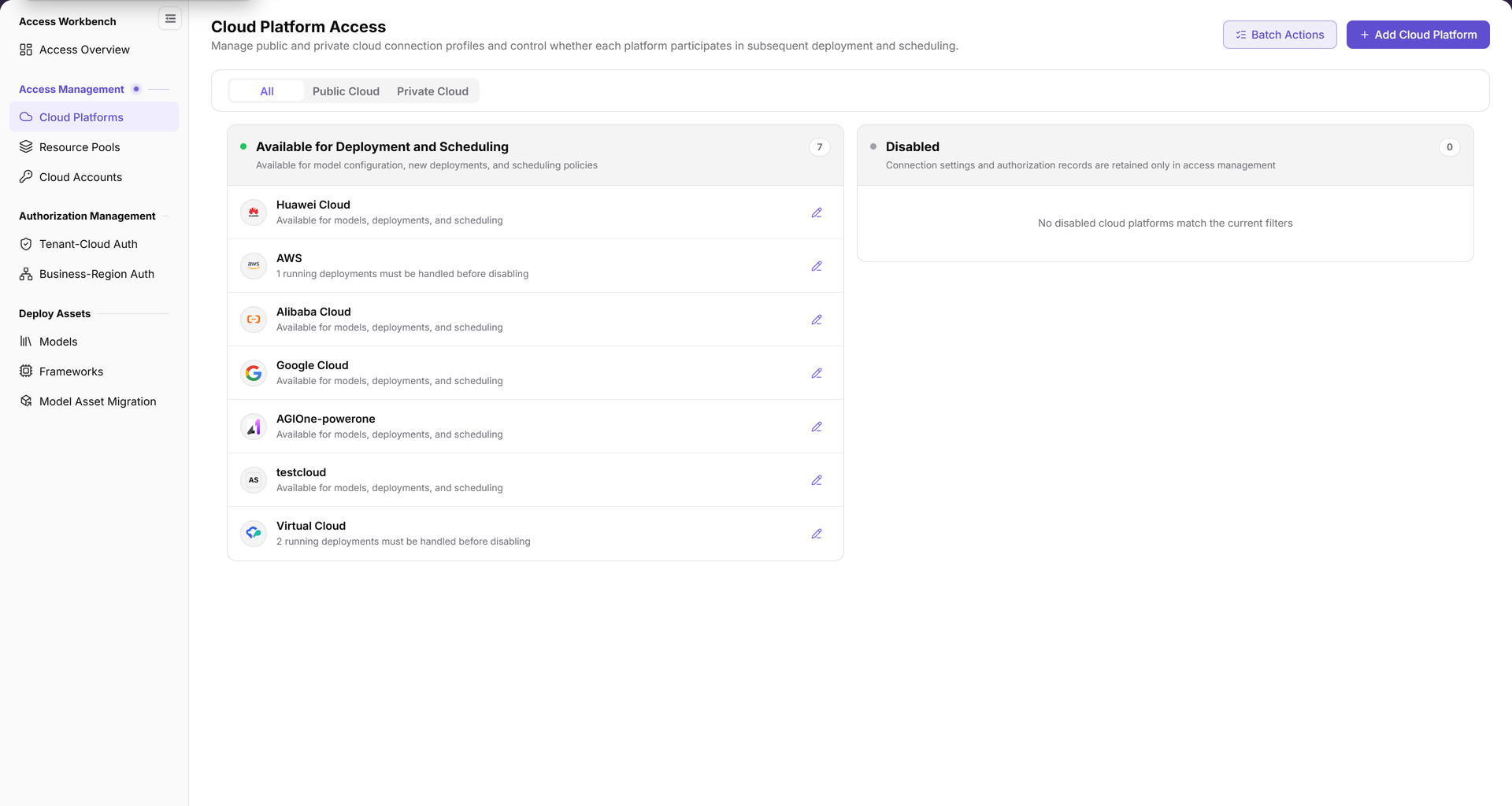
- Review the type and platform, select Confirm, and verify the record in the list.
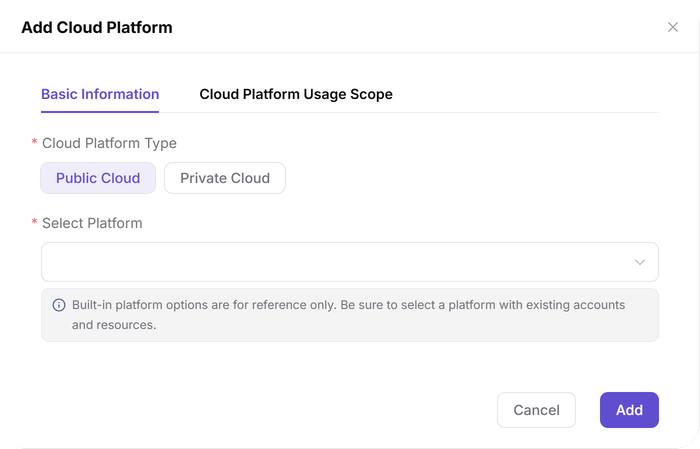
Adding a platform selects an existing platform. Provider identifier, display name, link address, and logo belong to maintenance of an existing private-cloud record, not required fields of the add flow. To maintain them, open Edit Cloud Platform on the private-cloud card and follow the user manual.
Completion Checklist
Check the results below; resolve failed items using the troubleshooting section before continuing.
| Check | Pass Criteria |
|---|---|
| 1 | Platform identifier and display names are correct. |
| 2 | Private-cloud access URL is reachable when applicable. |
| 3 | The platform is available in account creation. |
Troubleshooting
| Symptom | Check First |
|---|---|
| The platform is missing when adding an account | Platform status, vendor identifier, and saved display configuration |
| A private-cloud page cannot be opened | Access URL, DNS, network route, and certificate |
User Manual
Review complete fields, validation rules, and common issues for Cloud Platforms