Create Regions and Availability Zones
Scenario Goal
Create the region and availability zone for a local cluster so that clusters, specifications, images, storage, and workloads use the same resource boundary.
Applicable Roles
- Platform operator
Before You Start
- Map the data center, site, or resource group to the intended region and availability zone.
- Prepare unique identifiers and localized display names that do not duplicate existing records.
- Confirm the availability zone, network boundary, and storage boundary for the target cluster.
Feature Entry
- Role: Operator
- Menu: On-Prem > Resource Pools > Regions & Zones
- Page route:
/powerone/resourcepool/region
Procedure
- Open Regions & Zones and review existing regions, availability zones, and states before creating records.
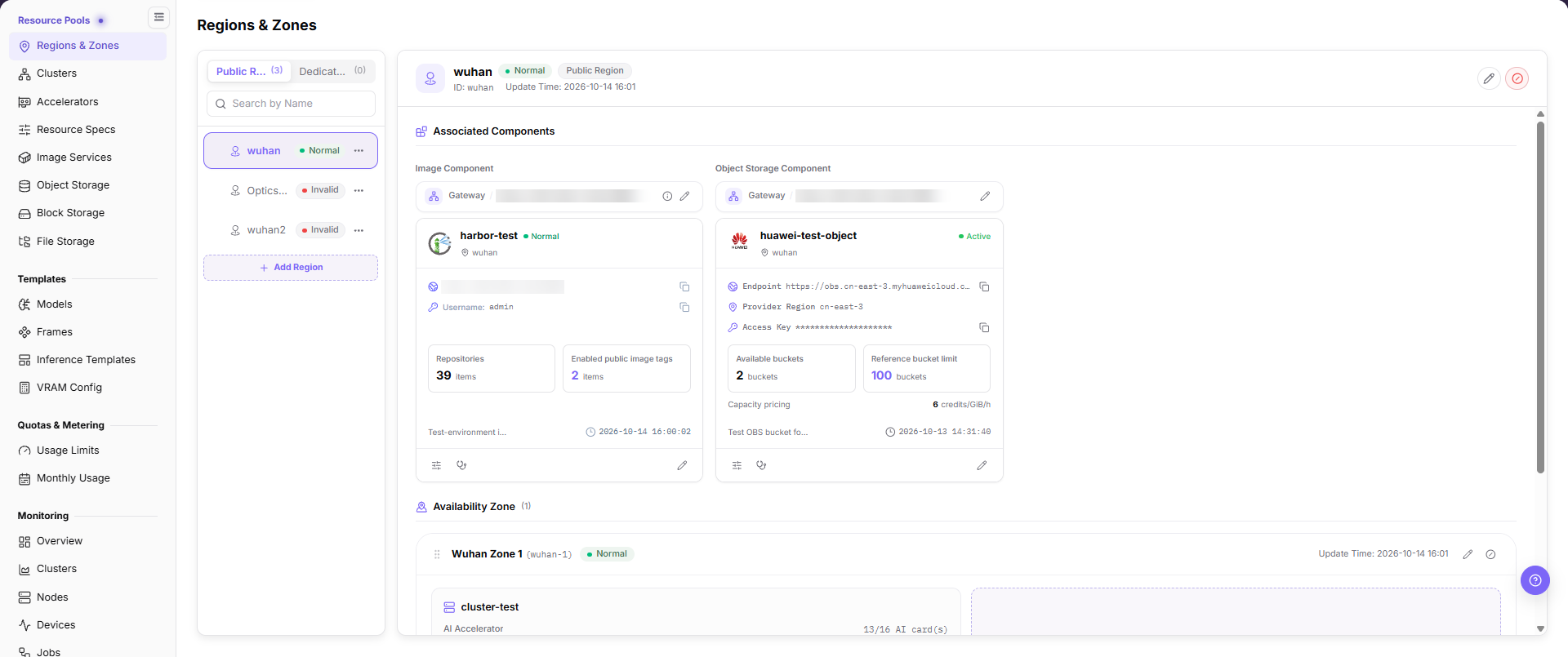
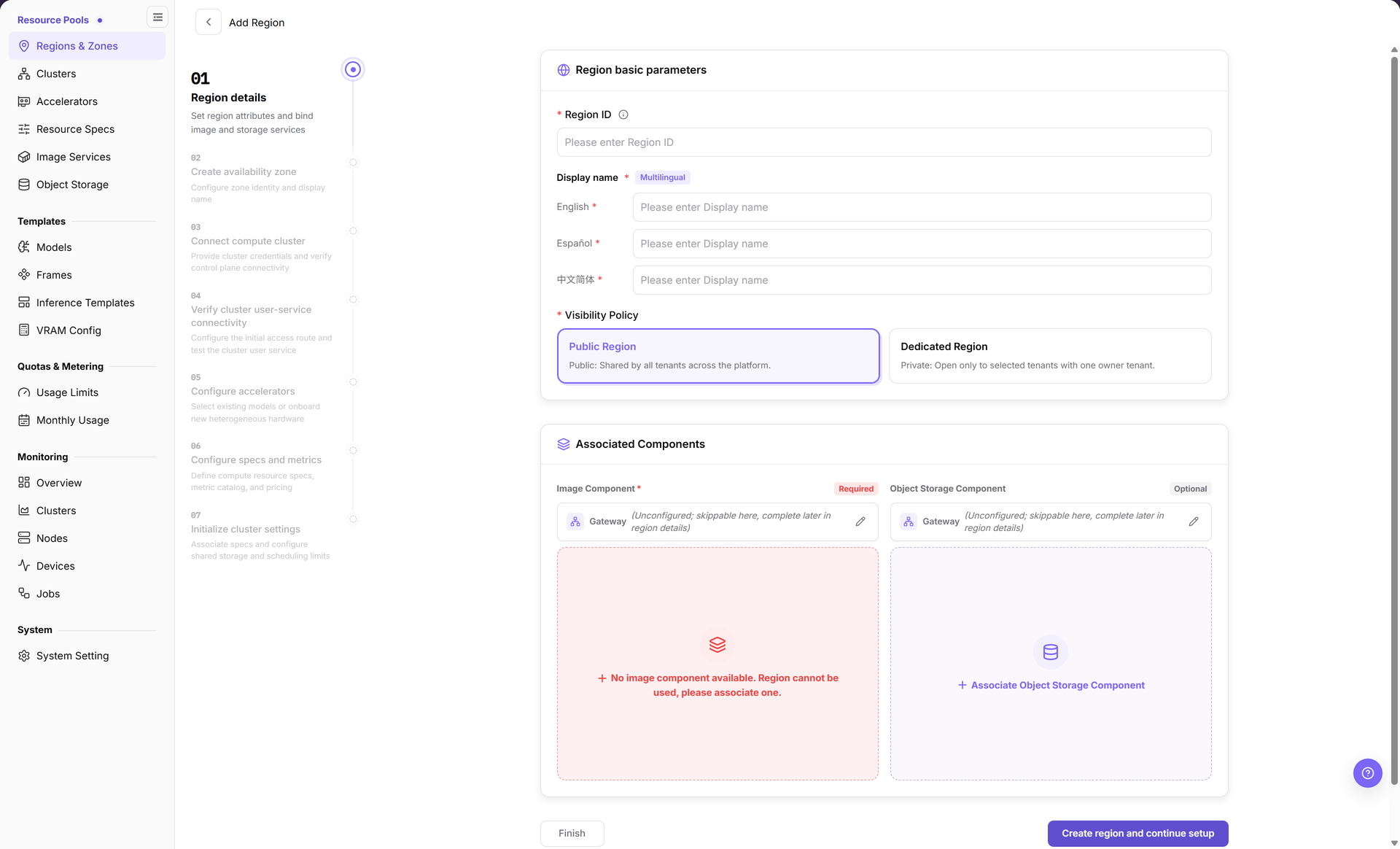
- Select Add Region to open the seven-step creation wizard: region details, availability zone, cluster connection, user-service connectivity, accelerators, specifications/metrics, and initial cluster settings. In step 1, enter the region ID, visibility policy, and localized names, bind the required image component and optional object storage. Review step 1 and select Create region and continue setup to enter step 2. Complete each step before continuing; region attributes alone do not complete onboarding.
To set the region's data Gateway endpoints, select the region and, in the
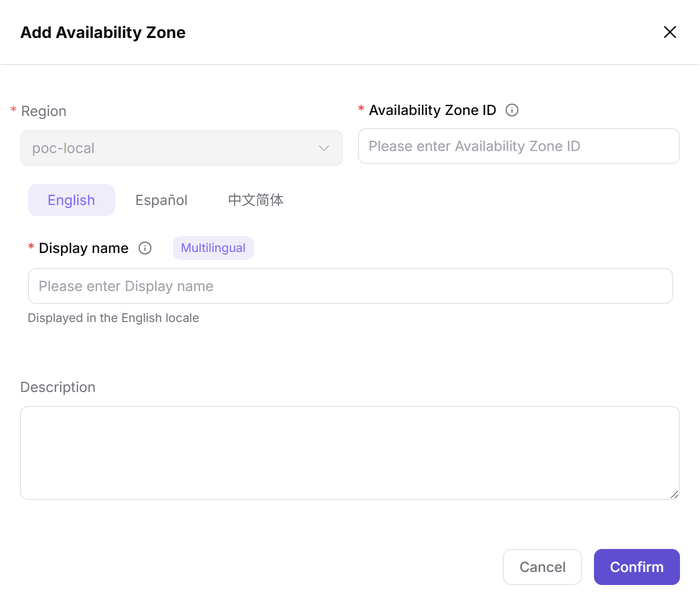
Associated Componentsarea, click Configure Data Gateway Endpoints on the image component card. Fill inImage Gateway EndpointandObject Storage Gateway Endpoint(a domain, anIP:port, or an address with a protocol;HTTPSis used when no protocol is given) and click Save. The dialog's Go to System Settings to manage all Gateways link opens On-Prem > System > System Setting for central Gateway management.Select the target region, then click Create AZ in the availability-zone section. The
Regionfield is prefilled and read-only; enter the availability zone ID and localized display names.
Return to the list, confirm that both records are visible and available, and record the availability zone to select during cluster registration. A newly created zone with no cluster yet shows the
Abnormalstate with the hintNo cluster is available under the current resource; expand the zone and use the dashedAssociate Clusterplaceholder card on the right of the expansion area to open the cluster registration wizard for that zone.To temporarily stop new use of a region, open its
...actions menu and select Disable; the same applies to a zone via its row Disable icon. ANormalzone row shows Edit and Disable; a disabled zone shows Enable; anAbnormalzone shows Edit and Delete. If the object is not shown, clear the name search box and check the other region type tab.To bring a disabled region or availability zone back into service, use the Enable action that appears on its row (or, for a region, on the detail header) once it is in the disabled state. Regions have no Delete action, while an availability zone also provides Delete (shown on the row by state) for permanent removal — prefer Disable/Enable to pause and restore, and use Delete only when a zone must be removed after confirming no cluster or job still depends on it. The operator manual page
On-Prem > Resource Pools > Regions & Zonesdocuments availability-zone deletion and cluster association as page behaviour rather than as a step-by-step operation, so follow the actions and prompts the live page displays for these two flows.Refresh the list and confirm the changed state before continuing to cluster registration or workload scheduling. Existing resources are not deleted by a disable operation, but new registration, creation, or scheduling may be restricted.
Completion Checklist
Do not register the cluster until its resource boundaries pass the checks below.
| Check Item | Success Criteria |
|---|---|
| Region | The region name, unique identifier, and state are correct. |
| Availability zone | The zone belongs to the correct region and has a unique name and identifier. |
| Downstream selection | The target region and availability zone are selectable during cluster registration. |
Troubleshooting
| Symptom | Check First |
|---|---|
| A region or zone cannot be created | Account permissions, required fields, unique identifiers, and duplicate records |
| The zone is unavailable during cluster registration | Region and zone state, assignment, and current tenant scope |
| Resources appear in the wrong location | Region choices for the cluster, specifications, images, and storage |
| The Enable action is not visible | The object may still be in the Normal state (which shows Disable, not Enable); confirm the state badge, the selected object, and Operator permission. Availability zones additionally show Delete, while regions do not |
| A disabled region or zone cannot be re-enabled | Verify the object's state badge is disabled so Enable appears, then use the row Enable action; check parent-region state and downstream cluster or workload dependencies before restoring |
User Manual
Review the complete fields and maintenance guidance for Regions & Zones