Install Crush and use AGIOne as the model provider
Install Crush
- Ensure Node.js (v20.x.x or later) is installed.
- Open cmd and execute the command:
npm install -g @charmland/crush- Verify installation results.
crush --version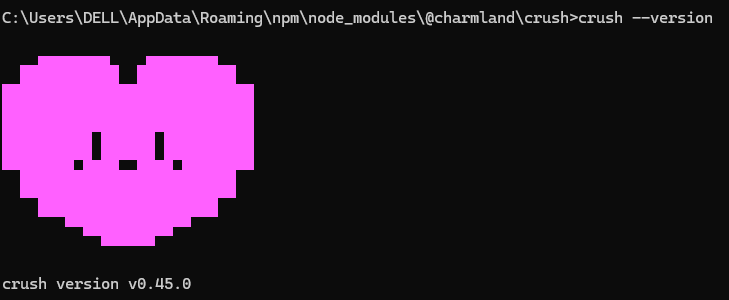
Model Configuration
- Visit AGIOne and register an account.
- Go to the model marketplace, select a model, enter the API Usage page, and obtain the API key and model id.
Configuration instructions (Using AGIOne as the model provider)
After successful installation, run the crush command to launch the interactive interface, select any model and press Enter. You can find the configuration file path below the API Key input interface. 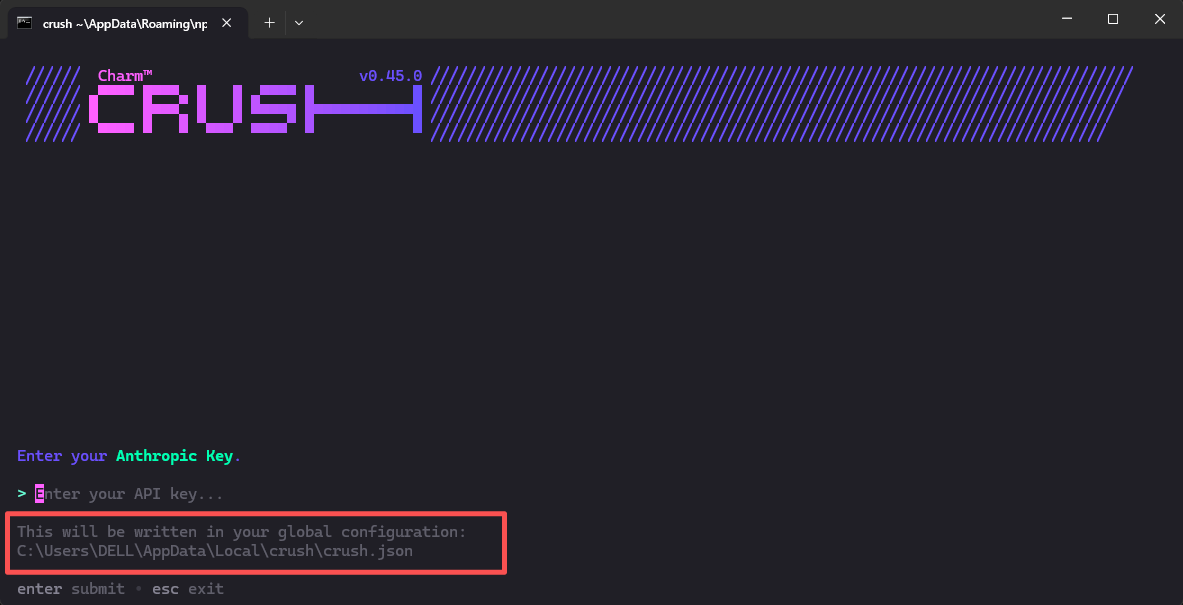 Locate the crush.json file according to the path (create it manually if it doesn't exist), and configure the provider and model information, After saving the file, return to the command prompt (cmd) and rerun the
 crush command to select and use your custom model.
- Provider Name: User-defined (The example name is AGIOne)
- base_url:
https://agione.pro/hyperone/xapi/api - api_key: Obtain the
Certified TOKENfrom the AGIOne platform model API call page - id: Obtain the
Model Idfrom the request parameters of the AGIOne platform model API call page - name: Model Name
json
{
  "$schema": "https://charm.land/crush.json",
  "providers": {
    "AGIOne": {
      "type": "openai-compat",
      "base_url": "https://agione.pro/hyperone/xapi/api",
      "api_key": "your_api_key",
      "models": [
        {
          "id": "model_id",
          "name": "model_name",
          "display_name": "display_name"
        }
      ]
    }
  }
}
Test Response
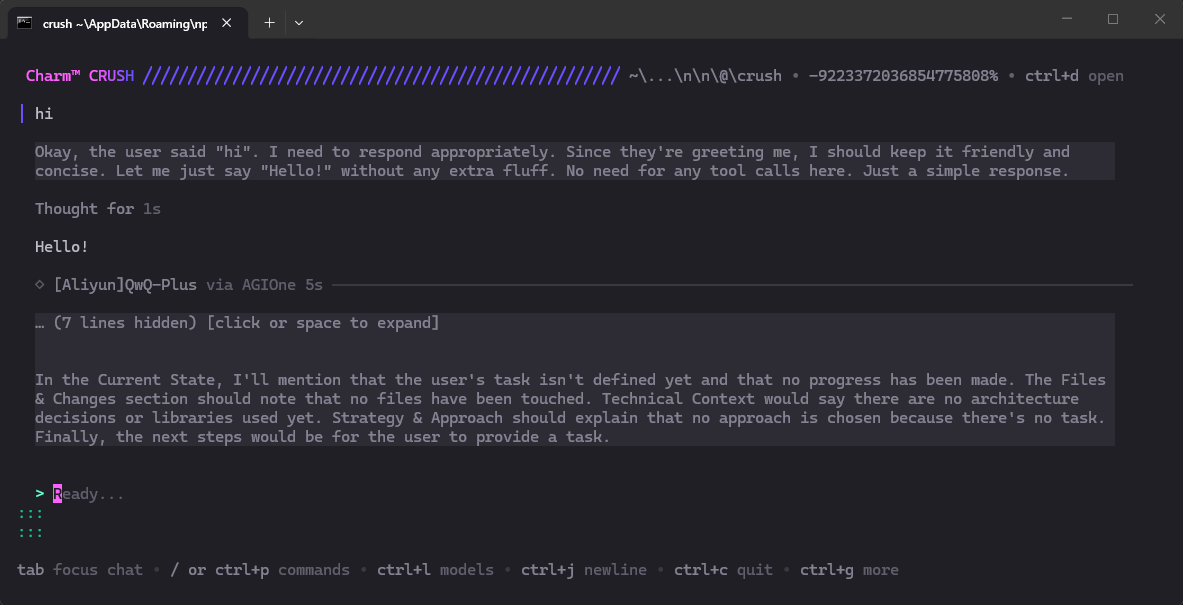
Run the startup command crush. The interface will display that the model we added has been selected. Enter the test text "hi" in the dialog box. If there is a normal response, the configuration is successful.