Integrating AGIOne models using Claude Code for VS Code in VSCode
Install Claude Code for VS Code
- Install and open VS Code.
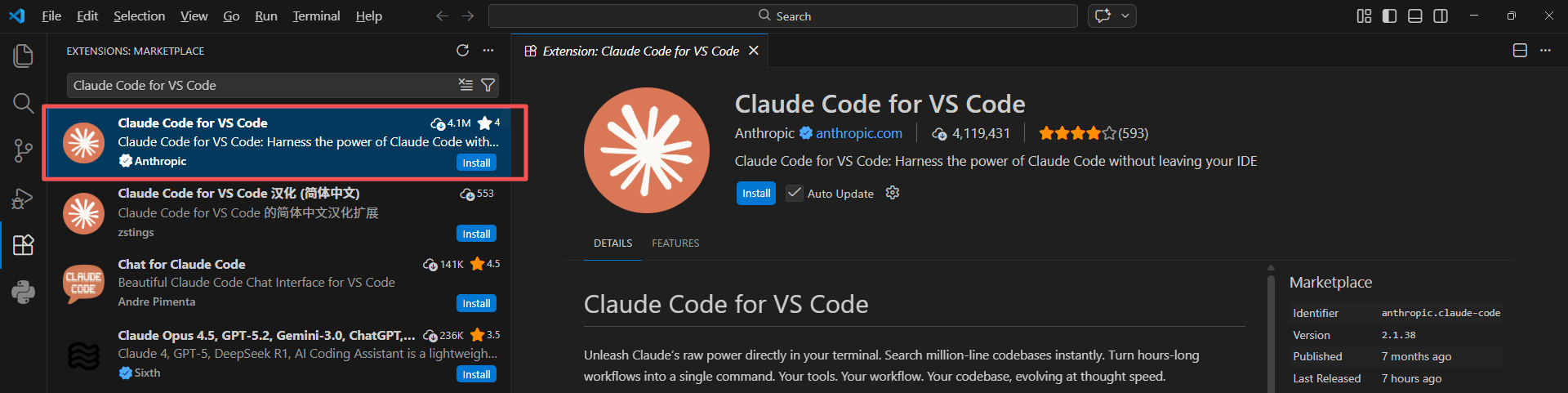
- In VS Code, go to the Extensions Store and search for Claude Code for VS Code, then click Install.
Model Configuration
- Visit AGIOne and register an account.
- Go to the model marketplace, select a model, enter the API Usage page, and obtain the API key and model id.
Configuration instructions (Using AGIOne as the model provider)
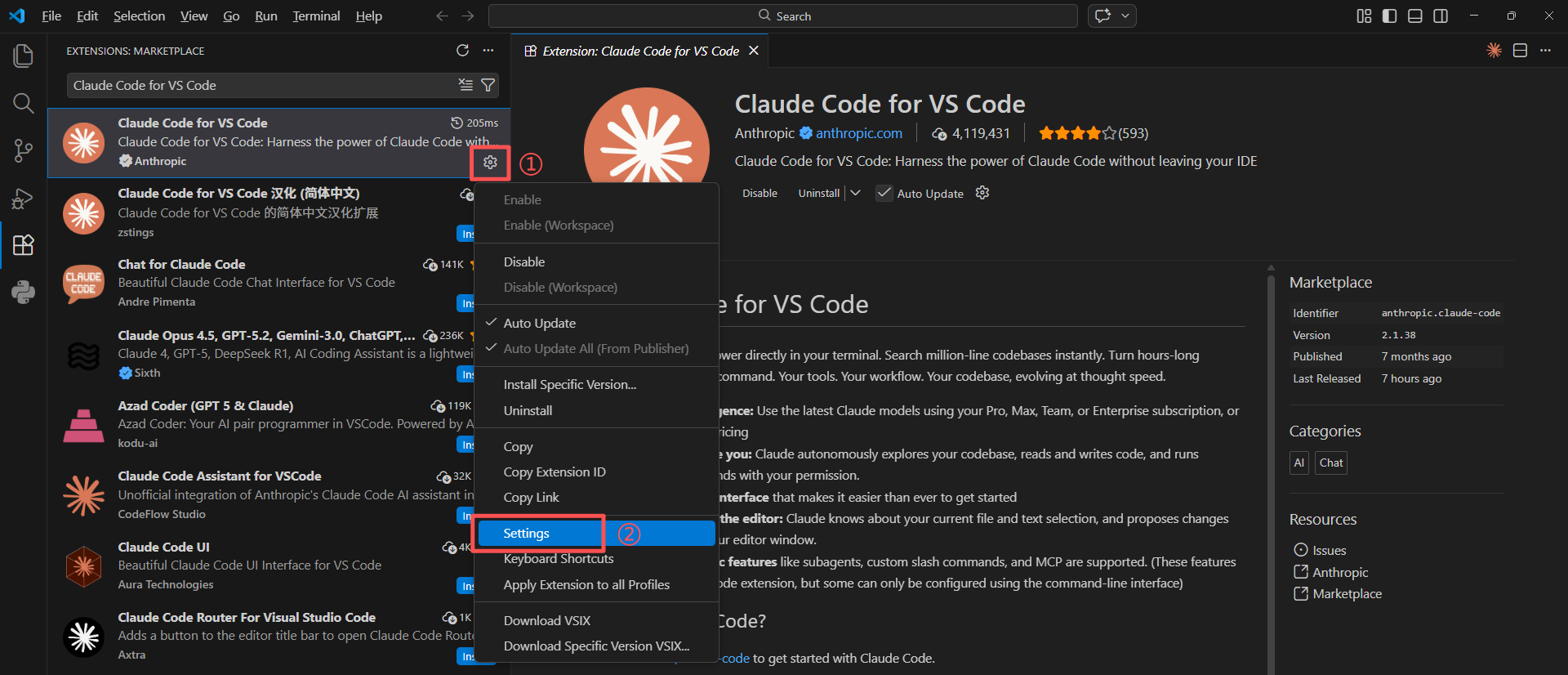
- After installation, click the gear icon in the lower right corner of the extension and select Settings.
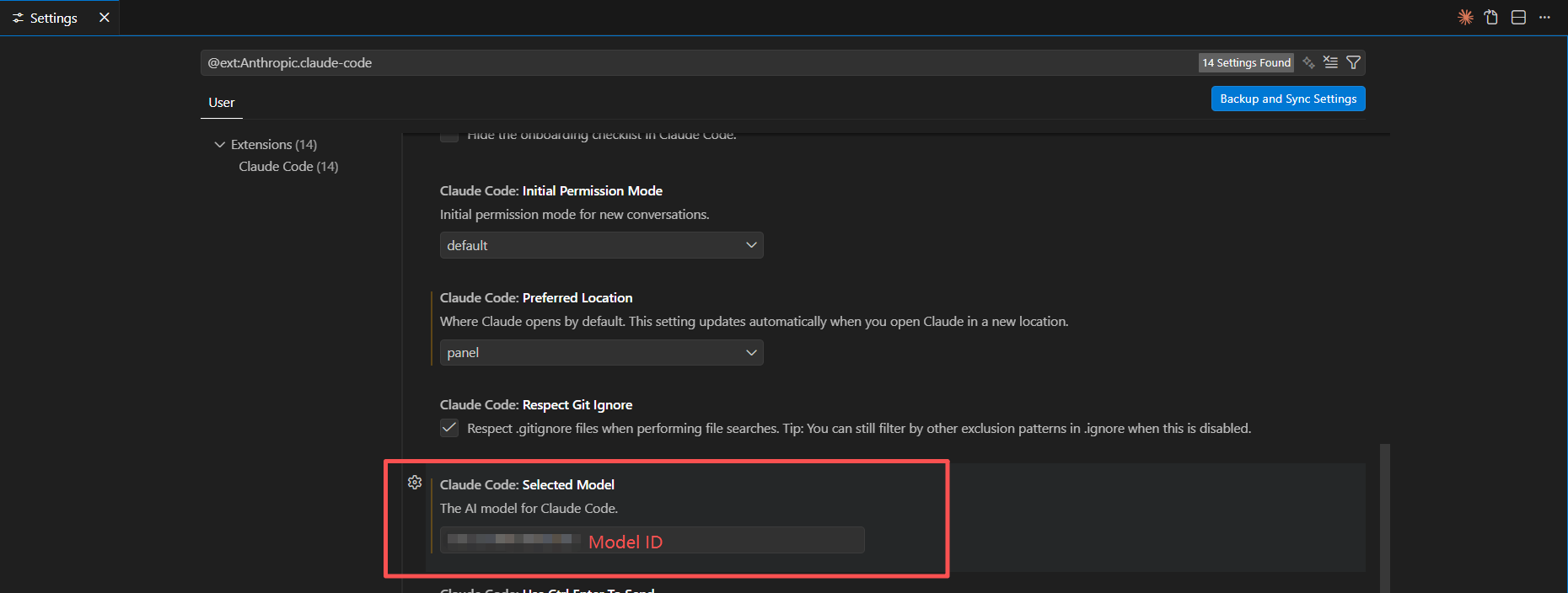
- Enter the model ID in Select Model.
- In the settings interface, find Environment Variables and click to edit the
settings.jsonfile.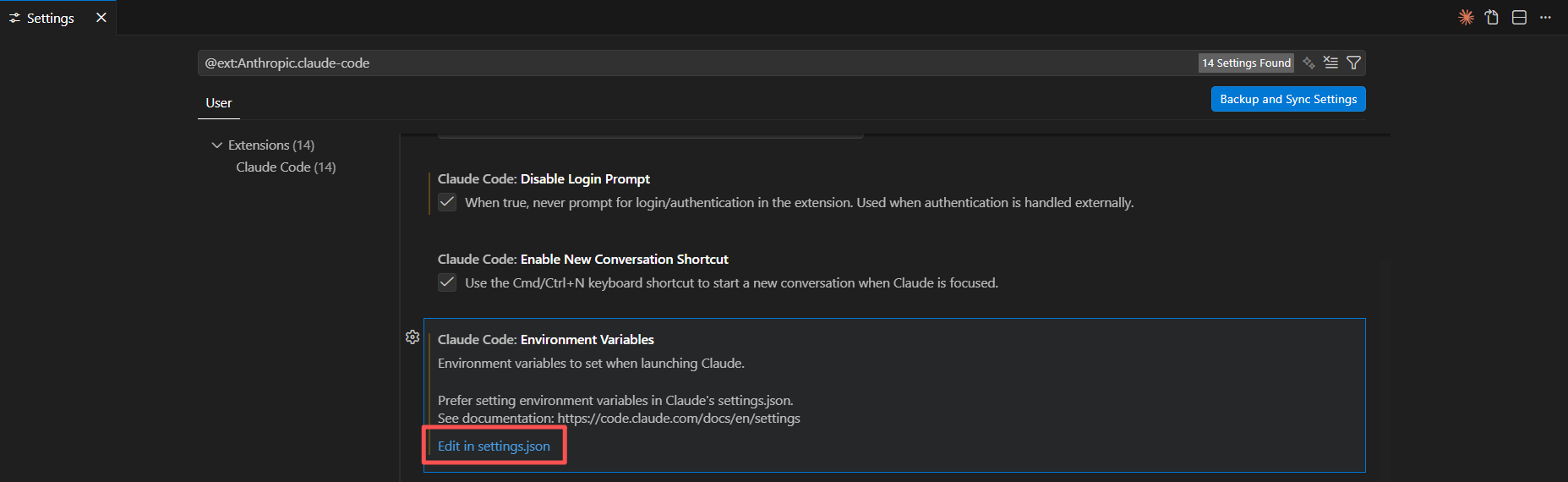
- After opening the
settings.jsonfile, configure the provider information.- ANTHROPIC_BASE_URL: https://agione.pro
- ANTHROPIC_AUTH_TOKEN: Obtain the
Certified TOKENfrom the AGIOne platform model API call page - claudeCode.selectedModel、ANTHROPIC_DEFAULT_HAIKU_MODEL、ANTHROPIC_DEFAULT_SONNET_MODEL、ANTHROPIC_DEFAULT_OPUS_MODEL: Obtain the
Model Idfrom the request parameters of the AGIOne platform model API call page
json
{
  "workbench.colorTheme": "Default Dark Modern",
  "window.zoomLevel": 1,
  "claudeCode.selectedModel": "<agione-model-id>",
  "claudeCode.environmentVariables": [
    {
      "name": "ANTHROPIC_BASE_URL",
      "value": "https://agione.pro"
    },
    {
      "name": "ANTHROPIC_AUTH_TOKEN",
      "value": "<agione-api-key>"
    },
    {
      "name": "ANTHROPIC_DEFAULT_HAIKU_MODEL",
      "value": "<agione-model-id>"
    },
    {
      "name": "ANTHROPIC_DEFAULT_SONNET_MODEL",
      "value": "<agione-model-id>"
    },
    {
      "name": "ANTHROPIC_DEFAULT_OPUS_MODEL",
      "value": "<agione-model-id>"
    }
  ],
  "claudeCode.disableLoginPrompt": true,
  "claudeCode.preferredLocation": "panel"
}
Using Claude Code
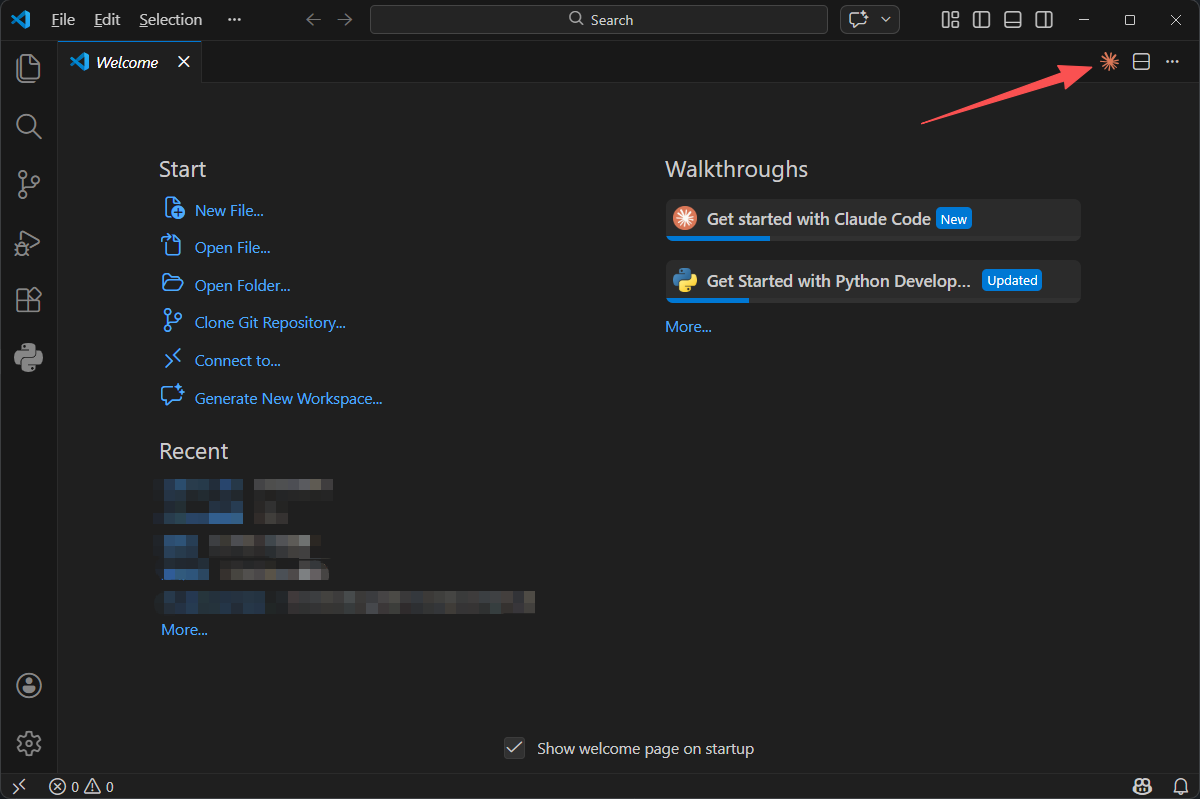
- After saving the configuration information, restart VS Code and click the Claude Code icon in the upper right corner.
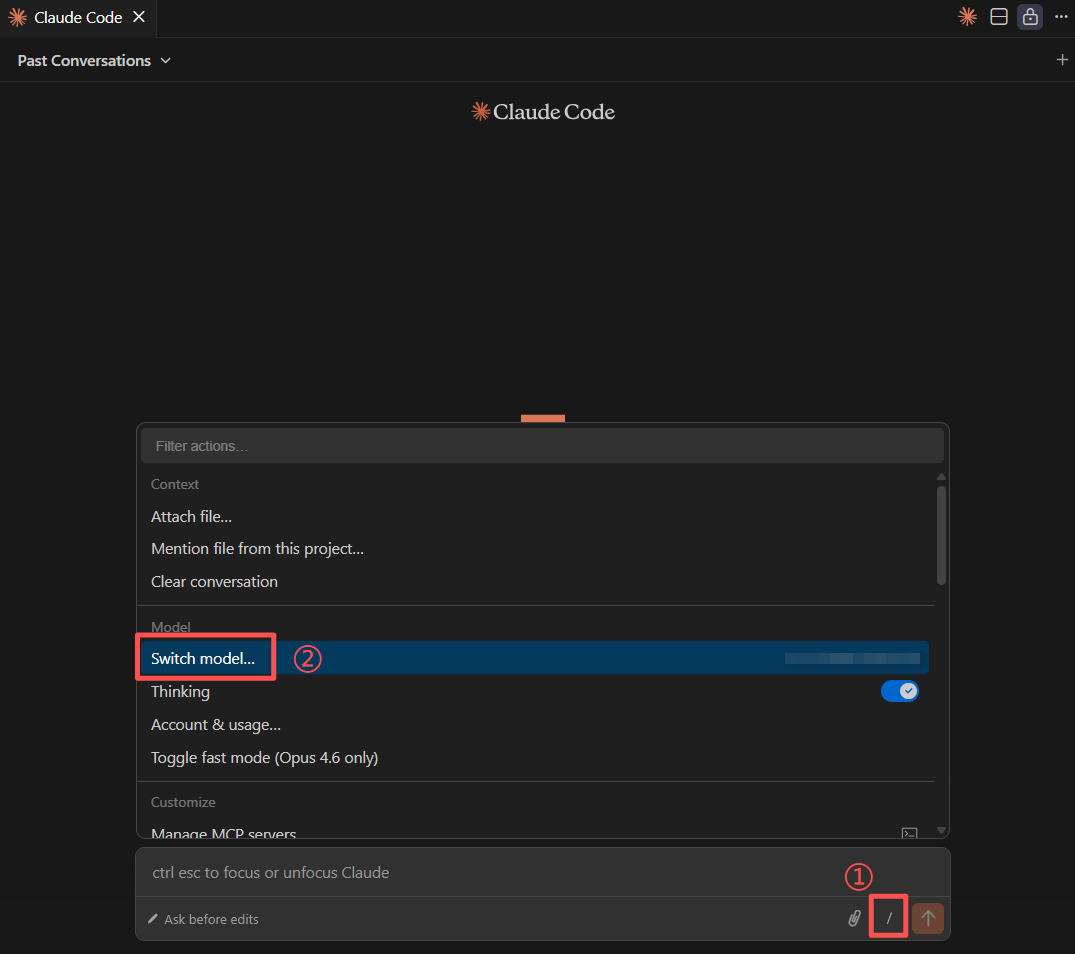
- Open the Claude Code dialog box, click the "/" -> "Switch Model" button below the input box, and select the model ID we added.
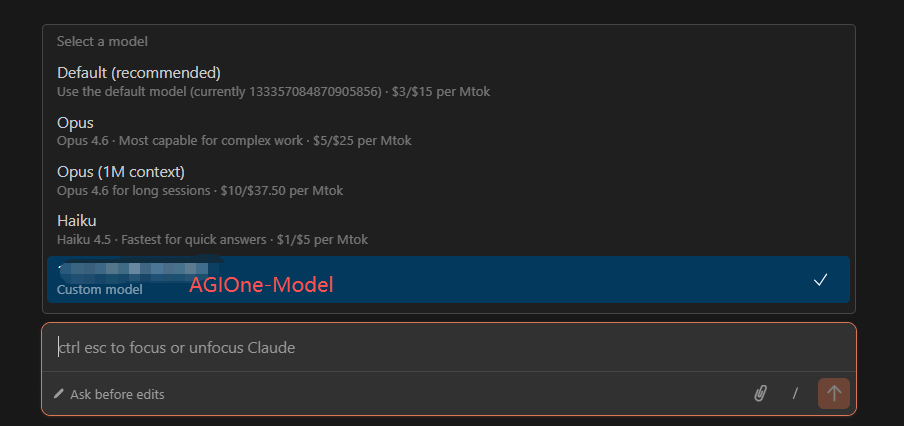
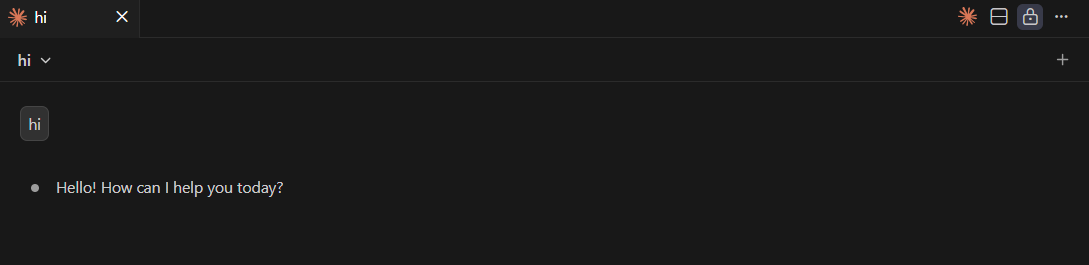
- Test Response: Send a test message such as "Hi". If a normal response is returned, the configuration is successful.